> ## Documentation Index
> Fetch the complete documentation index at: https://docs.pawtograder.com/llms.txt
> Use this file to discover all available pages before exploring further.
# Discussion Board
> Manage course discussions, moderate posts, and engage with students through the discussion board
# Discussion Board
Pawtograder's discussion board feature allows students and staff to discuss course content and ask questions. It is **not** intended to be a replacement for office hours, although there is an option to format the post as a question that needs an answer (as opposed to a "note" that does not need an answer).
Posts are formatted as Markdown and support drag-and-drop image uploads, making it easy for students and staff to share screenshots, diagrams, and other visual content.
 ## Key Features
### Feed and Topic Organization
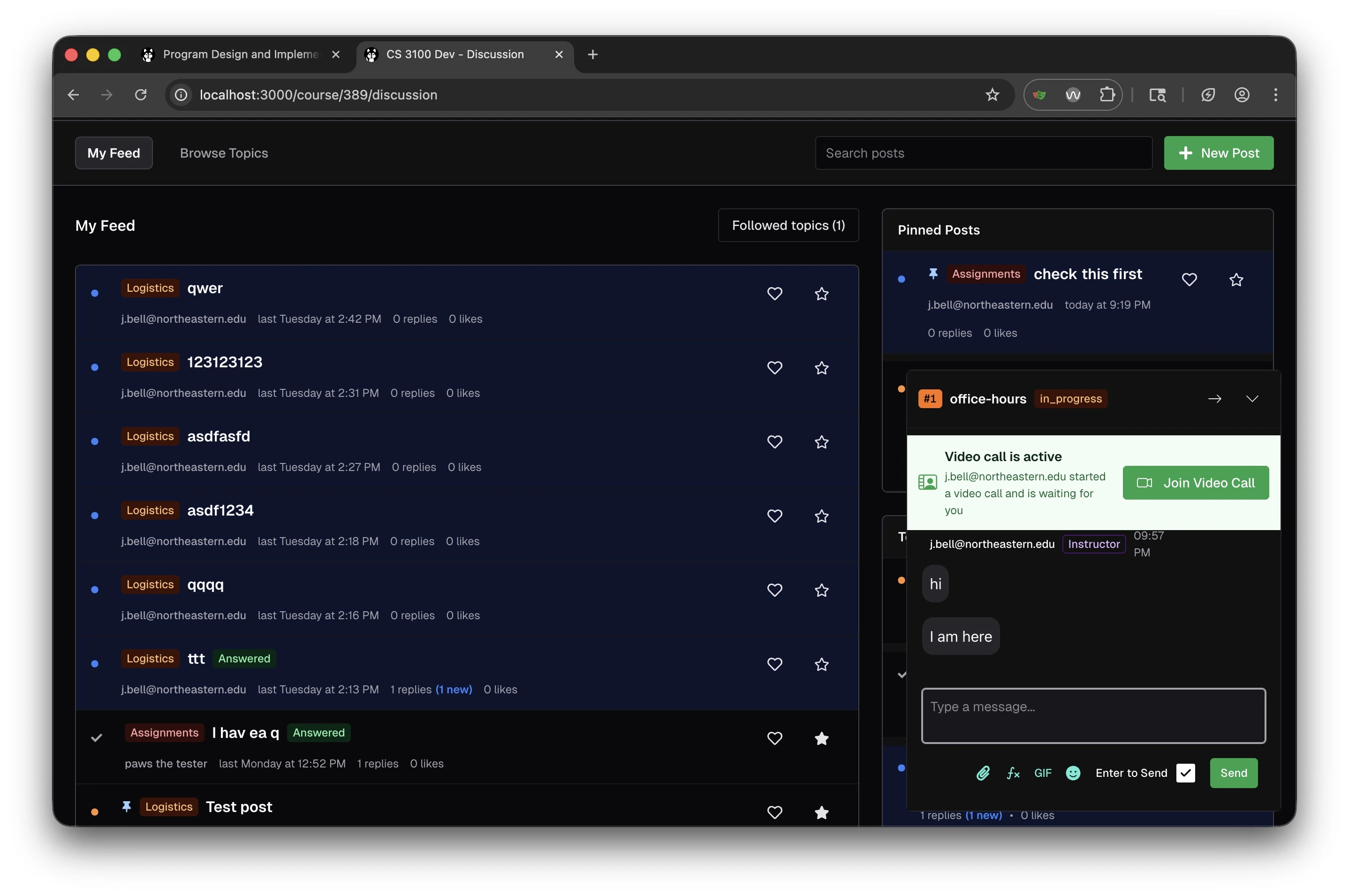
The discussion board uses a feed-based layout with two main views:
* **My Feed**: Shows all posts relevant to you, including posts from topics you follow
* **Browse Topics**: Allows you to explore posts organized by topic categories
Posts can be filtered by "Followed topics" to show only content from categories you're interested in.
### Pinned Posts
Instructors can pin important posts that appear in a dedicated "Pinned Posts" section in the sidebar. This is useful for:
* Highlighting frequently asked questions
* Surfacing important announcements
* Drawing attention to helpful resources
Pinned posts remain visible and easily accessible regardless of how many new posts are created.
### Post Visibility and Identity
Posts can be shared with the entire class, or with course staff only. Each user in a class has a pseudonym, and can choose to use their real name or their pseudonym. Staff can always see the real name of a user.
Students can edit their own posts, and staff can edit any post.
### Post Metadata
Each post displays:
* **Topic tag**: Color-coded category (e.g., "Logistics", "Assignments")
* **Author**: The poster's identity (real name or pseudonym)
* **Timestamp**: When the post was created
* **Reply count**: Number of responses, with indicators for new replies
* **Like count**: Community engagement metric
* **Karma**: Points earned by users for helpful contributions
* **Answered badge**: Indicates whether a question has been resolved
## Image Uploads
The discussion board supports drag-and-drop image uploads for both posts and replies. Users can:
* Drag image files directly into the post editor
* Paste images from the clipboard
* Click the image button in the toolbar to upload from your computer
Images are automatically uploaded to secure storage and embedded in posts using Markdown syntax. This makes it easy to share:
* Screenshots of errors or code output
* Diagrams and visual explanations
* Terminal messages and assignment-related images
## Karma System
Pawtograder includes an optional karma system to encourage helpful participation and recognize quality contributions on the discussion board. Students earn karma points when:
* Their posts receive likes from other students or staff
* Their answers are marked as helpful or accepted
* They provide useful responses that generate meaningful engagement
Karma scores are visible on user profiles and next to student names on posts and replies, helping identify active, helpful community members.
### Enabling Karma
To enable the karma system for your course:
1. Navigate to course settings
2. Enable the **Discussion Board Karma** option
3. Optionally configure karma weights for different actions
### Using Karma as an Instructor
You can use karma scores to:
* Identify active and helpful students
* Recognize students who contribute to peer learning
* Award participation credit based on discussion board engagement
* Encourage quality contributions over quantity
Consider using karma as part of your participation grade to encourage students to help each other on the discussion board.
### Leaderboard Configuration
When enabled, a leaderboard appears in the sidebar showing top contributors based on their karma scores. Instructors can configure the leaderboard to be:
* **Prominent**: Displayed to encourage competition and recognition
* **Subtle**: Available but less emphasized (e.g., collapsed by default) to reduce competitive pressure
* **Disabled**: Completely hidden if you prefer not to use gamification
You can also customize the number of top contributors to display and the time period used for ranking (e.g., all-time, this semester).
### Best Practices
* **Set expectations**: Explain to students how karma works and what behaviors are rewarded
* **Recognize contributions**: Encourage students to like helpful posts
* **Mark answers**: Mark the best answer to questions to reward helpful students
* **Monitor for quality**: Ensure students are providing helpful content, not just posting for points
* **Balance competition**: Consider your course culture when deciding how prominent to make the leaderboard
* **Adjust as needed**: You can enable or disable these features at any time based on how they're working in your course
The karma system and leaderboard are optional features. Many courses find them helpful for encouraging participation, while others prefer a less gamified approach. Choose what works best for your teaching style and student population.
## Error Pins
Error pins automatically surface relevant discussion posts to students when they encounter errors in their assignment submissions. When a student's autograder run produces an error, the system:
* Matches the error message against discussion board posts
* Displays relevant pinned posts and discussions to the student
* Helps students find solutions without joining the office hours queue
* Reduces repetitive questions by surfacing existing answers
### Creating Error Pins
You can create error pins in two scopes:
* **Assignment-specific**: Matches only submissions for a specific assignment
* **Class-level**: Matches submissions across all assignments in the class
To create an error pin:
1. Navigate to a discussion thread that addresses a common error
2. Click **Create Error Pin** in the thread actions
3. Choose between assignment-specific or class-level
4. Define matching rules based on:
* Test names and output
* Build/lint errors
* Score ranges
* Error messages
5. Preview matches to see which submissions would be linked
6. Save the pin
### Rule Logic
Error pins support two rule evaluation modes:
* **AND logic**: All rules must match for a submission to be linked
* **OR logic**: Any rule matching will link the submission
### Managing Error Pins
View and manage all error pins for your class in the Error Pins management interface. You can:
* Enable or disable pins
* View match counts
* Edit pin rules
* Delete pins
### Creating Effective Error Pins
To maximize the effectiveness of error pins:
1. **Pin posts about common errors**: When you notice students frequently encountering the same error, create and pin a discussion post explaining the solution
2. **Use clear error messages**: Include the actual error message text in your post so the system can match it
3. **Provide step-by-step solutions**: Make pinned posts comprehensive so students can resolve issues independently
4. **Update regularly**: As new common errors emerge, create new pinned posts to address them
Error pins integrate with the [test insights dashboard](/staff/assignments/test-insights) to help you identify which errors are most common and deserve dedicated discussion posts.
## Active Help Request Integration
When a student has an active help request in office hours, a widget appears in the discussion board sidebar showing:
* The current status of their help request (e.g., "in\_progress")
* Video call notifications when staff starts a video chat
* A **Join Video Call** button for quick access to help sessions
This integration ensures students never miss updates on their help requests, even while browsing the discussion board.
## Notifications
By default, users do not get notifications for new posts, but can optionally "watch" a post to receive notifications when the post is updated or receives a new reply. Interacting with a post (e.g. replying to it) will automatically watch the post.
## Key Features
### Feed and Topic Organization
The discussion board uses a feed-based layout with two main views:
* **My Feed**: Shows all posts relevant to you, including posts from topics you follow
* **Browse Topics**: Allows you to explore posts organized by topic categories
Posts can be filtered by "Followed topics" to show only content from categories you're interested in.
### Pinned Posts
Instructors can pin important posts that appear in a dedicated "Pinned Posts" section in the sidebar. This is useful for:
* Highlighting frequently asked questions
* Surfacing important announcements
* Drawing attention to helpful resources
Pinned posts remain visible and easily accessible regardless of how many new posts are created.
### Post Visibility and Identity
Posts can be shared with the entire class, or with course staff only. Each user in a class has a pseudonym, and can choose to use their real name or their pseudonym. Staff can always see the real name of a user.
Students can edit their own posts, and staff can edit any post.
### Post Metadata
Each post displays:
* **Topic tag**: Color-coded category (e.g., "Logistics", "Assignments")
* **Author**: The poster's identity (real name or pseudonym)
* **Timestamp**: When the post was created
* **Reply count**: Number of responses, with indicators for new replies
* **Like count**: Community engagement metric
* **Karma**: Points earned by users for helpful contributions
* **Answered badge**: Indicates whether a question has been resolved
## Image Uploads
The discussion board supports drag-and-drop image uploads for both posts and replies. Users can:
* Drag image files directly into the post editor
* Paste images from the clipboard
* Click the image button in the toolbar to upload from your computer
Images are automatically uploaded to secure storage and embedded in posts using Markdown syntax. This makes it easy to share:
* Screenshots of errors or code output
* Diagrams and visual explanations
* Terminal messages and assignment-related images
## Karma System
Pawtograder includes an optional karma system to encourage helpful participation and recognize quality contributions on the discussion board. Students earn karma points when:
* Their posts receive likes from other students or staff
* Their answers are marked as helpful or accepted
* They provide useful responses that generate meaningful engagement
Karma scores are visible on user profiles and next to student names on posts and replies, helping identify active, helpful community members.
### Enabling Karma
To enable the karma system for your course:
1. Navigate to course settings
2. Enable the **Discussion Board Karma** option
3. Optionally configure karma weights for different actions
### Using Karma as an Instructor
You can use karma scores to:
* Identify active and helpful students
* Recognize students who contribute to peer learning
* Award participation credit based on discussion board engagement
* Encourage quality contributions over quantity
Consider using karma as part of your participation grade to encourage students to help each other on the discussion board.
### Leaderboard Configuration
When enabled, a leaderboard appears in the sidebar showing top contributors based on their karma scores. Instructors can configure the leaderboard to be:
* **Prominent**: Displayed to encourage competition and recognition
* **Subtle**: Available but less emphasized (e.g., collapsed by default) to reduce competitive pressure
* **Disabled**: Completely hidden if you prefer not to use gamification
You can also customize the number of top contributors to display and the time period used for ranking (e.g., all-time, this semester).
### Best Practices
* **Set expectations**: Explain to students how karma works and what behaviors are rewarded
* **Recognize contributions**: Encourage students to like helpful posts
* **Mark answers**: Mark the best answer to questions to reward helpful students
* **Monitor for quality**: Ensure students are providing helpful content, not just posting for points
* **Balance competition**: Consider your course culture when deciding how prominent to make the leaderboard
* **Adjust as needed**: You can enable or disable these features at any time based on how they're working in your course
The karma system and leaderboard are optional features. Many courses find them helpful for encouraging participation, while others prefer a less gamified approach. Choose what works best for your teaching style and student population.
## Error Pins
Error pins automatically surface relevant discussion posts to students when they encounter errors in their assignment submissions. When a student's autograder run produces an error, the system:
* Matches the error message against discussion board posts
* Displays relevant pinned posts and discussions to the student
* Helps students find solutions without joining the office hours queue
* Reduces repetitive questions by surfacing existing answers
### Creating Error Pins
You can create error pins in two scopes:
* **Assignment-specific**: Matches only submissions for a specific assignment
* **Class-level**: Matches submissions across all assignments in the class
To create an error pin:
1. Navigate to a discussion thread that addresses a common error
2. Click **Create Error Pin** in the thread actions
3. Choose between assignment-specific or class-level
4. Define matching rules based on:
* Test names and output
* Build/lint errors
* Score ranges
* Error messages
5. Preview matches to see which submissions would be linked
6. Save the pin
### Rule Logic
Error pins support two rule evaluation modes:
* **AND logic**: All rules must match for a submission to be linked
* **OR logic**: Any rule matching will link the submission
### Managing Error Pins
View and manage all error pins for your class in the Error Pins management interface. You can:
* Enable or disable pins
* View match counts
* Edit pin rules
* Delete pins
### Creating Effective Error Pins
To maximize the effectiveness of error pins:
1. **Pin posts about common errors**: When you notice students frequently encountering the same error, create and pin a discussion post explaining the solution
2. **Use clear error messages**: Include the actual error message text in your post so the system can match it
3. **Provide step-by-step solutions**: Make pinned posts comprehensive so students can resolve issues independently
4. **Update regularly**: As new common errors emerge, create new pinned posts to address them
Error pins integrate with the [test insights dashboard](/staff/assignments/test-insights) to help you identify which errors are most common and deserve dedicated discussion posts.
## Active Help Request Integration
When a student has an active help request in office hours, a widget appears in the discussion board sidebar showing:
* The current status of their help request (e.g., "in\_progress")
* Video call notifications when staff starts a video chat
* A **Join Video Call** button for quick access to help sessions
This integration ensures students never miss updates on their help requests, even while browsing the discussion board.
## Notifications
By default, users do not get notifications for new posts, but can optionally "watch" a post to receive notifications when the post is updated or receives a new reply. Interacting with a post (e.g. replying to it) will automatically watch the post.