> ## Documentation Index
> Fetch the complete documentation index at: https://docs.pawtograder.com/llms.txt
> Use this file to discover all available pages before exploring further.
# Emailer
> Compose and send email to a course audience, what the template variables do, and what happens after you press Send
# Emailer
**Course Settings → Emailer** is the only place in Pawtograder that sends mail on
your behalf. Everything else labeled "export" writes a file to your computer; see
[Exporting Course Data](/staff/exports). The menu entry is instructor-only.
The names do not line up. The nav calls it **Emailer**, the URL is
`/course//manage/course/emails`, the browser tab says **Emails**, and
the heading on the page reads **Create and Send Emails**. They are all the same
page.
The page has three parts, top to bottom: a composer, a **Preview and send**
section that appears once you have drafted something, and a **History** section
(see [History](#history) below).
## Composing a message
Pawtograder builds one personalized message per recipient rather than one message
with many addresses. You pick an audience, write a subject and body that may
contain template variables, and Pawtograder expands those variables separately
for each person.
### Email To
**Email To** picks the audience and is the first thing to set, because it decides
which other fields appear:
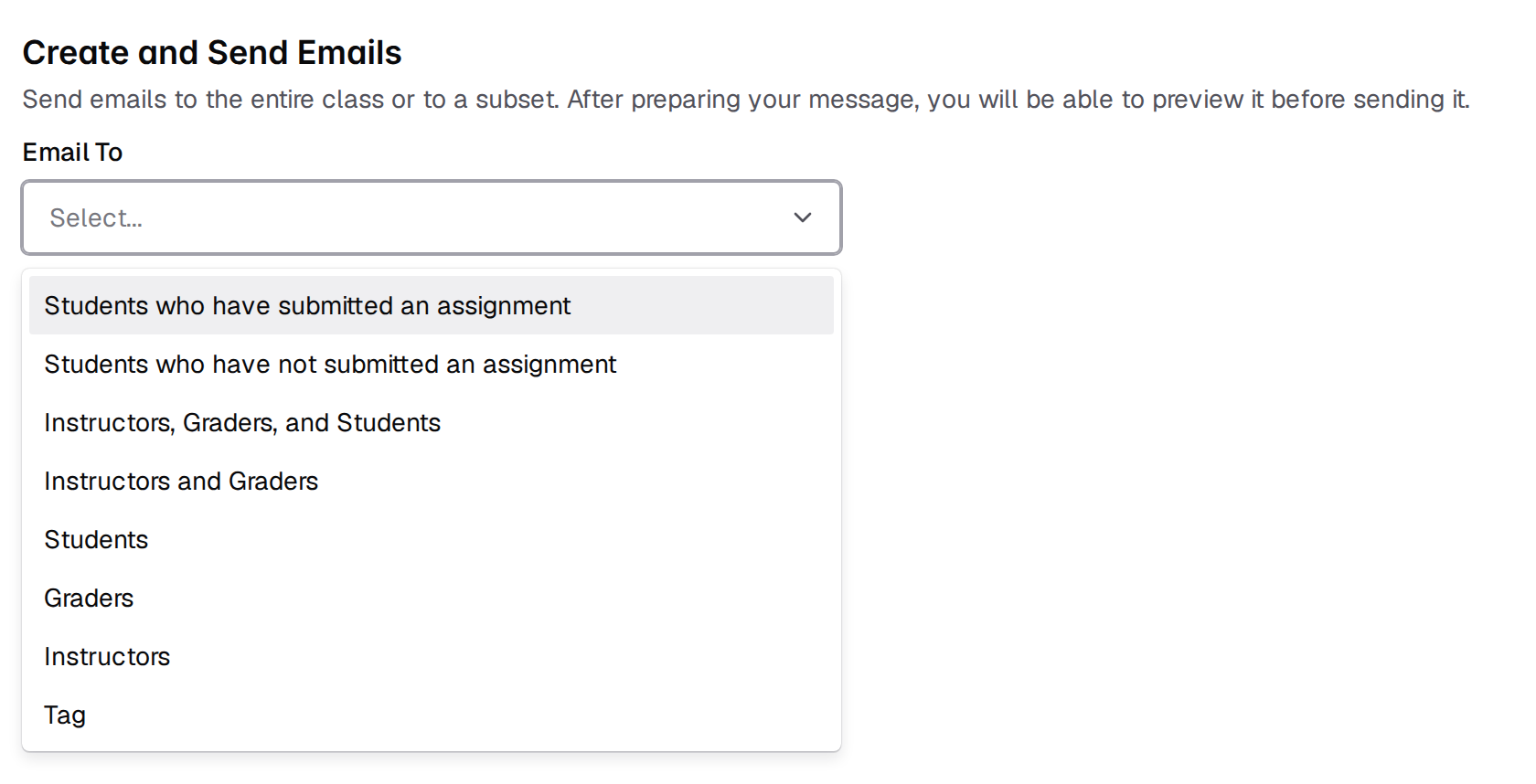 | Option | Who it selects |
| ------------------------------------------------- | -------------------------------------------------------------------------------------------------------------- |
| **Students who have submitted an assignment** | Everyone behind an active submission for the assignment you pick, including every member of a group submission |
| **Students who have not submitted an assignment** | Students on the roster who are not in the list above |
| **Instructors, Graders, and Students** | All three roles |
| **Instructors and Graders** | Both staff roles |
| **Students** | The student role |
| **Graders** | The grader role |
| **Instructors** | The instructor role |
| **Tag** | Everyone carrying the tag you pick |
The two submission audiences add an **Assignment** picker. **Tag** adds a
**Select Tag** picker, which matches on the tag's name, color, and visibility
together.
The five role-based audiences add **Select class section(s)** and **Select lab
section(s)**, both optional multi-selects. Leaving them empty means the whole
audience. Each lab section option shows how many facilitators it has, and
selecting a lab section includes that section's leaders as well as the students
enrolled in it.
The section filters are not offered for the two submission audiences. If you
need "students in section 2 who have not submitted", the Emailer cannot express
it in one send.
### Addresses, Cc, and Reply-to
Recipient addresses come from each person's Pawtograder account, and nothing in
the composer can change them.
**Cc emails** is a multi-select of course members' addresses, and you can also
type an address that is not in the course. **Cc my email** is a shortcut that
adds your own address to that list.
The Cc list is attached to *every* individual message, not to the send as a
whole. Cc'ing yourself on a 200-student send delivers 200 copies to your inbox.
There is no digest or single summary copy.
**Reply-to email** is a free-text field. Leave it blank and Pawtograder uses your
own address, which is also shown as the field's placeholder. Whatever ends up
here is where replies go.
### Subject and Body
**Subject** is plain text. **Body** uses Pawtograder's Markdown editor.
The body is delivered as plain text, not as rendered HTML. Markdown you type
arrives with its syntax intact: `**important**` reaches your students with the
asterisks showing. Write plain prose and paste full URLs rather than Markdown
links.
### Template variables
Once you choose an audience, a **Template Variables** panel lists the variables
that audience supports. Write them in the subject or the body in braces, and each
recipient's copy gets their own value:
| Variable | Available for | Expands to |
| ------------------------- | ---------------------------- | ----------------------------------------- |
| `{course_name}` | every audience | Your course's name |
| `{class_section}` | every audience | The recipient's class section |
| `{lab_section}` | every audience | The recipient's lab section |
| `{tag_name}` | **Tag** | The tag you selected |
| `{assignment_name}` | the two submission audiences | The assignment's title |
| `{assignment_slug}` | the two submission audiences | The assignment's slug |
| `{assignment_url}` | the two submission audiences | A link to the assignment |
| `{due_date}` | the two submission audiences | The recipient's own deadline |
| `{assignment_group_name}` | the two submission audiences | The recipient's group for that assignment |
`{due_date}` is the recipient's effective deadline, so it accounts for
lab-section-based scheduling and for any extension or late tokens applied to
that student or group. It is rendered in the time zone you are viewing in.
A variable with no value for a given recipient is left in the message as literal
text. A student who is not in a group receives the characters
`{assignment_group_name}`, and a student with no lab section receives
`{lab_section}` unexpanded. Check the preview before sending.
### Add to Preview
**Add to Preview** stays disabled until you have chosen an audience and filled in
both a subject and a body (and picked the assignment or tag, if your audience
needs one). Pressing it expands the variables, creates one draft message per
recipient, and clears the composer so you can stack another audience into the
same send.
## Preview and send
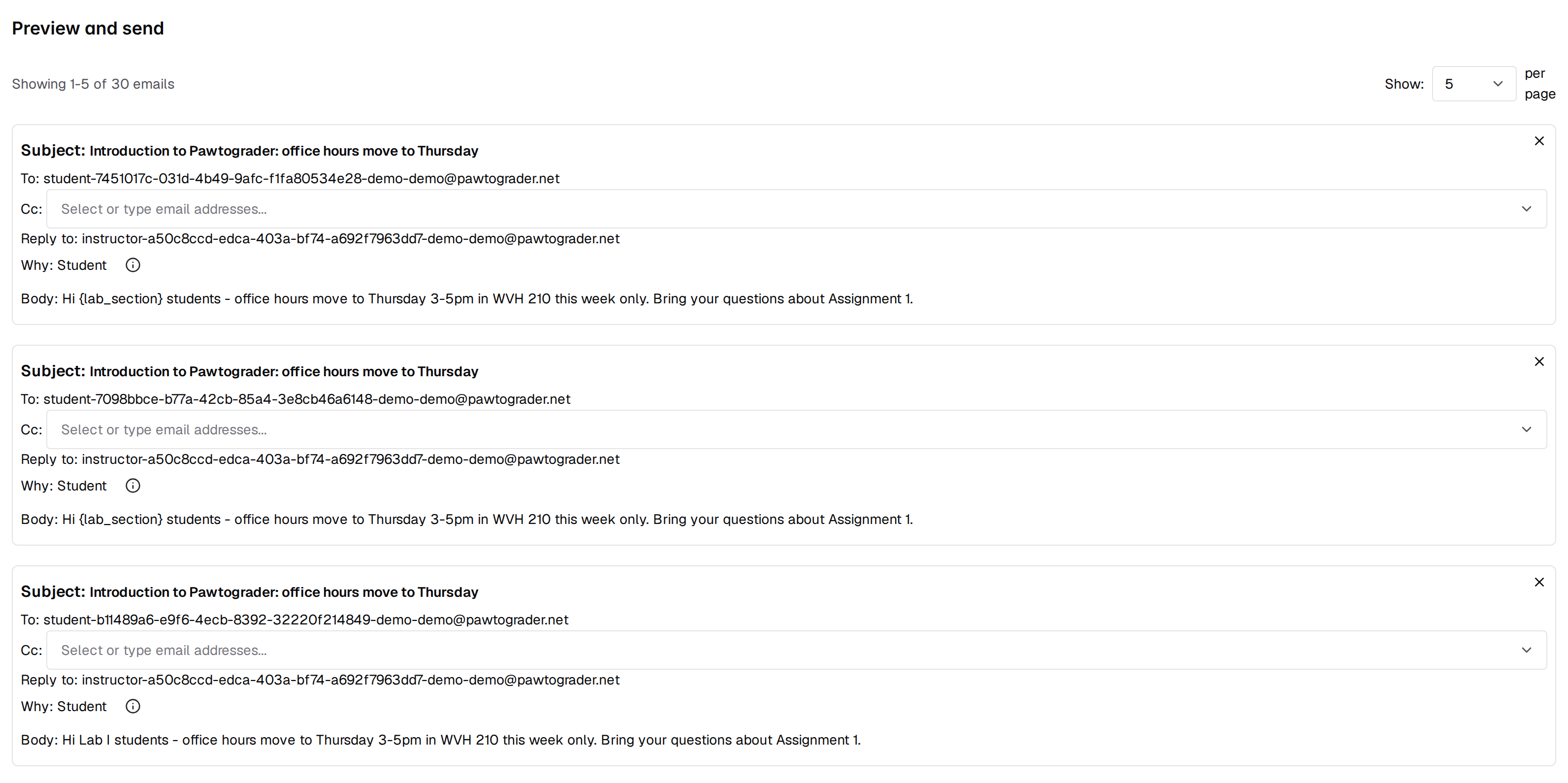
**Preview and send** lists one card per draft message, five at a time by default
(you can show 10, 20, or 30). Each card gives you:
* **Subject** — editable in place, for that one recipient
* **To** — the recipient's address, not editable
* **Cc** — editable in place, for that one recipient
* **Reply to**
* **Why** — which audience rule selected this person
* **Body** — editable in place, for that one recipient
The **X** in a card's corner drops that one message from the send.
| Option | Who it selects |
| ------------------------------------------------- | -------------------------------------------------------------------------------------------------------------- |
| **Students who have submitted an assignment** | Everyone behind an active submission for the assignment you pick, including every member of a group submission |
| **Students who have not submitted an assignment** | Students on the roster who are not in the list above |
| **Instructors, Graders, and Students** | All three roles |
| **Instructors and Graders** | Both staff roles |
| **Students** | The student role |
| **Graders** | The grader role |
| **Instructors** | The instructor role |
| **Tag** | Everyone carrying the tag you pick |
The two submission audiences add an **Assignment** picker. **Tag** adds a
**Select Tag** picker, which matches on the tag's name, color, and visibility
together.
The five role-based audiences add **Select class section(s)** and **Select lab
section(s)**, both optional multi-selects. Leaving them empty means the whole
audience. Each lab section option shows how many facilitators it has, and
selecting a lab section includes that section's leaders as well as the students
enrolled in it.
The section filters are not offered for the two submission audiences. If you
need "students in section 2 who have not submitted", the Emailer cannot express
it in one send.
### Addresses, Cc, and Reply-to
Recipient addresses come from each person's Pawtograder account, and nothing in
the composer can change them.
**Cc emails** is a multi-select of course members' addresses, and you can also
type an address that is not in the course. **Cc my email** is a shortcut that
adds your own address to that list.
The Cc list is attached to *every* individual message, not to the send as a
whole. Cc'ing yourself on a 200-student send delivers 200 copies to your inbox.
There is no digest or single summary copy.
**Reply-to email** is a free-text field. Leave it blank and Pawtograder uses your
own address, which is also shown as the field's placeholder. Whatever ends up
here is where replies go.
### Subject and Body
**Subject** is plain text. **Body** uses Pawtograder's Markdown editor.
The body is delivered as plain text, not as rendered HTML. Markdown you type
arrives with its syntax intact: `**important**` reaches your students with the
asterisks showing. Write plain prose and paste full URLs rather than Markdown
links.
### Template variables
Once you choose an audience, a **Template Variables** panel lists the variables
that audience supports. Write them in the subject or the body in braces, and each
recipient's copy gets their own value:
| Variable | Available for | Expands to |
| ------------------------- | ---------------------------- | ----------------------------------------- |
| `{course_name}` | every audience | Your course's name |
| `{class_section}` | every audience | The recipient's class section |
| `{lab_section}` | every audience | The recipient's lab section |
| `{tag_name}` | **Tag** | The tag you selected |
| `{assignment_name}` | the two submission audiences | The assignment's title |
| `{assignment_slug}` | the two submission audiences | The assignment's slug |
| `{assignment_url}` | the two submission audiences | A link to the assignment |
| `{due_date}` | the two submission audiences | The recipient's own deadline |
| `{assignment_group_name}` | the two submission audiences | The recipient's group for that assignment |
`{due_date}` is the recipient's effective deadline, so it accounts for
lab-section-based scheduling and for any extension or late tokens applied to
that student or group. It is rendered in the time zone you are viewing in.
A variable with no value for a given recipient is left in the message as literal
text. A student who is not in a group receives the characters
`{assignment_group_name}`, and a student with no lab section receives
`{lab_section}` unexpanded. Check the preview before sending.
### Add to Preview
**Add to Preview** stays disabled until you have chosen an audience and filled in
both a subject and a body (and picked the assignment or tag, if your audience
needs one). Pressing it expands the variables, creates one draft message per
recipient, and clears the composer so you can stack another audience into the
same send.
## Preview and send
**Preview and send** lists one card per draft message, five at a time by default
(you can show 10, 20, or 30). Each card gives you:
* **Subject** — editable in place, for that one recipient
* **To** — the recipient's address, not editable
* **Cc** — editable in place, for that one recipient
* **Reply to**
* **Why** — which audience rule selected this person
* **Body** — editable in place, for that one recipient
The **X** in a card's corner drops that one message from the send.
 **Why** is a label for you. It is not shown to the recipient and it is not stored
anywhere — pressing **Send emails** discards it. The in-page tooltip says the
same thing: "We won't share this with the recipient."
There is no test send and no send-to-myself-only mode. **Cc my email** is the
closest thing, and it copies you on every message rather than sending you one
sample. The preview cards are the only proof-read you get.
**Send emails** sends straight away, with no confirmation dialog and no undo.
## What happens when you send
The send is queued, not immediate:
1. Pawtograder creates one message per recipient, then shows the toast
**Successfully created emails** with a count. That toast confirms the messages
were created — not that any mail was delivered.
2. Each message also creates an in-app notification for its recipient. In the
recipient's notification list it appears as your subject line followed by
*Check your email for details*. See [Notifications](/students/notifications)
for what students see.
3. Each notification is queued for delivery. Queued messages are picked up about
once a minute, as many as 100 at a time, and handed to the mail server.
4. The delivered subject is your course name, a dash, and then your subject line.
The body is your text as written. The message comes **From** Pawtograder's
configured sender address, with **Reply-To** set to the address from the
composer.
Delivery therefore trails your click by a minute or so, and a large send arrives
in batches rather than all at once.
## Partial failure and delivery status
Pawtograder does not report delivery status. Nothing in the product — this page
included — will tell you whether a message reached a particular recipient, and a
message that fails at the mail server is not tried again.
This is a known issue with an open report against Pawtograder, and a fix is on the way.
Before a send that matters, Cc yourself on a small one and check that it arrives.
That is the only confirmation available from inside the course.
When one message in a send fails, the rest still go out.
Two kinds of recipient are skipped, with nothing in the send to tell you so:
* Anyone whose enrollment in the course has been disabled.
* Any address on Pawtograder's internal test domain.
A deployment can have email switched off entirely. Your send still creates the
in-app notifications, but no mail goes out, and the course looks the same as it
does on a deployment that sends. The Cc check above is how you tell the
difference.
If Pawtograder cannot create the messages, you get an error toast and your drafts
are cleared along with them, so the send has to be rebuilt in the composer. For a
long message, write it somewhere else and paste it in.
## What students can do about it
**Replies** go to the Reply-to address, which is your own address unless you
changed it. Replies land in your normal inbox; there is no reply thread in
Pawtograder, and the recipient's in-app notification is a stub that points them
at their email.
**Students cannot opt out.** A student's notification preferences cover
discussion posts and office hours activity; email from this page is treated as
required course communication, so it is not checked against those preferences and
carries no unsubscribe footer. Every eligible recipient you select receives it —
setting aside the two exceptions above, disabled enrollments and internal test
addresses — which is worth keeping in mind when you pick a wide audience.
## History
A **History** heading sits below the composer, and it is meant to list your past
sends as expandable cards.
The **History** section shows no sends, on a course that has sent hundreds of
messages as much as on a brand-new one. An empty History is not a sign that your
sends failed.
This is a known issue with an open report against Pawtograder, and a fix is on the way.
Past sends *are* retained. They are simply not reachable from this page, or
anywhere else in the app. If you need a record of what you sent, Cc yourself
(accepting one copy per recipient) or keep your own draft.
## Related
* [Exporting Course Data](/staff/exports) — every other download, none of which emails anything
* [Course Settings](/staff/course-settings) — the rest of the Course Settings menu
* [Notifications](/students/notifications) — what a recipient sees in the app
* [Extensions](/staff/assignments/extensions) — what `{due_date}` accounts for
**Why** is a label for you. It is not shown to the recipient and it is not stored
anywhere — pressing **Send emails** discards it. The in-page tooltip says the
same thing: "We won't share this with the recipient."
There is no test send and no send-to-myself-only mode. **Cc my email** is the
closest thing, and it copies you on every message rather than sending you one
sample. The preview cards are the only proof-read you get.
**Send emails** sends straight away, with no confirmation dialog and no undo.
## What happens when you send
The send is queued, not immediate:
1. Pawtograder creates one message per recipient, then shows the toast
**Successfully created emails** with a count. That toast confirms the messages
were created — not that any mail was delivered.
2. Each message also creates an in-app notification for its recipient. In the
recipient's notification list it appears as your subject line followed by
*Check your email for details*. See [Notifications](/students/notifications)
for what students see.
3. Each notification is queued for delivery. Queued messages are picked up about
once a minute, as many as 100 at a time, and handed to the mail server.
4. The delivered subject is your course name, a dash, and then your subject line.
The body is your text as written. The message comes **From** Pawtograder's
configured sender address, with **Reply-To** set to the address from the
composer.
Delivery therefore trails your click by a minute or so, and a large send arrives
in batches rather than all at once.
## Partial failure and delivery status
Pawtograder does not report delivery status. Nothing in the product — this page
included — will tell you whether a message reached a particular recipient, and a
message that fails at the mail server is not tried again.
This is a known issue with an open report against Pawtograder, and a fix is on the way.
Before a send that matters, Cc yourself on a small one and check that it arrives.
That is the only confirmation available from inside the course.
When one message in a send fails, the rest still go out.
Two kinds of recipient are skipped, with nothing in the send to tell you so:
* Anyone whose enrollment in the course has been disabled.
* Any address on Pawtograder's internal test domain.
A deployment can have email switched off entirely. Your send still creates the
in-app notifications, but no mail goes out, and the course looks the same as it
does on a deployment that sends. The Cc check above is how you tell the
difference.
If Pawtograder cannot create the messages, you get an error toast and your drafts
are cleared along with them, so the send has to be rebuilt in the composer. For a
long message, write it somewhere else and paste it in.
## What students can do about it
**Replies** go to the Reply-to address, which is your own address unless you
changed it. Replies land in your normal inbox; there is no reply thread in
Pawtograder, and the recipient's in-app notification is a stub that points them
at their email.
**Students cannot opt out.** A student's notification preferences cover
discussion posts and office hours activity; email from this page is treated as
required course communication, so it is not checked against those preferences and
carries no unsubscribe footer. Every eligible recipient you select receives it —
setting aside the two exceptions above, disabled enrollments and internal test
addresses — which is worth keeping in mind when you pick a wide audience.
## History
A **History** heading sits below the composer, and it is meant to list your past
sends as expandable cards.
The **History** section shows no sends, on a course that has sent hundreds of
messages as much as on a brand-new one. An empty History is not a sign that your
sends failed.
This is a known issue with an open report against Pawtograder, and a fix is on the way.
Past sends *are* retained. They are simply not reachable from this page, or
anywhere else in the app. If you need a record of what you sent, Cc yourself
(accepting one copy per recipient) or keep your own draft.
## Related
* [Exporting Course Data](/staff/exports) — every other download, none of which emails anything
* [Course Settings](/staff/course-settings) — the rest of the Course Settings menu
* [Notifications](/students/notifications) — what a recipient sees in the app
* [Extensions](/staff/assignments/extensions) — what `{due_date}` accounts for