> ## Documentation Index
> Fetch the complete documentation index at: https://docs.pawtograder.com/llms.txt
> Use this file to discover all available pages before exploring further.
# Lab Sections
> Create lab sections, see who is in each one, and use lab meeting times to drive assignment deadlines
# Lab Sections
A lab section is a named weekly meeting that belongs to a course. Each section has
a day of the week, a start time, an optional end time, an optional room, and one
or more staff members who lead it. A student can belong to at most one lab section
per course.
Lab sections do more than label the roster. Pawtograder generates a dated meeting
for every occurrence of the section's day between the course start and end dates,
and an assignment can set its deadline relative to each student's most recent lab
meeting. That is why lab sections show up as a prerequisite on several other
pages: grading assignment by lab leader, lab-based due dates, and the section
filters and columns on dashboards, the gradebook, surveys and exports all read
from them.
## Two pages with the same name
**Course Settings → Lab Sections** is visible to instructors and graders, and it
opens the *lab roster* at `manage/course/lab-roster`. The roster is read-only: it
shows which students are in each section, plus a CSV export.
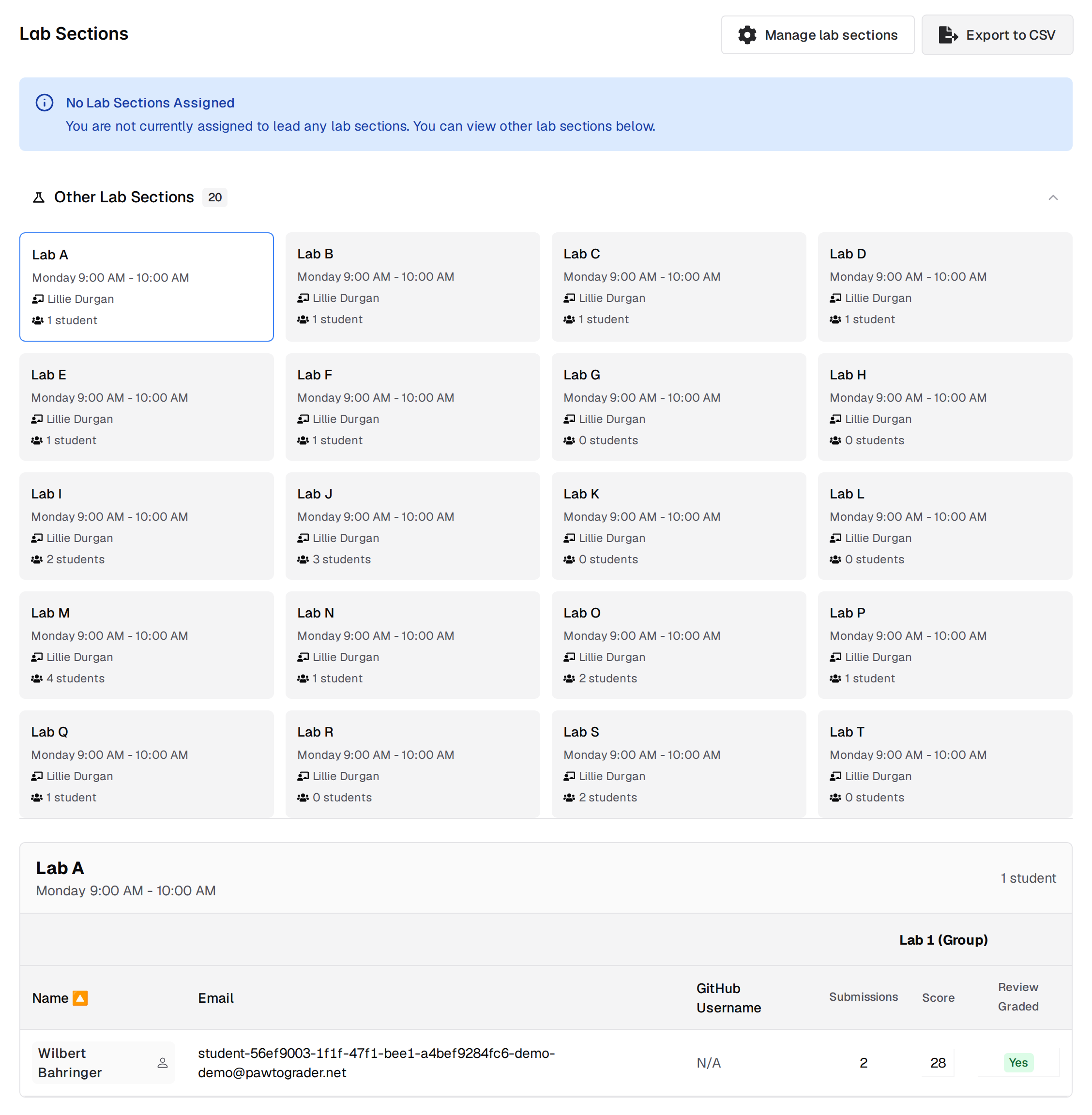 The *section editor* lives one click deeper, at `manage/course/lab-sections`.
Nothing in the Course Settings menu points there. Instructors reach it through the
**Manage lab sections** button in the top-right corner of the roster; graders do
not see that button.
The *section editor* lives one click deeper, at `manage/course/lab-sections`.
Nothing in the Course Settings menu points there. Instructors reach it through the
**Manage lab sections** button in the top-right corner of the roster; graders do
not see that button.
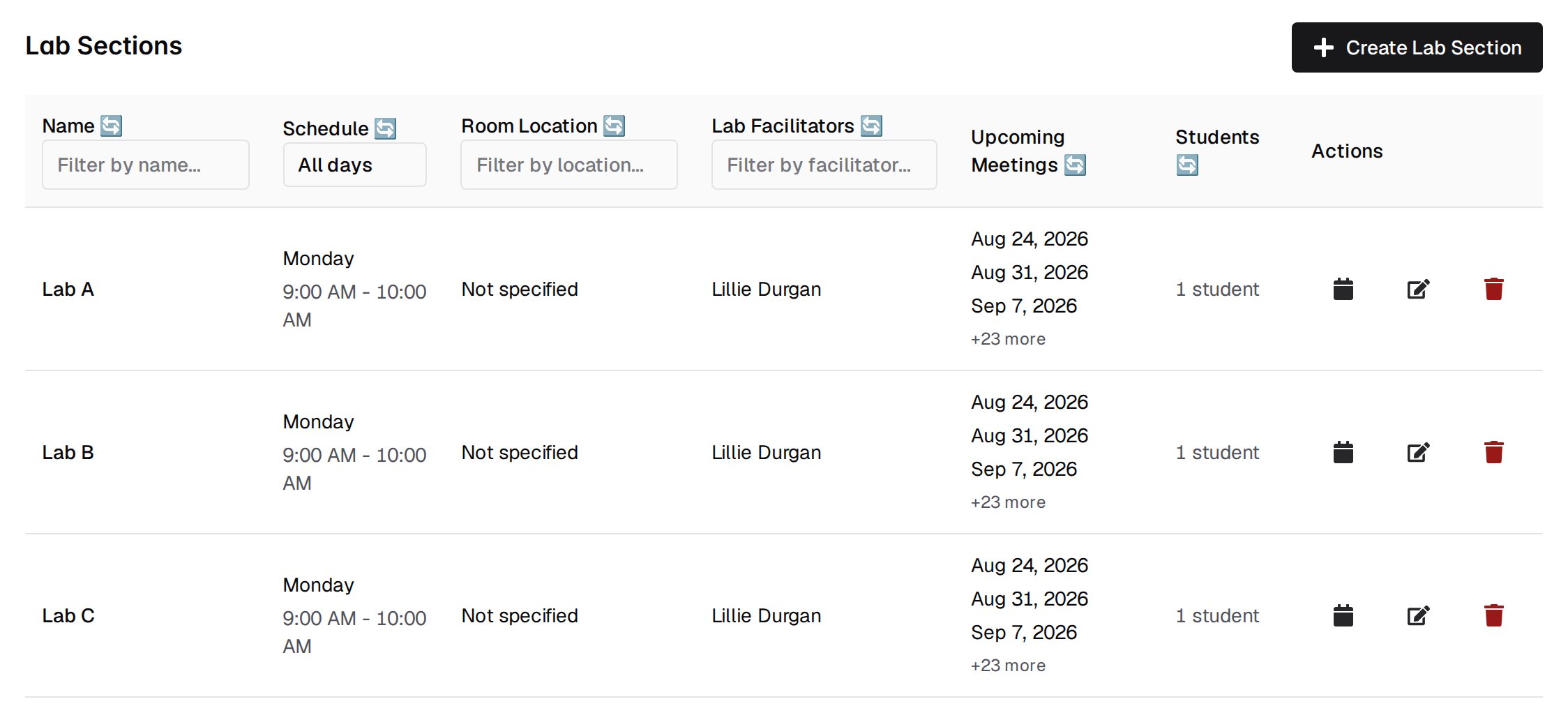 Both pages put the heading **Lab Sections** at the top, so the heading will not
tell you which one you are on. Look at the buttons instead: the roster has
**Export to CSV**, and the editor has **Create Lab Section**.
## Creating a section
On the editor, click **Create Lab Section** to open the dialog. It has six fields:
Both pages put the heading **Lab Sections** at the top, so the heading will not
tell you which one you are on. Look at the buttons instead: the roster has
**Export to CSV**, and the editor has **Create Lab Section**.
## Creating a section
On the editor, click **Create Lab Section** to open the dialog. It has six fields:
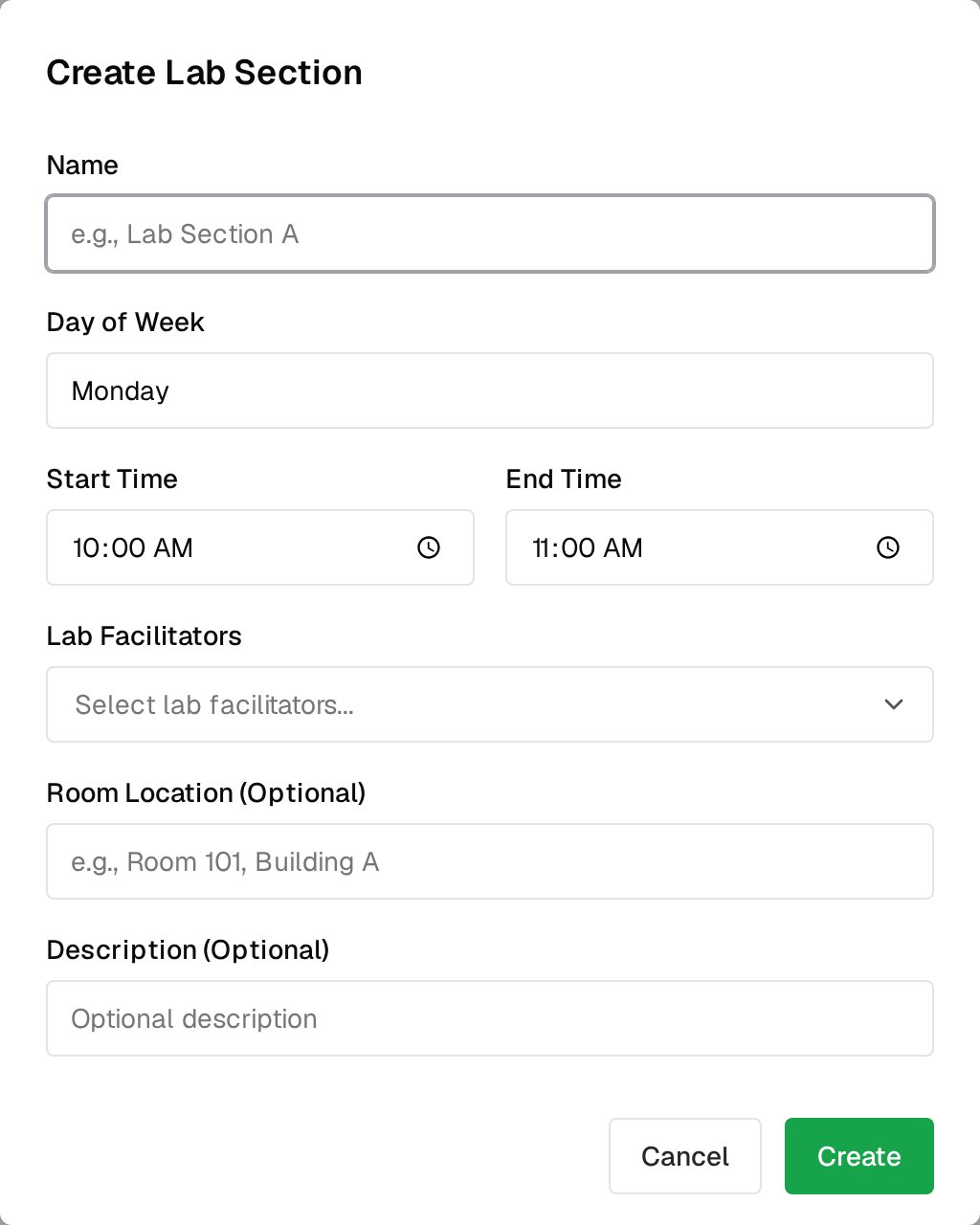 * **Name** is required. The dialog suggests a form like `Lab Section A`.
* **Day of Week** is required, and offers Monday through Sunday. It defaults to Monday.
* **Start Time** is required and defaults to 10:00. **End Time** is optional, defaults to 11:00, and must be later than the start time.
* **Lab Facilitators** is required, and at least one must be selected. The list offers every instructor and grader in the course, with their role shown after the name.
* **Room Location** is optional.
* **Description** is optional, and appears under the section name in the table.
The dialog calls these staff **Lab Facilitators**. The rest of Pawtograder calls
the same people lab leaders: the roster labels them section leaders, and bulk
grading assignment offers **Assign to lab leaders**. They are one list.
Creating a section fails if the course has no start and end date set. The dates
are not editable from the course interface, so ask a Pawtograder administrator to
set them first.
## Meetings are generated for you
When you create a section, Pawtograder immediately generates one meeting for every
occurrence of the chosen day between the course start date and the course end
date. You do not enter meeting dates by hand.
To adjust the generated list, click the calendar icon in the section's **Actions**
column. The **Manage Meetings** dialog lists each meeting with its date, a status
of Scheduled or Cancelled, notes, and a per-row button that toggles between
**Cancel** and **Restore**. **Add Meeting** adds an off-schedule date, which
inherits the section's scheduled start and end time.
Changing **Day of Week** on an existing section deletes every meeting for that
section and regenerates the list from the new schedule. Cancellations and manually
added meetings are lost. The edit dialog warns you about this before you save.
Changing only the times does not regenerate meetings.
## Deleting a section
The trash icon deletes a section after a confirmation prompt. The delete is
permanent: the section's meetings and facilitator assignments are removed with it,
and every student who was in that section has their lab section cleared rather
than reassigned.
## The section list
The editor's table has one row per section, sorted by name, 50 rows per page:
| Column | What it shows |
| ------------------- | ------------------------------------------------------------------- |
| `Name` | Section name, with the description underneath |
| `Schedule` | Day of week, then start and end time |
| `Room Location` | The room, or `Not specified` |
| `Lab Facilitators` | One line per facilitator, or `Not assigned` |
| `Upcoming Meetings` | The next three meeting dates that are not cancelled, then `+N more` |
| `Students` | Count of active students assigned to the section |
| `Actions` | Manage meetings, edit, delete |
`Name`, `Room Location` and `Lab Facilitators` have text filters in the header
row, and `Schedule` has a day-of-week dropdown.
## Who is in each section
The roster opens on the sections you lead, shown as cards under **Your Lab
Sections** with the section name, schedule, facilitators and student count. Every
other section is behind the **Other Lab Sections** accordion, in the same card
format. If you lead no sections, a **No Lab Sections Assigned** notice appears and
the accordion opens by default with the first section selected.
Select a card to load its students. The table lists only active students assigned
to that section, sorted by name, with `Name`, `Email` and `GitHub Username`. Each
name is a link that opens that student's summary page in a new tab, and hovering
it shows their class and lab section.
After those three columns, the table adds a group of three columns per lab
assignment:
* `Submissions` — how many submissions the student has for that assignment
* `Score` — the score on their most recent submission, linked to that submission when one exists
* `Review Graded` — a green `Yes` when that submission's grading review is marked complete, an orange `No` when it is not, and a dash when there is nothing to grade
An assignment counts as a lab assignment if it has **Minutes due after lab
meeting** set, or if its slug starts with `lab`. Only released, non-archived
assignments appear, newest release first. The two newest are shown; when there are
more, a **Show all N labs** button expands the rest.
The roster does not track attendance. It reports submissions, scores and review
status for lab assignments, not who came to the meeting.
## Exporting the roster
**Export to CSV** downloads the currently selected section as
`lab-roster--.csv`. The button is disabled when the selected
section has no students.
The file covers one section, students only, and its columns are `Lab Section`,
`Name`, `Email`, `GitHub Username`, followed by three columns per *visible* lab
assignment. If you want every lab in the file, click **Show all N labs** before
exporting. See [Exporting Course Data](/staff/exports#lab-roster) for how this
export compares to the others.
## How students get assigned to a section
Neither the roster nor the enrollments table has a control that puts a student in
a lab section. Assignment comes from the roster sync with your university Student
Information System or LMS:
1. The lab section carries a SIS CRN. Sections you create in the editor have no CRN, so they are not linked to any SIS section; editing a linked section preserves its CRN.
2. The sync reads each roster member's lab section and matches it to a Pawtograder lab section by CRN.
3. The matched section is written onto the student's enrollment, or onto their pending invitation if they have not enrolled yet.
**Course Settings → Enrollments** lists the course's **Linked Lab Sections** with
each section's CRN and its current sync state, and says that enrollments are
updated automatically at 15 minutes past the hour.
For a CRN-linked section, the sync can overwrite the section's room, meeting
times, campus, day of week, start time and end time from the SIS. If the SIS moves
a section to a different day, the meeting list is regenerated and any
cancellations you had entered are lost.
## Lab meeting times as assignment deadlines
On the assignment form, check **Custom due date based on lab meeting time** to tie
the deadline to each student's lab. The checkbox reveals **Minutes due after lab
meeting**, which defaults to 60, and a **Lab Section Due Date Preview** table
listing every lab section with the effective due date it would produce.
Pawtograder computes the deadline per student:
1. Find the student's lab section. If they have none, they get the assignment's plain due date.
2. Within that section, find the most recent meeting that is not cancelled and whose end time falls at or before the assignment's due date. If no meeting qualifies, the student gets the plain due date.
3. Add the **Minutes due after lab meeting** offset to that meeting's end time, in the course time zone.
Late token and extension calculations run on top of this result, so an extension
is added to the lab-based deadline rather than to the original due date.
Set an **End Time** on any section you use for lab-based due dates. The preview
table treats a missing end time as 23:59:59, but the deadline calculation builds
its timestamp from the end time directly, so a section with no end time matches no
meeting and its students fall back to the assignment's plain due date. The preview
will not warn you.
Where the preview finds no qualifying meeting for a section, it prints "No lab
meeting before due date" in place of a date. See
[Assignment Configuration](/staff/assignments/configuration) for the rest of the
assignment form.
## Where else lab sections are used
* **Grading.** Bulk grading assignment offers **Assign to lab leaders**, which assigns each submission to all lab leaders of that student's section with no manual grader selection. See [Grading Assignments](/staff/assignments/grading-assignments).
* **Filters and columns.** The assignment dashboard, the security dashboard, the gradebook grid and its export, and survey response filters all carry a lab section dimension.
* **Students.** A student's course dashboard shows a card for their lab section with its meeting time and lab leaders.
* **Name** is required. The dialog suggests a form like `Lab Section A`.
* **Day of Week** is required, and offers Monday through Sunday. It defaults to Monday.
* **Start Time** is required and defaults to 10:00. **End Time** is optional, defaults to 11:00, and must be later than the start time.
* **Lab Facilitators** is required, and at least one must be selected. The list offers every instructor and grader in the course, with their role shown after the name.
* **Room Location** is optional.
* **Description** is optional, and appears under the section name in the table.
The dialog calls these staff **Lab Facilitators**. The rest of Pawtograder calls
the same people lab leaders: the roster labels them section leaders, and bulk
grading assignment offers **Assign to lab leaders**. They are one list.
Creating a section fails if the course has no start and end date set. The dates
are not editable from the course interface, so ask a Pawtograder administrator to
set them first.
## Meetings are generated for you
When you create a section, Pawtograder immediately generates one meeting for every
occurrence of the chosen day between the course start date and the course end
date. You do not enter meeting dates by hand.
To adjust the generated list, click the calendar icon in the section's **Actions**
column. The **Manage Meetings** dialog lists each meeting with its date, a status
of Scheduled or Cancelled, notes, and a per-row button that toggles between
**Cancel** and **Restore**. **Add Meeting** adds an off-schedule date, which
inherits the section's scheduled start and end time.
Changing **Day of Week** on an existing section deletes every meeting for that
section and regenerates the list from the new schedule. Cancellations and manually
added meetings are lost. The edit dialog warns you about this before you save.
Changing only the times does not regenerate meetings.
## Deleting a section
The trash icon deletes a section after a confirmation prompt. The delete is
permanent: the section's meetings and facilitator assignments are removed with it,
and every student who was in that section has their lab section cleared rather
than reassigned.
## The section list
The editor's table has one row per section, sorted by name, 50 rows per page:
| Column | What it shows |
| ------------------- | ------------------------------------------------------------------- |
| `Name` | Section name, with the description underneath |
| `Schedule` | Day of week, then start and end time |
| `Room Location` | The room, or `Not specified` |
| `Lab Facilitators` | One line per facilitator, or `Not assigned` |
| `Upcoming Meetings` | The next three meeting dates that are not cancelled, then `+N more` |
| `Students` | Count of active students assigned to the section |
| `Actions` | Manage meetings, edit, delete |
`Name`, `Room Location` and `Lab Facilitators` have text filters in the header
row, and `Schedule` has a day-of-week dropdown.
## Who is in each section
The roster opens on the sections you lead, shown as cards under **Your Lab
Sections** with the section name, schedule, facilitators and student count. Every
other section is behind the **Other Lab Sections** accordion, in the same card
format. If you lead no sections, a **No Lab Sections Assigned** notice appears and
the accordion opens by default with the first section selected.
Select a card to load its students. The table lists only active students assigned
to that section, sorted by name, with `Name`, `Email` and `GitHub Username`. Each
name is a link that opens that student's summary page in a new tab, and hovering
it shows their class and lab section.
After those three columns, the table adds a group of three columns per lab
assignment:
* `Submissions` — how many submissions the student has for that assignment
* `Score` — the score on their most recent submission, linked to that submission when one exists
* `Review Graded` — a green `Yes` when that submission's grading review is marked complete, an orange `No` when it is not, and a dash when there is nothing to grade
An assignment counts as a lab assignment if it has **Minutes due after lab
meeting** set, or if its slug starts with `lab`. Only released, non-archived
assignments appear, newest release first. The two newest are shown; when there are
more, a **Show all N labs** button expands the rest.
The roster does not track attendance. It reports submissions, scores and review
status for lab assignments, not who came to the meeting.
## Exporting the roster
**Export to CSV** downloads the currently selected section as
`lab-roster--.csv`. The button is disabled when the selected
section has no students.
The file covers one section, students only, and its columns are `Lab Section`,
`Name`, `Email`, `GitHub Username`, followed by three columns per *visible* lab
assignment. If you want every lab in the file, click **Show all N labs** before
exporting. See [Exporting Course Data](/staff/exports#lab-roster) for how this
export compares to the others.
## How students get assigned to a section
Neither the roster nor the enrollments table has a control that puts a student in
a lab section. Assignment comes from the roster sync with your university Student
Information System or LMS:
1. The lab section carries a SIS CRN. Sections you create in the editor have no CRN, so they are not linked to any SIS section; editing a linked section preserves its CRN.
2. The sync reads each roster member's lab section and matches it to a Pawtograder lab section by CRN.
3. The matched section is written onto the student's enrollment, or onto their pending invitation if they have not enrolled yet.
**Course Settings → Enrollments** lists the course's **Linked Lab Sections** with
each section's CRN and its current sync state, and says that enrollments are
updated automatically at 15 minutes past the hour.
For a CRN-linked section, the sync can overwrite the section's room, meeting
times, campus, day of week, start time and end time from the SIS. If the SIS moves
a section to a different day, the meeting list is regenerated and any
cancellations you had entered are lost.
## Lab meeting times as assignment deadlines
On the assignment form, check **Custom due date based on lab meeting time** to tie
the deadline to each student's lab. The checkbox reveals **Minutes due after lab
meeting**, which defaults to 60, and a **Lab Section Due Date Preview** table
listing every lab section with the effective due date it would produce.
Pawtograder computes the deadline per student:
1. Find the student's lab section. If they have none, they get the assignment's plain due date.
2. Within that section, find the most recent meeting that is not cancelled and whose end time falls at or before the assignment's due date. If no meeting qualifies, the student gets the plain due date.
3. Add the **Minutes due after lab meeting** offset to that meeting's end time, in the course time zone.
Late token and extension calculations run on top of this result, so an extension
is added to the lab-based deadline rather than to the original due date.
Set an **End Time** on any section you use for lab-based due dates. The preview
table treats a missing end time as 23:59:59, but the deadline calculation builds
its timestamp from the end time directly, so a section with no end time matches no
meeting and its students fall back to the assignment's plain due date. The preview
will not warn you.
Where the preview finds no qualifying meeting for a section, it prints "No lab
meeting before due date" in place of a date. See
[Assignment Configuration](/staff/assignments/configuration) for the rest of the
assignment form.
## Where else lab sections are used
* **Grading.** Bulk grading assignment offers **Assign to lab leaders**, which assigns each submission to all lab leaders of that student's section with no manual grader selection. See [Grading Assignments](/staff/assignments/grading-assignments).
* **Filters and columns.** The assignment dashboard, the security dashboard, the gradebook grid and its export, and survey response filters all carry a lab section dimension.
* **Students.** A student's course dashboard shows a card for their lab section with its meeting time and lab leaders.