> ## Documentation Index
> Fetch the complete documentation index at: https://docs.pawtograder.com/llms.txt
> Use this file to discover all available pages before exploring further.
# Moderation and Karma
> Issue warnings and bans, keep private karma notes on students, and read one student's recent office hours activity
# Moderation and Karma
Three Settings pages deal with individual students rather than with queues: **Moderation**, **Student Karma**, and **Student Activity**. Every one of them is also reachable from the buttons in a request's header, described in [Help Requests](/staff/office-hours/help-requests#the-request-view).
## Moderation
**Create Moderation Action** takes a student, an action type of **Warning**, **Temporary Ban**, or **Permanent Ban**, a reason, and a specific help request the action relates to. A duration is required for a temporary ban, and the expiry is computed when you save.
Actions are listed as cards with the type, a **Permanent**, **Active**, or **Expired** badge, the student, the moderator, the reason, the timestamps, and the request number, filtered by **All**, **Active**, or **Expired**. A warning shows the student a banner on office hours pages for seven days and takes nothing away. A ban replaces every student office hours page with a notice giving the reason and the time remaining, and blocks the chat composer.
Instructors can delete a moderation record, and deleting is the only way to lift a ban early. Graders can create actions but not delete them.
A ban covers office hours and nothing else. It replaces the student's office hours pages with the ban notice and takes away the chat composer; their enrollment, assignments, grades, and the rest of the course are untouched. Because a ban is applied in the interface rather than at the account level, treat moderation as a course-policy tool rather than a security boundary: do not rely on a ban to keep one student away from another, and escalate anything that needs a hard guarantee through your institution's channels. This is a known issue with an open report against Pawtograder, and a fix is on the way.
## Student Karma
**Student Karma Management** holds one private note per entry: a student, a score the form limits to the range -20 to +20, and internal notes students never see. The list sorts by score, badges each entry from **Excellent** to **Problematic**, and totals the entries above and below zero. The modal offers guideline bands for the score.
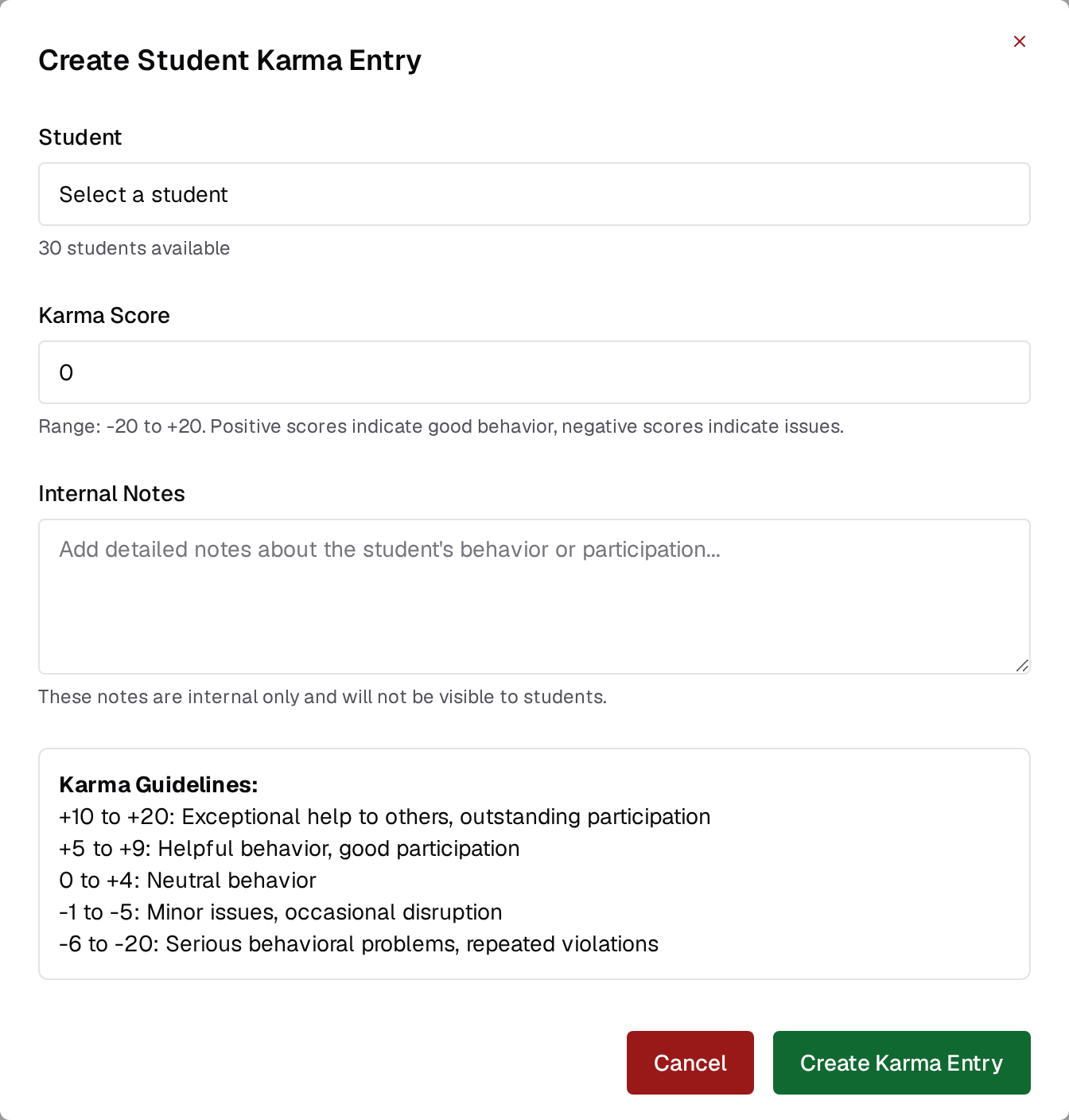 Karma is display-only. The score is read to sort, badge, and star this page and the Student Activity summary. It does not change queue order, request priority, or whether a student can file a request, and students cannot see it.
Saving an entry can fail. If the dialog reports an error, the entry was not saved. This is a known issue with an open report against Pawtograder, and a fix is on the way.
Do not confuse this with the discussion karma on student profiles, which is computed from discussion likes. See [Discussion](/staff/discussion).
## Student Activity
Pick a student and the page shows three stacked sections: their karma entry if one exists, their five most recent moderation actions, and their ten most recent office hours events, each labeled as a request created, updated, or resolved, a message sent, or a video joined or left. With no student selected it aggregates recent activity across the roster.
The student picker is the only control. There is no date range and no export; for exportable numbers use [Time Tracking](/staff/office-hours/staffing-and-time-tracking#time-tracking).
## See also
* [Office Hours for Students](/students/office-hours) for what a warned or banned student sees.
Karma is display-only. The score is read to sort, badge, and star this page and the Student Activity summary. It does not change queue order, request priority, or whether a student can file a request, and students cannot see it.
Saving an entry can fail. If the dialog reports an error, the entry was not saved. This is a known issue with an open report against Pawtograder, and a fix is on the way.
Do not confuse this with the discussion karma on student profiles, which is computed from discussion likes. See [Discussion](/staff/discussion).
## Student Activity
Pick a student and the page shows three stacked sections: their karma entry if one exists, their five most recent moderation actions, and their ten most recent office hours events, each labeled as a request created, updated, or resolved, a message sent, or a video joined or left. With no student selected it aggregates recent activity across the roster.
The student picker is the only control. There is no date range and no export; for exportable numbers use [Time Tracking](/staff/office-hours/staffing-and-time-tracking#time-tracking).
## See also
* [Office Hours for Students](/students/office-hours) for what a warned or banned student sees.