> ## Documentation Index
> Fetch the complete documentation index at: https://docs.pawtograder.com/llms.txt
> Use this file to discover all available pages before exploring further.
# Queue Configuration
> Create and edit help queues, understand which queue fields actually do something, and write the request templates students fill in
# Queue Configuration
Queue setup lives under **Settings → Queue Management** and **Settings → Templates**. Both are open to instructors and graders.
## Queue Management
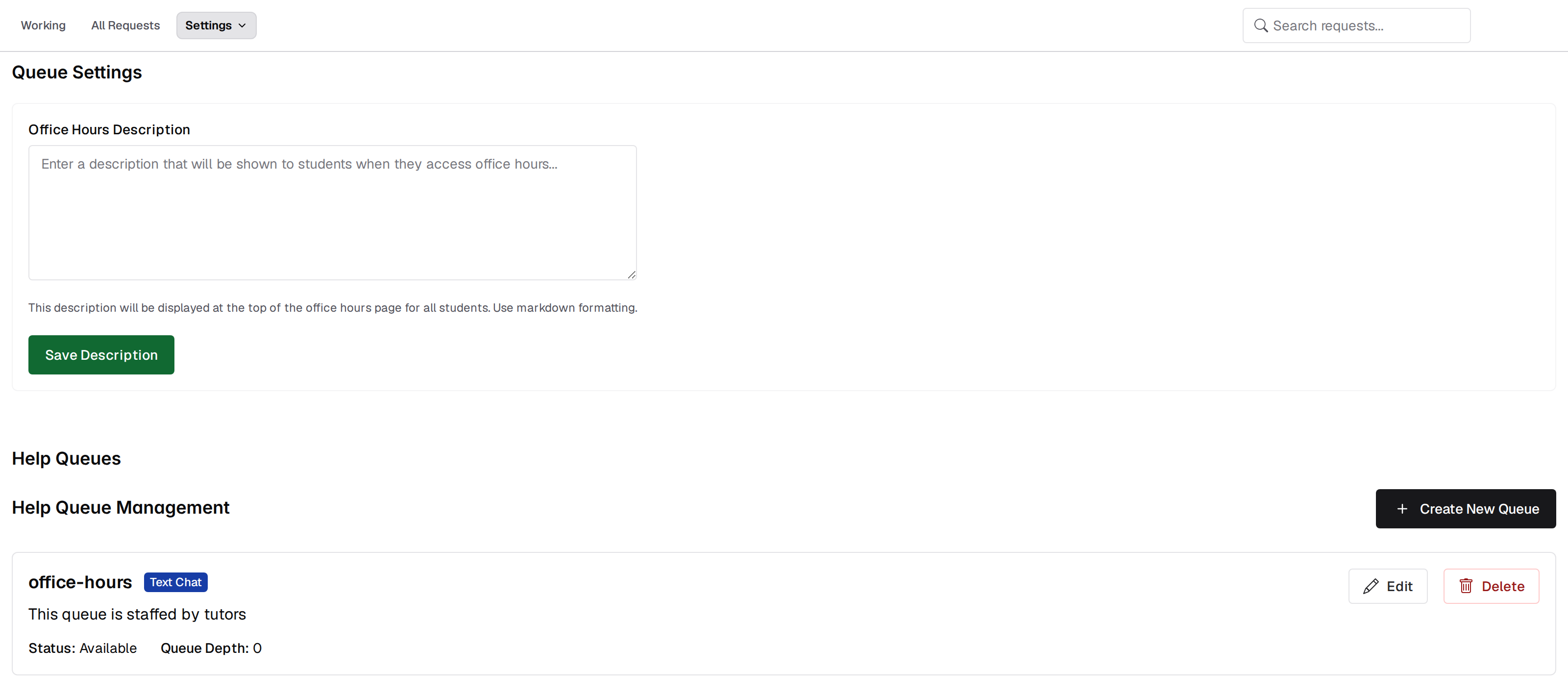 A course can have any number of queues. Common shapes are one per campus, one per lab section, or one per assignment during a busy week.
Each card shows the queue's name, type, demo badge, an **Inactive** chip when it is not active, its description, and whether it is available. From the card you can open its Discord channel, **Edit** it, or **Delete** it after confirming. **Create New Queue** and **Edit Help Queue** offer the same fields:
A course can have any number of queues. Common shapes are one per campus, one per lab section, or one per assignment during a busy week.
Each card shows the queue's name, type, demo badge, an **Inactive** chip when it is not active, its description, and whether it is available. From the card you can open its Discord channel, **Edit** it, or **Delete** it after confirming. **Create New Queue** and **Edit Help Queue** offer the same fields:
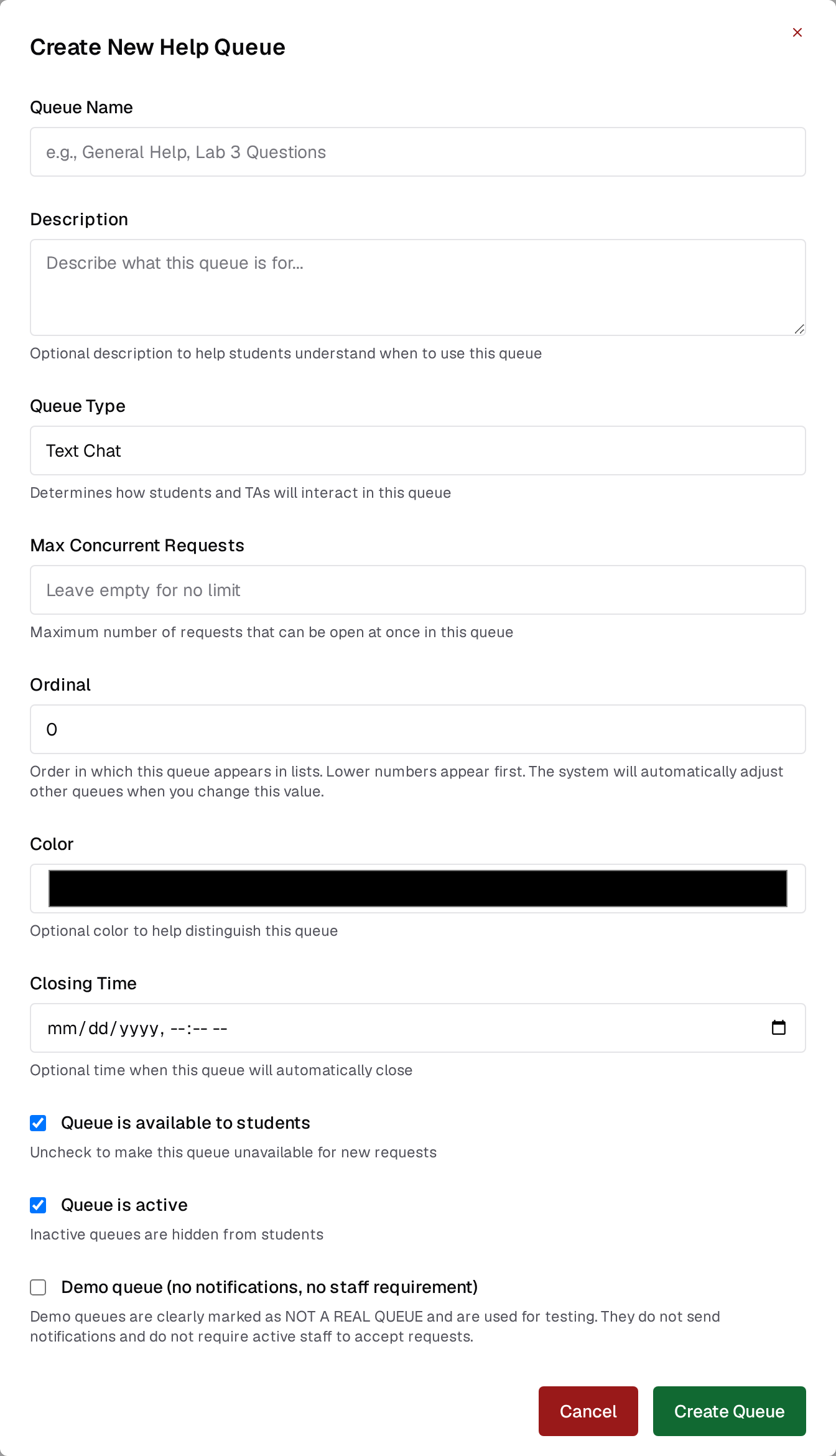 | Field | Effect |
| ---------------------------------- | ---------------------------------------------------------------------------------------------------------------------------------------------------------------------- |
| **Queue Name** | Shown to students everywhere the queue appears. |
| **Description** | Shown under the queue name; markdown is rendered. |
| **Queue Type** | `Text Chat`, `Video Call`, or `In Person`. A label only. It picks an icon and a badge color and restricts nothing: video calls and text chat work on every queue. |
| **Ordinal** | Display order, lowest first, ties broken alphabetically by name. |
| **Queue is available to students** | The switch that matters. Unchecking it stops new requests. |
| **Queue is active** | Controls whether the queue appears on the staff dashboard and in the student status card. |
| **Demo queue** | Marks the queue **DEMO - NOT A REAL QUEUE**, exempts it from the staffing requirement, and suppresses every notification it would otherwise send. Use it for training. |
Ordinals are kept unique for you. Moving a queue to a position that is taken shifts the queue already there, and everything after it, one place later, so you never end up with two queues claiming the same slot.
Three fields on this form, and one figure on the queue card, are saved and displayed, but they do not change how the queue behaves. This is a known issue with an open report against Pawtograder, and a fix is on the way.
* **Max Concurrent Requests** is recorded and displayed on the queue card, but the queue keeps accepting requests past that number.
* **Closing Time** is recorded and displayed on the queue card as a "Closes" time, and the queue keeps taking requests past it. To stop new requests at a set time, uncheck **Queue is available to students** yourself when you want the queue closed.
* **Color** is saved but is not what the interface displays. Queue badges take their color from the queue type instead.
* **Queue Depth** on the card is a stored figure rather than a live count, so read it as a starting value rather than the current one. For the live count, use the open-request number on the dashboard and the queue cards.
### Available, active, and who sees what
The two flags are not interchangeable, and no single surface checks both.
| Surface | Filter applied |
| -------------------------------------------------------- | -------------------------------- |
| Staff dashboard (**Working**) | Active queues only |
| Staff **All Requests** | No filter; every queue is listed |
| Student office hours page and help drawer | Available queues only |
| Student office hours status card on the course home page | Available and active |
| Filing a new request | Available, or a demo queue |
An inactive queue that is still available therefore stays listed for students and still accepts requests, while disappearing from your dashboard. Use **available** to close a queue for business, and **active** to tidy your own dashboard.
### Office hours description
The **Office Hours Description** field at the top of Queue Management writes one markdown block for the whole course. It renders in the student help drawer and above the new-request form. Its helper text claims it appears at the top of the office hours page, which it does not.
### Discord and the calendar
Each queue card carries one button that opens the queue's Discord channel. Calendar events are matched to a queue by explicit link first, then by a case-insensitive match between the event's queue name and the queue's name; the shift times that match produces are the ones on the staff queue cards, described in [Running Office Hours](/staff/office-hours/running-office-hours#staffing-times-and-the-schedule). The calendar URL itself is set under **Course Settings → Discord**, in the Calendar Integration section. See [Course Settings](/staff/course-settings).
## Templates
A template is a prompt structure that pre-fills the description box on a new request, so students arrive having already answered "what have you tried" and "what is the error". Under **Settings → Templates**, each template has a name, a category, an optional description, the content itself, and an active flag. The category groups your own list on this page; the student picker lists names only.
Templates are grouped by category under **Active Templates** and **Inactive Templates**, and each card offers **Edit**, **Deactivate** or **Activate**, and **Delete**.
Creating your first active template makes template selection mandatory for students. When exactly one active template exists it is applied automatically and its content is pre-filled; with two or more, students must pick one. Deactivating a template hides it from students without losing it.
## See also
* [Running Office Hours](/staff/office-hours/running-office-hours) for putting staff on duty once the queues exist.
* [Submitting a Request](/students/office-hours/submitting-a-request) for the form your queue settings and templates produce.
| Field | Effect |
| ---------------------------------- | ---------------------------------------------------------------------------------------------------------------------------------------------------------------------- |
| **Queue Name** | Shown to students everywhere the queue appears. |
| **Description** | Shown under the queue name; markdown is rendered. |
| **Queue Type** | `Text Chat`, `Video Call`, or `In Person`. A label only. It picks an icon and a badge color and restricts nothing: video calls and text chat work on every queue. |
| **Ordinal** | Display order, lowest first, ties broken alphabetically by name. |
| **Queue is available to students** | The switch that matters. Unchecking it stops new requests. |
| **Queue is active** | Controls whether the queue appears on the staff dashboard and in the student status card. |
| **Demo queue** | Marks the queue **DEMO - NOT A REAL QUEUE**, exempts it from the staffing requirement, and suppresses every notification it would otherwise send. Use it for training. |
Ordinals are kept unique for you. Moving a queue to a position that is taken shifts the queue already there, and everything after it, one place later, so you never end up with two queues claiming the same slot.
Three fields on this form, and one figure on the queue card, are saved and displayed, but they do not change how the queue behaves. This is a known issue with an open report against Pawtograder, and a fix is on the way.
* **Max Concurrent Requests** is recorded and displayed on the queue card, but the queue keeps accepting requests past that number.
* **Closing Time** is recorded and displayed on the queue card as a "Closes" time, and the queue keeps taking requests past it. To stop new requests at a set time, uncheck **Queue is available to students** yourself when you want the queue closed.
* **Color** is saved but is not what the interface displays. Queue badges take their color from the queue type instead.
* **Queue Depth** on the card is a stored figure rather than a live count, so read it as a starting value rather than the current one. For the live count, use the open-request number on the dashboard and the queue cards.
### Available, active, and who sees what
The two flags are not interchangeable, and no single surface checks both.
| Surface | Filter applied |
| -------------------------------------------------------- | -------------------------------- |
| Staff dashboard (**Working**) | Active queues only |
| Staff **All Requests** | No filter; every queue is listed |
| Student office hours page and help drawer | Available queues only |
| Student office hours status card on the course home page | Available and active |
| Filing a new request | Available, or a demo queue |
An inactive queue that is still available therefore stays listed for students and still accepts requests, while disappearing from your dashboard. Use **available** to close a queue for business, and **active** to tidy your own dashboard.
### Office hours description
The **Office Hours Description** field at the top of Queue Management writes one markdown block for the whole course. It renders in the student help drawer and above the new-request form. Its helper text claims it appears at the top of the office hours page, which it does not.
### Discord and the calendar
Each queue card carries one button that opens the queue's Discord channel. Calendar events are matched to a queue by explicit link first, then by a case-insensitive match between the event's queue name and the queue's name; the shift times that match produces are the ones on the staff queue cards, described in [Running Office Hours](/staff/office-hours/running-office-hours#staffing-times-and-the-schedule). The calendar URL itself is set under **Course Settings → Discord**, in the Calendar Integration section. See [Course Settings](/staff/course-settings).
## Templates
A template is a prompt structure that pre-fills the description box on a new request, so students arrive having already answered "what have you tried" and "what is the error". Under **Settings → Templates**, each template has a name, a category, an optional description, the content itself, and an active flag. The category groups your own list on this page; the student picker lists names only.
Templates are grouped by category under **Active Templates** and **Inactive Templates**, and each card offers **Edit**, **Deactivate** or **Activate**, and **Delete**.
Creating your first active template makes template selection mandatory for students. When exactly one active template exists it is applied automatically and its content is pre-filled; with two or more, students must pick one. Deactivating a template hides it from students without losing it.
## See also
* [Running Office Hours](/staff/office-hours/running-office-hours) for putting staff on duty once the queues exist.
* [Submitting a Request](/students/office-hours/submitting-a-request) for the form your queue settings and templates produce.