> ## Documentation Index
> Fetch the complete documentation index at: https://docs.pawtograder.com/llms.txt
> Use this file to discover all available pages before exploring further.
# Staffing and Time Tracking
> The record of which staff worked which queue and when, and the per-TA time dashboard with its CSV export
# Staffing and Time Tracking
Two reporting pages sit behind the Settings menu. **Assignment Management** records who was on duty; **Time Tracking** measures time spent on individual requests. They count different things, so read them together.
## Assignment Management
**Active Assignments** lists who is on duty right now; **Assignment History** lists past shifts, newest first, capped at 20 rendered with a line telling you the true total. Each card gives the TA, the queue, when the shift started and ended, its duration in minutes, and the concurrent-student limit, which always reads `1`.
There is no way to schedule a shift here. Staff put themselves on duty with **Start Working**, described in [Running Office Hours](/staff/office-hours/running-office-hours), and this page is the record of it plus two corrections: **End Assignment** closes a shift somebody left open, and **Delete** removes the row.
## Time Tracking
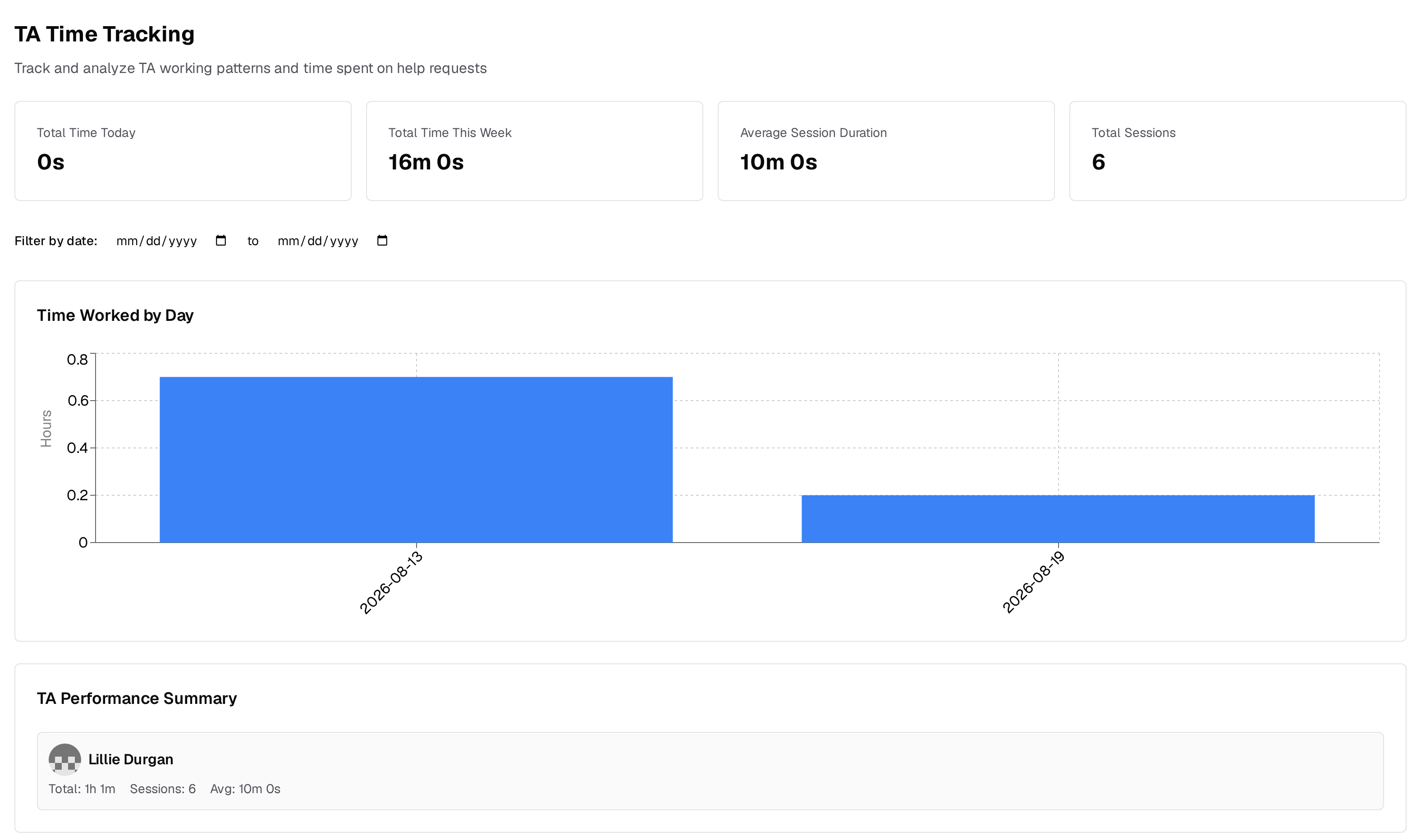 **TA Time Tracking** is reachable from the Settings menu and from `/manage/office-hours/time-tracking`, which serves the same page. It reads the work sessions that Pawtograder opens whenever a request is assigned and closes when it is unassigned, reassigned, or resolved, so it covers time spent on individual requests rather than time spent on duty. [Help Requests](/staff/office-hours/help-requests#work-session-history) describes the same sessions as they appear inside one request.
The dashboard opens with total time today, total time over the last seven days, average session duration, and session count, all responding to the date range in **Filter by date**. Below that sit a **Time Worked by Day** bar chart, a **TA Performance Summary** giving each TA a total, a session count, an average, and a comparison against the course average, and an **All Work Sessions** table with a filter under every column.
**Export to CSV** downloads the filtered rows, ignoring pagination, as `work-sessions--.csv`. The file adds start and end timestamps to the visible columns, writing `Active` as the end of a session still running. The **Notes** column is always empty: nothing in the product writes session notes.
Deleting a work session is restricted to instructors.
## See also
* [Office Hours Overview](/staff/office-hours/intro) for the rest of the Settings menu.
* [Moderation and Karma](/staff/office-hours/moderation-and-karma#student-activity) for the per-student activity summary, which has no export.
**TA Time Tracking** is reachable from the Settings menu and from `/manage/office-hours/time-tracking`, which serves the same page. It reads the work sessions that Pawtograder opens whenever a request is assigned and closes when it is unassigned, reassigned, or resolved, so it covers time spent on individual requests rather than time spent on duty. [Help Requests](/staff/office-hours/help-requests#work-session-history) describes the same sessions as they appear inside one request.
The dashboard opens with total time today, total time over the last seven days, average session duration, and session count, all responding to the date range in **Filter by date**. Below that sit a **Time Worked by Day** bar chart, a **TA Performance Summary** giving each TA a total, a session count, an average, and a comparison against the course average, and an **All Work Sessions** table with a filter under every column.
**Export to CSV** downloads the filtered rows, ignoring pagination, as `work-sessions--.csv`. The file adds start and end timestamps to the visible columns, writing `Active` as the end of a session still running. The **Notes** column is always empty: nothing in the product writes session notes.
Deleting a work session is restricted to instructors.
## See also
* [Office Hours Overview](/staff/office-hours/intro) for the rest of the Settings menu.
* [Moderation and Karma](/staff/office-hours/moderation-and-karma#student-activity) for the per-student activity summary, which has no export.