> ## Documentation Index
> Fetch the complete documentation index at: https://docs.pawtograder.com/llms.txt
> Use this file to discover all available pages before exploring further.
# Creating Polls
> Step-by-step guide to creating, publishing, and managing polls for classroom engagement
# Creating Polls
Creating a poll in Pawtograder is designed to be quick and straightforward, allowing you to set up a poll in just a few seconds during class.
## Creating a New Poll
1. Navigate to the "Polls" section in your course
2. Click the "Create Poll" button
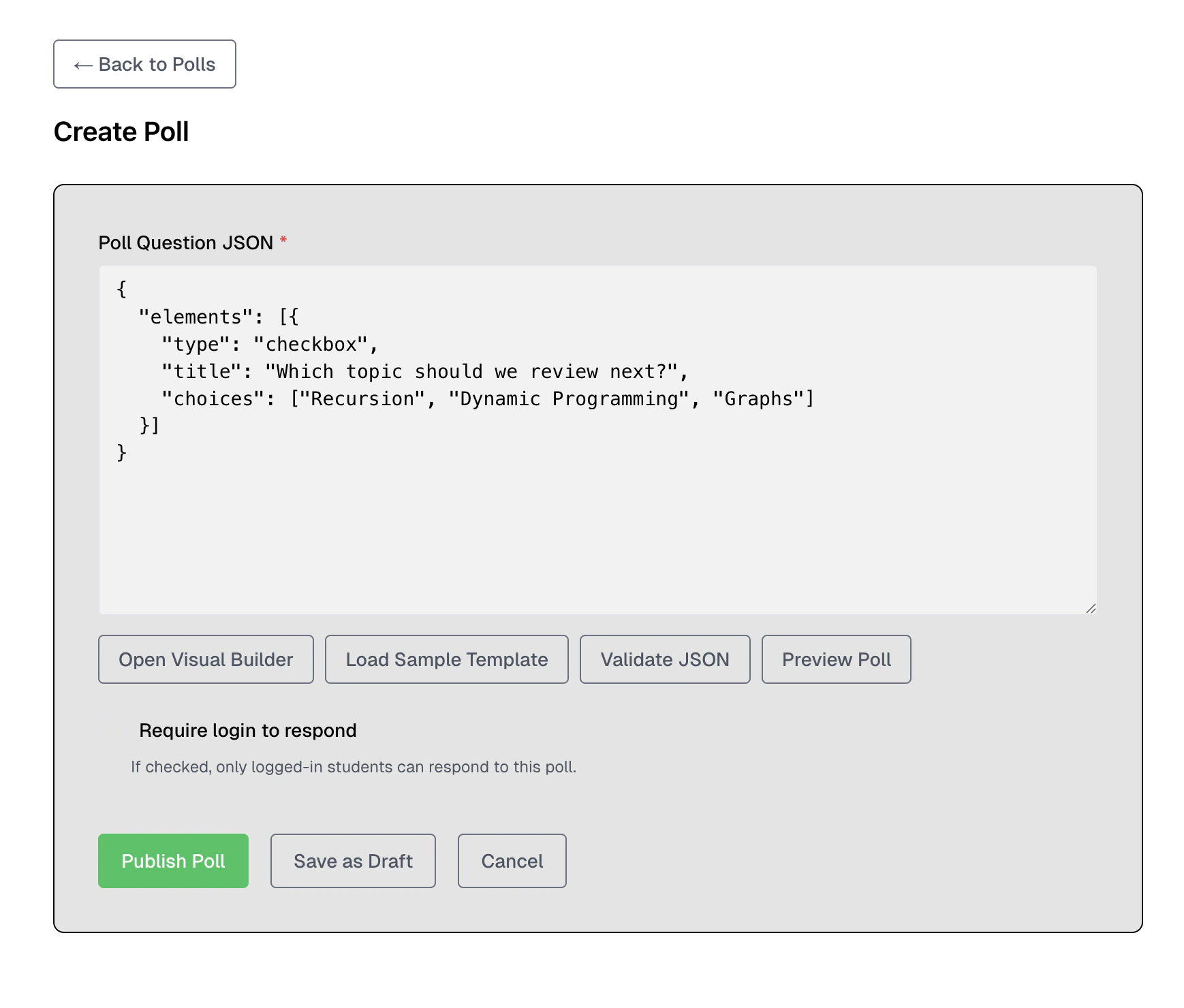 3. Click the **Open Visual Builder** button to design your question
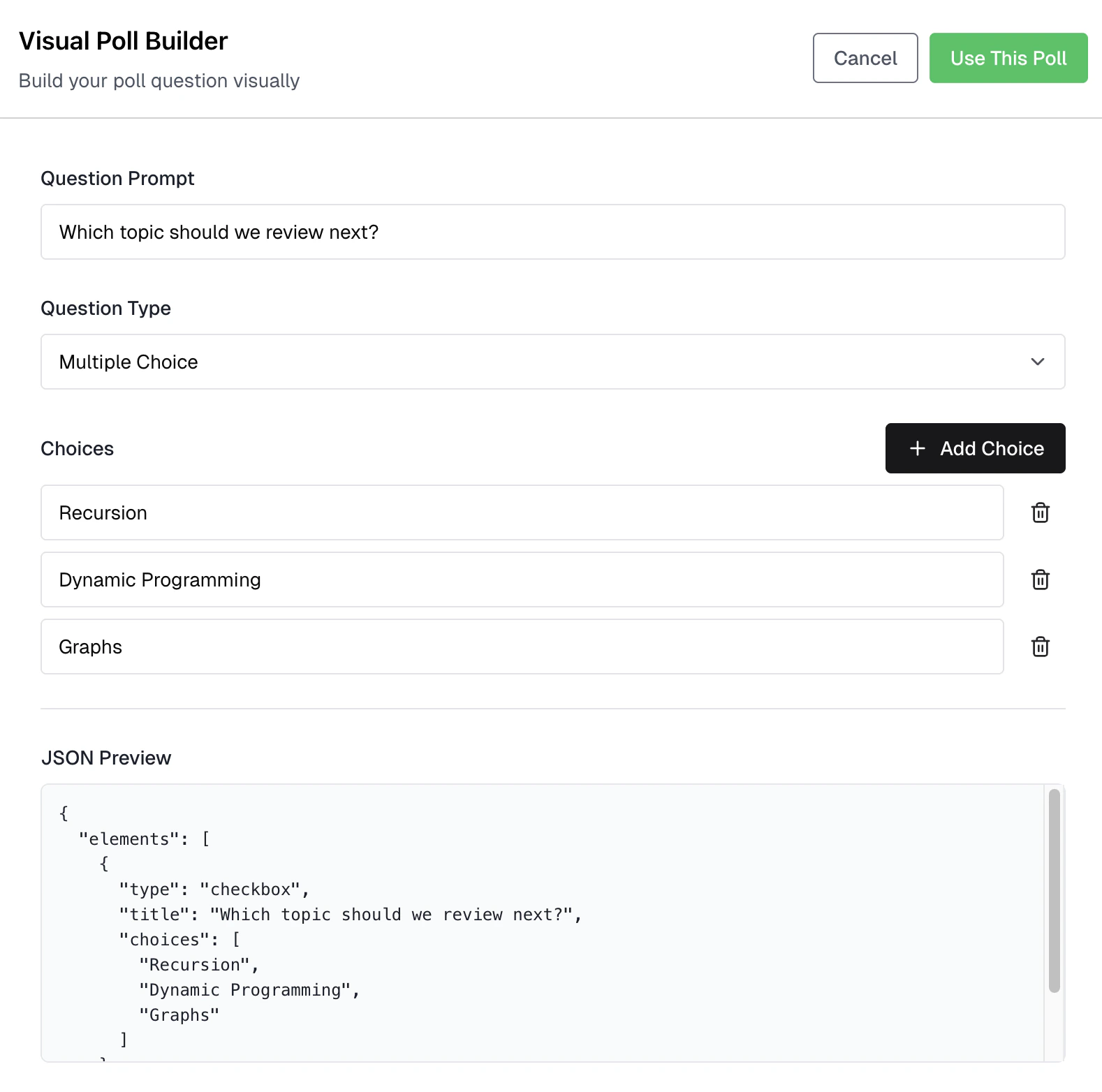 4. Select the poll type (see [Poll Types](/staff/polls/poll-types) for options)
5. Enter your question prompt
6. Add answer options (click "Add Choice" to add more)
7. Click **Use This Poll** button to apply your question
8. Optionally, click **Preview Poll** to see how students will see it
9. Configure **Require login to respond** based on your needs
10. Click **Publish Poll** to make it live immediately
## Using the Visual Builder
The visual builder provides an intuitive interface for creating poll questions:
### Question Prompt
Enter the question you want to ask students. Keep it concise so students can read and respond quickly.
### Poll Type Selection
Choose between:
* **Single Choice**: Students select exactly one answer
* **Multiple Choice**: Students can select multiple answers
### Answer Options
* Click **Add Choice** to add answer options
* Each option has a text field for the choice label
* Minimum of 2 options required
* Remove options by clicking the delete icon
### Applying Changes
After configuring your question, click **Use This Poll** to apply it. The JSON configuration will be updated automatically.
## Poll Settings
When creating a poll, you can configure the following:
| Setting | Description |
| ------------------- | --------------------------------------------- |
| **Question Prompt** | The question displayed to students |
| **Question Type** | Single choice or multiple choice |
| **Choices** | The available response options |
| **Require Login** | Whether students must be logged in to respond |
### Require Login
This setting controls who can respond to your poll:
| Setting | Behavior |
| ------------ | --------------------------------------------------------------------------- |
| **Enabled** | Students must log in to Pawtograder to respond. Their identity is recorded. |
| **Disabled** | Anyone with the poll link/QR code can respond anonymously. |
Enable **Require Login** if you want to:
* Track which students participated
* Ensure only enrolled students respond
* Use polls for attendance
Disable it for:
* Quick anonymous feedback
* Low-stakes comprehension checks
* Maximizing response rate (no login friction)
## Automatic Poll Closing
Polls automatically close **one hour** after being published. This ensures that:
* Responses are collected in a timely manner
* Students cannot submit responses long after class has ended
* Results remain relevant to the in-class discussion
The one-hour timer starts when you click **Publish Poll**, not when students first respond.
## Managing Polls
### Viewing All Polls
The polls management page shows all your polls with filtering options:
4. Select the poll type (see [Poll Types](/staff/polls/poll-types) for options)
5. Enter your question prompt
6. Add answer options (click "Add Choice" to add more)
7. Click **Use This Poll** button to apply your question
8. Optionally, click **Preview Poll** to see how students will see it
9. Configure **Require login to respond** based on your needs
10. Click **Publish Poll** to make it live immediately
## Using the Visual Builder
The visual builder provides an intuitive interface for creating poll questions:
### Question Prompt
Enter the question you want to ask students. Keep it concise so students can read and respond quickly.
### Poll Type Selection
Choose between:
* **Single Choice**: Students select exactly one answer
* **Multiple Choice**: Students can select multiple answers
### Answer Options
* Click **Add Choice** to add answer options
* Each option has a text field for the choice label
* Minimum of 2 options required
* Remove options by clicking the delete icon
### Applying Changes
After configuring your question, click **Use This Poll** to apply it. The JSON configuration will be updated automatically.
## Poll Settings
When creating a poll, you can configure the following:
| Setting | Description |
| ------------------- | --------------------------------------------- |
| **Question Prompt** | The question displayed to students |
| **Question Type** | Single choice or multiple choice |
| **Choices** | The available response options |
| **Require Login** | Whether students must be logged in to respond |
### Require Login
This setting controls who can respond to your poll:
| Setting | Behavior |
| ------------ | --------------------------------------------------------------------------- |
| **Enabled** | Students must log in to Pawtograder to respond. Their identity is recorded. |
| **Disabled** | Anyone with the poll link/QR code can respond anonymously. |
Enable **Require Login** if you want to:
* Track which students participated
* Ensure only enrolled students respond
* Use polls for attendance
Disable it for:
* Quick anonymous feedback
* Low-stakes comprehension checks
* Maximizing response rate (no login friction)
## Automatic Poll Closing
Polls automatically close **one hour** after being published. This ensures that:
* Responses are collected in a timely manner
* Students cannot submit responses long after class has ended
* Results remain relevant to the in-class discussion
The one-hour timer starts when you click **Publish Poll**, not when students first respond.
## Managing Polls
### Viewing All Polls
The polls management page shows all your polls with filtering options:
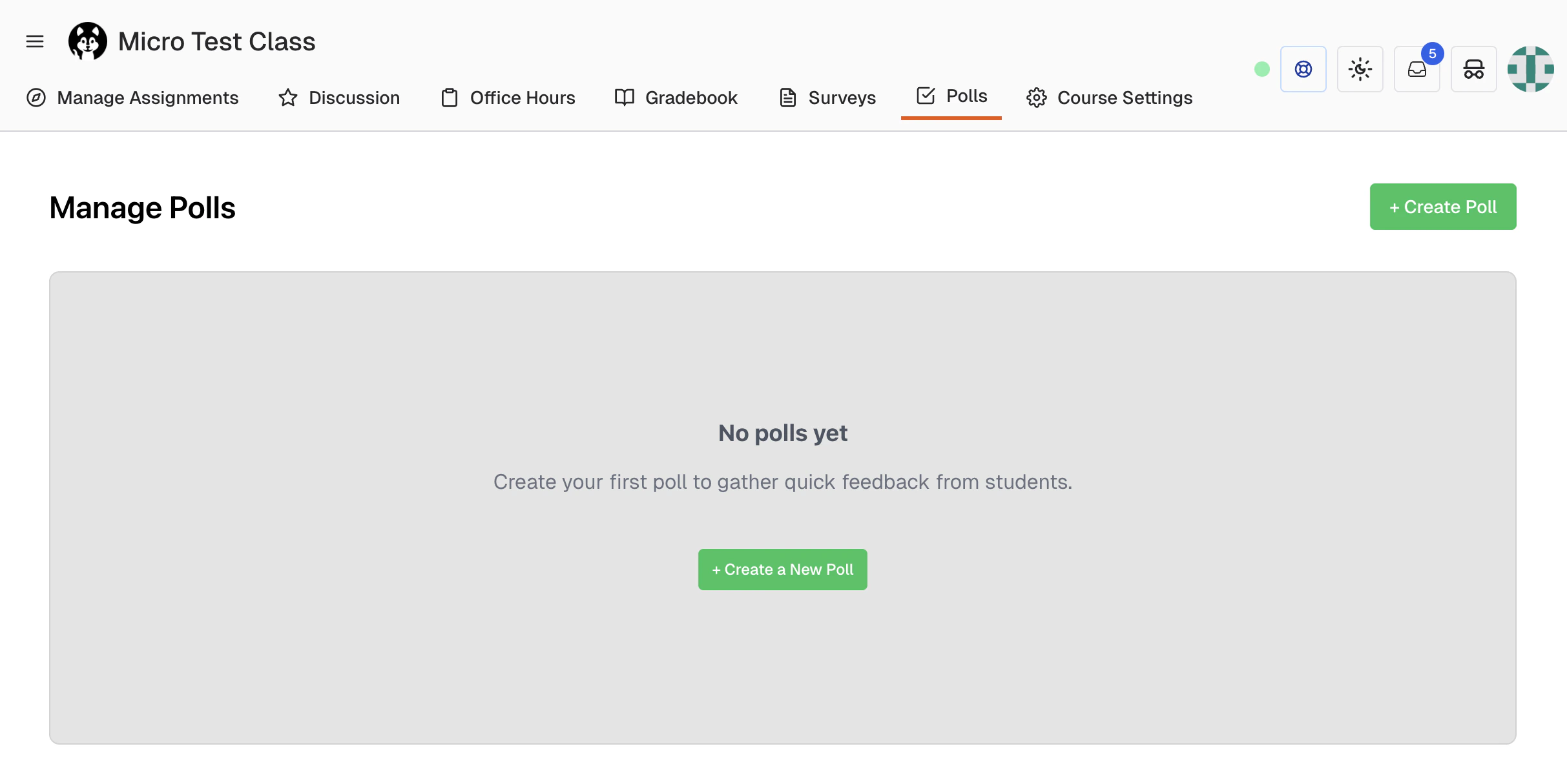 * **All**: Shows all polls (live and closed)
* **Live**: Shows only currently active polls
* **Closed**: Shows only closed polls
### Opening and Closing Polls
From the poll management view:
* **Open Poll**: Makes a closed poll live again (resets the 1-hour timer)
* **Close Poll**: Manually closes a poll before the automatic timeout
### Viewing Responses
Click on a poll to view its responses and analytics. See [Poll Visualizations](/staff/polls/visualizations) for details on the analytics dashboard.
## Deleting a Poll
To delete a poll:
1. Click the **Delete** button on the poll row
2. Confirm your choice in the dialog
* **All**: Shows all polls (live and closed)
* **Live**: Shows only currently active polls
* **Closed**: Shows only closed polls
### Opening and Closing Polls
From the poll management view:
* **Open Poll**: Makes a closed poll live again (resets the 1-hour timer)
* **Close Poll**: Manually closes a poll before the automatic timeout
### Viewing Responses
Click on a poll to view its responses and analytics. See [Poll Visualizations](/staff/polls/visualizations) for details on the analytics dashboard.
## Deleting a Poll
To delete a poll:
1. Click the **Delete** button on the poll row
2. Confirm your choice in the dialog
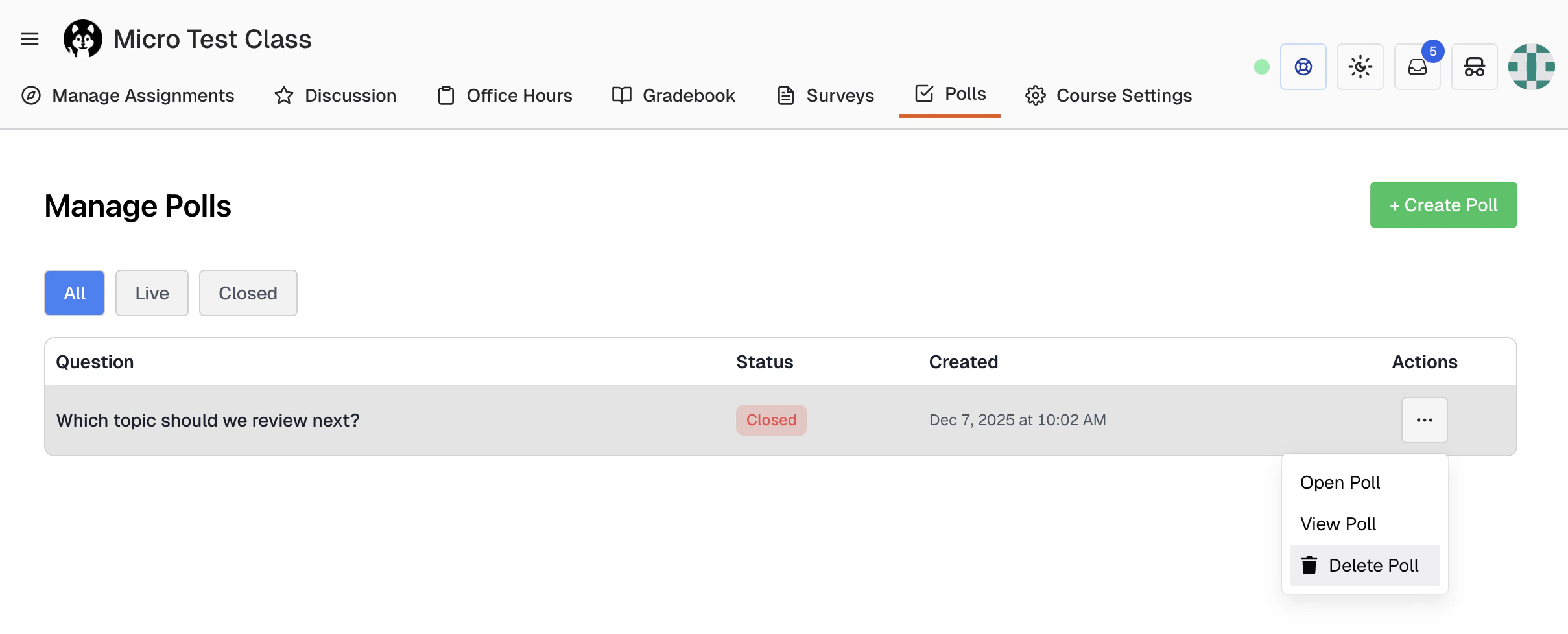 **Deleting a poll permanently removes all student responses.** This action cannot be undone. If you just want to stop collecting responses, close the poll instead.
## Best Practices
### Before Class
* **Prepare questions in advance**: Have your poll questions ready to minimize setup time
* **Test the workflow**: Create a test poll to familiarize yourself with the interface
* **Plan your timing**: Know when during the lecture you'll use each poll
### Question Design
* **Keep questions concise**: Students should be able to read and respond in under 30 seconds
* **Limit answer options**: 3-5 options is typically ideal for quick responses
* **Use clear language**: Avoid ambiguous wording that could confuse students
### During Class
* **Display the QR code**: Project the QR code for easy mobile access
* **Give adequate time**: Allow 30-60 seconds for students to respond
* **Discuss results**: Use poll results to guide class discussion
### After Class
* **Close polls promptly**: If you're done collecting responses, close the poll
* **Review participation**: Check response counts to gauge engagement
* **Iterate**: Adjust your question style based on what gets the best responses
**Deleting a poll permanently removes all student responses.** This action cannot be undone. If you just want to stop collecting responses, close the poll instead.
## Best Practices
### Before Class
* **Prepare questions in advance**: Have your poll questions ready to minimize setup time
* **Test the workflow**: Create a test poll to familiarize yourself with the interface
* **Plan your timing**: Know when during the lecture you'll use each poll
### Question Design
* **Keep questions concise**: Students should be able to read and respond in under 30 seconds
* **Limit answer options**: 3-5 options is typically ideal for quick responses
* **Use clear language**: Avoid ambiguous wording that could confuse students
### During Class
* **Display the QR code**: Project the QR code for easy mobile access
* **Give adequate time**: Allow 30-60 seconds for students to respond
* **Discuss results**: Use poll results to guide class discussion
### After Class
* **Close polls promptly**: If you're done collecting responses, close the poll
* **Review participation**: Check response counts to gauge engagement
* **Iterate**: Adjust your question style based on what gets the best responses