> ## Documentation Index
> Fetch the complete documentation index at: https://docs.pawtograder.com/llms.txt
> Use this file to discover all available pages before exploring further.
# Surveys
> Create custom surveys, track response rates, and collect detailed feedback from students
# Surveys
Pawtograder's surveys feature enables instructors to collect structured feedback from students about courses, assignments, teaching methods, and more. Create custom surveys, track response rates in real-time, and export data for analysis.
## Accessing Survey Management
Navigate to **Surveys** in the course navigation menu to access the survey management dashboard.
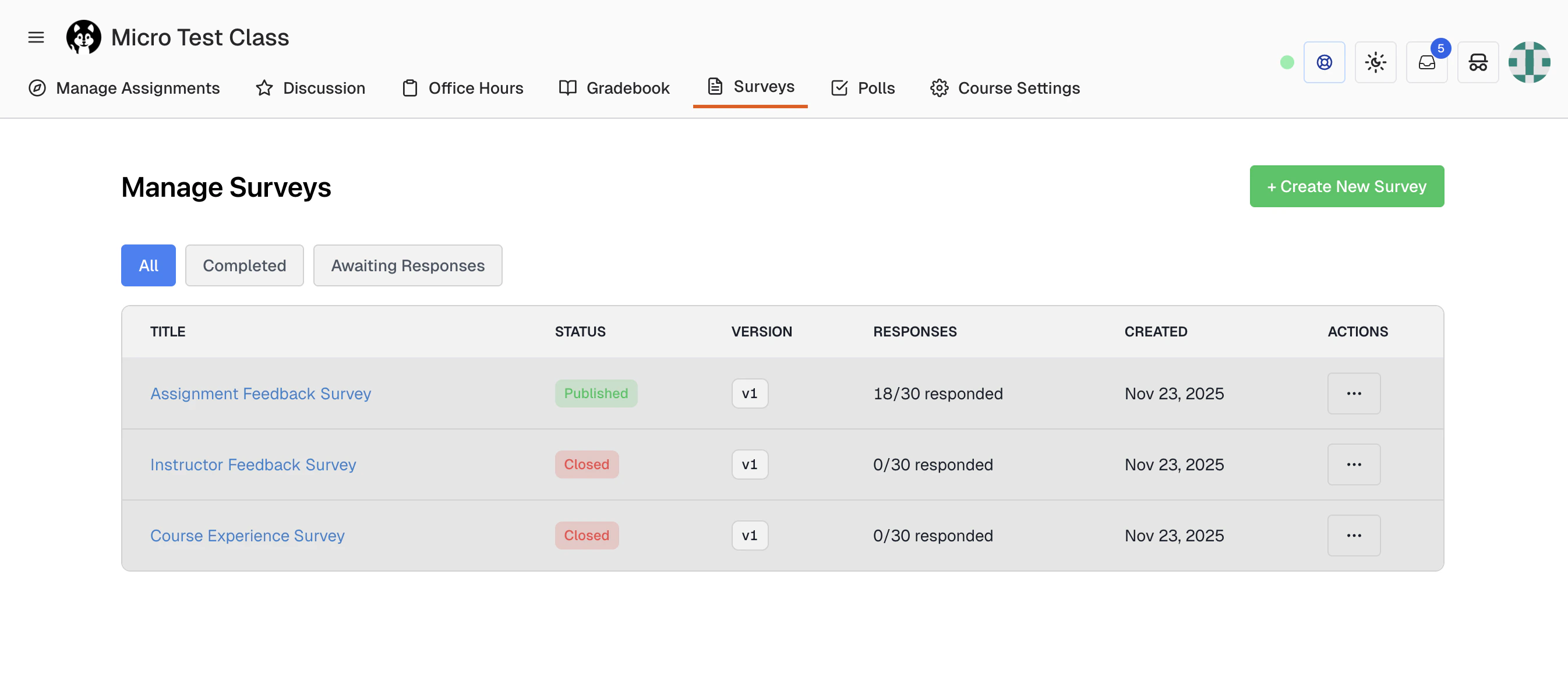 The survey dashboard displays all surveys for your course with key information:
* Survey title and description
* Status (Draft, Published, or Closed)
* Response count
* Created date
* Quick action buttons (View Responses, Edit, Delete)
## Creating a New Survey
### Starting from Scratch
1. Click the **Create New Survey** button in the top-right corner
2. Enter a survey title (required)
3. Add an optional description to provide context for students
4. Open the **Visual Builder** to add questions (see Visual Builder section below)
5. Configure survey settings (see Survey Settings section below)
6. Choose the due date and whether to allow students to edit their responses after submission
7. Preview the survey if needed, then click **Save Survey**
8. Choose to **Save as Draft** or **Publish** immediately
The survey dashboard displays all surveys for your course with key information:
* Survey title and description
* Status (Draft, Published, or Closed)
* Response count
* Created date
* Quick action buttons (View Responses, Edit, Delete)
## Creating a New Survey
### Starting from Scratch
1. Click the **Create New Survey** button in the top-right corner
2. Enter a survey title (required)
3. Add an optional description to provide context for students
4. Open the **Visual Builder** to add questions (see Visual Builder section below)
5. Configure survey settings (see Survey Settings section below)
6. Choose the due date and whether to allow students to edit their responses after submission
7. Preview the survey if needed, then click **Save Survey**
8. Choose to **Save as Draft** or **Publish** immediately
 ### Using the Template Library
Save time by starting with a pre-built survey template:
1. Click the **Create New Survey** button
2. Click **Load Template**
3. Search or filter templates by:
* **All Templates** or **My Templates**
* **Visibility**: Class-Only or Global
* Search by name or description keywords
4. Click **Preview** to see the full survey before using
5. Click **Clone** to create a new survey with the template's questions pre-filled
6. Customize as needed and publish
### Using the Template Library
Save time by starting with a pre-built survey template:
1. Click the **Create New Survey** button
2. Click **Load Template**
3. Search or filter templates by:
* **All Templates** or **My Templates**
* **Visibility**: Class-Only or Global
* Search by name or description keywords
4. Click **Preview** to see the full survey before using
5. Click **Clone** to create a new survey with the template's questions pre-filled
6. Customize as needed and publish
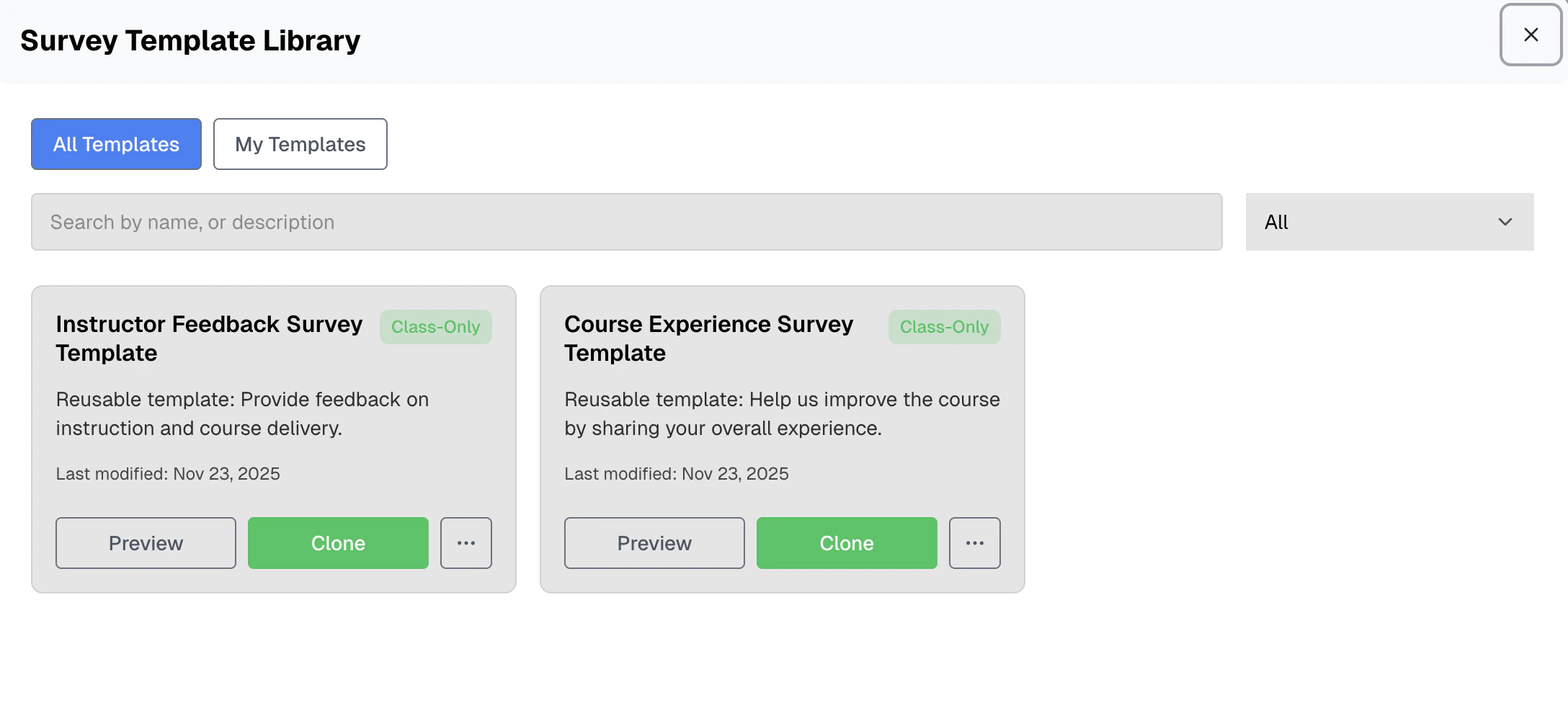 **Template Scopes:**
* **Class-Only**: Templates visible only within your course
* **Global**: Templates shared across all courses in the platform
## Visual Builder
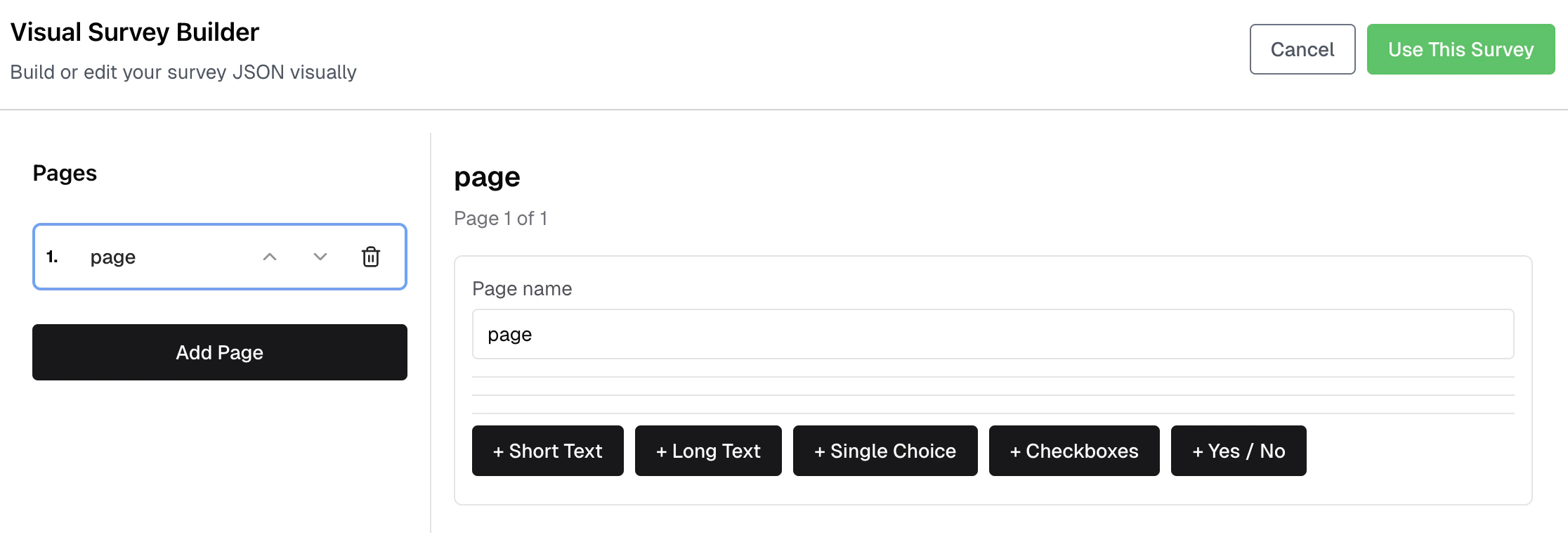
The visual builder uses SurveyJS, providing access to a wide variety of question types.
### Supported Question Types
* **Short Text**: Short-line text area for concise responses
* **Long Text**: Multi-line text areas for detailed responses
* **Single Choice**: Radio buttons to select one option from a list
* **Checkboxes**: Multiple select boxes allowing students to choose one or more options
* **Yes / No**: Binary question with two clear options for simple confirmations
### Building Your Survey
1. Name the page if needed (optional, helps organize multi-page surveys)
2. Click a question type button to add a new question (+ Short Text, + Long Text, etc.)
3. Enter the question name (this becomes the column header in response exports)
4. Add an optional description to provide context for students
5. Mark questions as required using the **Required** toggle
6. For choice-based questions, add and reorder answer options
7. Use the arrow buttons (↑ ↓) to reorder questions
8. Click the trash icon to delete a question
9. Click **Use This Survey** when finished
### Multi-Page Surveys
For longer surveys, organize questions across multiple pages:
1. Click **Add Page** in the left sidebar to create a new page
2. Name each page to help students understand their progress
3. Use the arrow buttons to reorder pages
4. Delete a page by clicking the trash icon (cannot delete the last remaining page)
5. Click on any page name to switch between pages while editing
Students will navigate through pages sequentially when completing the survey.
Use multi-page surveys to:
* Group related questions together
* Break up long surveys into manageable sections
* Create a logical flow through different topics
### Configuring Question Options
**For Single Choice and Checkboxes:**
1. Click **Add choice** to add new options
2. Enter the value for each choice
3. Use the arrow buttons to reorder choices
4. Click ✕ to remove a choice
**For Yes / No questions:**
* Customize the **True label** (default: "Yes")
* Customize the **False label** (default: "No")
### Survey JSON Editor
Advanced users may directly modify the SurveyJS configuration when creating a new survey. Use the visual builder first, then fine-tune in JSON mode if needed.
* The JSON textarea shows the raw SurveyJS configuration
* Click **Validate JSON** to check for syntax errors before saving
* Changes in the Visual Builder automatically update the JSON
The JSON editor is for advanced users familiar with the [SurveyJS JSON format](https://surveyjs.io/documentation). Most users should use the Visual Builder instead.
### Previewing Your Survey
Before publishing, preview how students will see your survey:
1. Click **Show Preview** in the preview section
2. A modal displays the survey exactly as students will experience it
3. Test navigation between pages (for multi-page surveys)
4. Verify question types and options display correctly
5. Close the preview when satisfied
Always preview your survey before publishing to catch any formatting issues or unclear questions.
## Survey Settings
### Status Options
#### Draft
* Survey is not visible to students
* Allows you to work on the survey without time pressure
* No responses can be submitted
* Can be edited freely without affecting existing data
#### Published
* Survey becomes visible to students immediately (or at the configured **Available At** time)
* Students can begin submitting responses
* Due date validation ensures deadline is in the future
* Editing published surveys is possible but use caution (see Editing Published Surveys below)
### Due Date Configuration
1. Click the date/time picker in the survey form
2. Select a date and time for the survey deadline
3. The system converts to your configured course time zone (see [Course Settings](/staff/course-settings#time-zone-configuration))
4. Students see a countdown timer showing time remaining
5. After the due date passes, students can no longer submit responses
**Due Date Display:**
* Red "Closed" indicator when past due
* Orange warning when less than 24 hours remain
* Days and hours remaining for upcoming deadlines
You can configure your course's default time zone in **Course Settings**. All dates and times throughout Pawtograder (including survey deadlines) are displayed in the configured course time zone. The default is America/New\_York (Eastern Time).
### Available At Configuration
Control when a survey becomes visible to students using the **Available At** field:
1. Leave empty to make the survey visible immediately upon publishing
2. Set a future date/time to schedule when the survey becomes available
3. The survey remains hidden from students until the specified date/time
The **Available At** date must be before the **Due Date**. Students cannot access the survey before the availability time, even if it is published.
Use the available date to schedule surveys in advance without manually publishing them later, e.g. releasing surveys after an assignment deadline or class event.
### Response Editing Control
Toggle **Allow Response Editing** to control whether students can modify their submissions after initial submission.
**Enabled:**
* Students see an edit notification when taking the survey
* **View Submission** button changes to allow editing
* Timestamp updates to show last modification time
**Disabled:**
* Students cannot change responses after submitting
* Original submission timestamp preserved
* Ensures responses reflect immediate reactions
### Linking Surveys to Assignments
You can optionally link a survey to a specific assignment. When linked, students see the survey status banner on their submission page, making it easy to complete assignment-related feedback.
1. In the survey form, select an assignment from the **Link to Assignment** dropdown
2. The survey appears on the assignment's submission page for students
3. The banner shows whether the survey is pending, completed, or overdue
4. Students can quickly access and complete the survey from their submission view
Use assignment-linked surveys for:
* Post-assignment reflection surveys
* Peer feedback on group projects
* Team collaboration feedback after group projects
* Assignment-specific difficulty or time tracking
### Survey Assignment
Control which students can access and respond to your survey:
**Assign to all students** (default)
* All enrolled students in the course can see and respond to the survey
* Response rate is calculated based on total enrolled students
* Best for course-wide feedback or evaluations
**Assign to specific students**
1. Select **Assign to specific students** option
2. Click **Select Students** to open the student picker
3. Search for students by name
4. Check the boxes next to students you want to include
5. Click **Confirm** to save your selection
The button displays the count of selected students (e.g., "Select Students (5 selected)").
Use specific student assignment for:
* Targeted feedback from a particular section or group
* Follow-up surveys for students who reported issues
* Pilot testing a survey before wider release
* Assignment-specific peer feedback or reflections
## Peer Feedback Surveys
Peer feedback surveys allow students to provide constructive feedback about their teammates in group projects. A pre-built **Peer Feedback Survey** template is available in the Template Library.
### Current Implementation
Peer feedback surveys use the **Assign to specific students** assignment mode. The instructor assigns the survey to students who need to provide feedback, and responses are collected like any other survey.
The current implementation does not include automated peer-to-peer assignment (e.g., automatically assigning Student A to review Student B). Instructors manually assign surveys to students who should provide feedback. Future versions may include automated peer assignment features.
### Peer Feedback Template Structure
The built-in peer feedback template includes the following questions that can be customized for your course:
**Rating Questions (1-5 scale):**
* Overall contribution to the project
* Communication effectiveness with the group
* Reliability in completing assigned tasks on time
* Collaboration and supportiveness
* Quality of work produced
**Multi-Select Question:**
* Team member strengths (Technical skills, Problem-solving, Communication, Leadership, Time management, Creativity, Attention to detail, Helping others)
**Open-Ended Questions:**
* What did this team member do well?
* What could this team member improve on?
* Additional comments (optional)
### Using the Peer Feedback Template
1. Click **Create New Survey**
2. Click **Load Template**
3. Search for "Peer Feedback Survey"
4. Click **Clone** to use the template
5. Customize questions as needed for your course context
6. Use **Assign to specific students** to assign to group members
7. Publish when ready
### Viewing Peer Feedback Responses
Peer feedback responses are visible only to instructors and graders. Students can only see their own submitted responses, not feedback others have provided.
To review peer feedback:
1. Navigate to the survey's **View Responses** page
2. Use filters to focus on specific questions or date ranges
3. Export to CSV for detailed analysis or grade calculations
## Group Mentors and Analytics
### Assigning Mentors to Groups
For group assignments, you can assign mentors (instructors or graders) to student groups. This enables mentor-specific views in survey analytics and enables targeted feedback collection.
1. Navigate to the assignment's **Groups** page
2. In the groups table, find the **Mentor** column
3. Select a mentor from the dropdown for each group
4. The mentor assignment is saved automatically
Mentors can:
* View analytics for only their assigned groups
* See aggregated survey responses from their groups
* Track group health metrics and alerts
* Provide targeted support and intervention when needed
**Use cases for group mentors:**
* Distribute workload among TAs for large courses
* Assign specialized mentors based on project topics
* Enable targeted feedback collection from specific mentor-group pairings
* Track mentor effectiveness through group-specific survey analytics
## Survey Analytics
Pawtograder provides comprehensive analytics for survey responses, including statistical analysis and visualizations broken down by groups, mentors, and sections.
### Accessing Analytics
Navigate to **View Responses** on any published survey to access the analytics dashboard. Analytics automatically appear for surveys with quantitative questions (rating scales, checkboxes, etc.).
### Analytics Views
The analytics dashboard includes three main views:
**Overview Tab**
* Course-wide statistics with diverging stacked bar charts for Likert-scale questions
* Summary cards showing total responses, response rate, and alerts for groups needing attention
* Filter by section (lab, lecture, or discussion) to compare subgroups
* Compare multiple surveys in a series to track trends over time
* Free-text response aggregation
**By Group Tab**
* View response distributions and statistics for each student group
* Compare group performance against course averages
* Identify groups with low response rates or concerning feedback
* Drill down into individual group responses with member-level detail
**My Groups Tab** (for mentors)
* Shows only groups where you are assigned as the mentor
* Same detailed analytics as the By Group view, focused on your groups
Analytics include:
* Diverging stacked bar charts for Likert-scale questions
* Distribution charts for choice-based questions
* Statistical summaries (mean, median, min, max, standard deviation)
* Alerts for groups with low response rates or concerning metrics
### Configuring Analytics
Use the **Analytics Configuration** section when creating or editing a survey to customize which questions appear in analytics views and set alert thresholds for group monitoring.
**Global Alert Thresholds:**
* **Variance Threshold**: Standard deviation above which to flag high variance (default: 1.5)
* **Non-Response Threshold**: Response rate below which to flag groups (default: 80%)
**Per-Question Configuration:**
For each question, you can:
1. Toggle **Include in Analytics** to show/hide the question in analytics views
2. Set an **Alert Threshold** value that triggers warnings when group means exceed/fall below a value
3. Choose **Alert Direction** (above/below mean, or any individual response above/below)
4. Add a custom **Alert Message** to explain the concern
5. Mark as **Reversed Scale** if higher values indicate worse outcomes
Analytics automatically group questions by their scale type (e.g., 1-5 Likert scales) for consistent visualization across related questions.
### Group Analytics Details
For surveys linked to group assignments, the **By Group** tab provides team-level analytics:
**Group Summary Cards:**
* Visual cards for each group showing response rates and key metrics
* Color-coded alerts for groups needing attention
* Click any card to view detailed group analytics
**Section Filtering:**
* Filter groups by class section using the dropdown
* "All sections" view shows groups organized by section
* Selection is persisted for your next visit
**Group Detail Panel:**
* **Group Member Roster**: Shows all group members with submission status (✓ submitted, ✗ not submitted)
* **Email Links**: Instructor view includes mailto links for students and mentors
* **Question-by-Question Breakdown**: Responses grouped by question type with charts
* **Individual Responses**: View each group member's answers
## Survey Series
Link related surveys into a series to track trends over time, such as weekly team collaboration check-ins or recurring course feedback.
### Creating a Survey Series
1. Navigate to **Surveys** → **Manage Series**
2. Click **Create Series**
3. Enter a series name (e.g., "Weekly Team Collaboration Surveys")
4. Add an optional description
5. Click **Create Series**
### Linking Surveys to a Series
When creating or editing a survey:
1. Select a series from the **Link to Series** dropdown
2. Enter a **Week Number** to indicate the survey's position in the series
3. Surveys in a series can be compared side-by-side in the analytics view
### Managing Series
From the **Manage Series** page, you can:
* View all surveys in each series
* Reorder surveys using the arrow buttons
* Edit series name and description
* Delete a series (surveys will be unlinked but not deleted)
**Series Comparison:** In the analytics view, select multiple surveys from a series to compare response trends across weeks, helping identify patterns in team collaboration or course satisfaction.
Use survey series for weekly team collaboration surveys or recurring course feedback to identify patterns over time.
## Managing Survey Responses
### Viewing Response Dashboard
Click **View Responses** on any published survey to see the response dashboard and analytics.
**Template Scopes:**
* **Class-Only**: Templates visible only within your course
* **Global**: Templates shared across all courses in the platform
## Visual Builder
The visual builder uses SurveyJS, providing access to a wide variety of question types.
### Supported Question Types
* **Short Text**: Short-line text area for concise responses
* **Long Text**: Multi-line text areas for detailed responses
* **Single Choice**: Radio buttons to select one option from a list
* **Checkboxes**: Multiple select boxes allowing students to choose one or more options
* **Yes / No**: Binary question with two clear options for simple confirmations
### Building Your Survey
1. Name the page if needed (optional, helps organize multi-page surveys)
2. Click a question type button to add a new question (+ Short Text, + Long Text, etc.)
3. Enter the question name (this becomes the column header in response exports)
4. Add an optional description to provide context for students
5. Mark questions as required using the **Required** toggle
6. For choice-based questions, add and reorder answer options
7. Use the arrow buttons (↑ ↓) to reorder questions
8. Click the trash icon to delete a question
9. Click **Use This Survey** when finished
### Multi-Page Surveys
For longer surveys, organize questions across multiple pages:
1. Click **Add Page** in the left sidebar to create a new page
2. Name each page to help students understand their progress
3. Use the arrow buttons to reorder pages
4. Delete a page by clicking the trash icon (cannot delete the last remaining page)
5. Click on any page name to switch between pages while editing
Students will navigate through pages sequentially when completing the survey.
Use multi-page surveys to:
* Group related questions together
* Break up long surveys into manageable sections
* Create a logical flow through different topics
### Configuring Question Options
**For Single Choice and Checkboxes:**
1. Click **Add choice** to add new options
2. Enter the value for each choice
3. Use the arrow buttons to reorder choices
4. Click ✕ to remove a choice
**For Yes / No questions:**
* Customize the **True label** (default: "Yes")
* Customize the **False label** (default: "No")
### Survey JSON Editor
Advanced users may directly modify the SurveyJS configuration when creating a new survey. Use the visual builder first, then fine-tune in JSON mode if needed.
* The JSON textarea shows the raw SurveyJS configuration
* Click **Validate JSON** to check for syntax errors before saving
* Changes in the Visual Builder automatically update the JSON
The JSON editor is for advanced users familiar with the [SurveyJS JSON format](https://surveyjs.io/documentation). Most users should use the Visual Builder instead.
### Previewing Your Survey
Before publishing, preview how students will see your survey:
1. Click **Show Preview** in the preview section
2. A modal displays the survey exactly as students will experience it
3. Test navigation between pages (for multi-page surveys)
4. Verify question types and options display correctly
5. Close the preview when satisfied
Always preview your survey before publishing to catch any formatting issues or unclear questions.
## Survey Settings
### Status Options
#### Draft
* Survey is not visible to students
* Allows you to work on the survey without time pressure
* No responses can be submitted
* Can be edited freely without affecting existing data
#### Published
* Survey becomes visible to students immediately (or at the configured **Available At** time)
* Students can begin submitting responses
* Due date validation ensures deadline is in the future
* Editing published surveys is possible but use caution (see Editing Published Surveys below)
### Due Date Configuration
1. Click the date/time picker in the survey form
2. Select a date and time for the survey deadline
3. The system converts to your configured course time zone (see [Course Settings](/staff/course-settings#time-zone-configuration))
4. Students see a countdown timer showing time remaining
5. After the due date passes, students can no longer submit responses
**Due Date Display:**
* Red "Closed" indicator when past due
* Orange warning when less than 24 hours remain
* Days and hours remaining for upcoming deadlines
You can configure your course's default time zone in **Course Settings**. All dates and times throughout Pawtograder (including survey deadlines) are displayed in the configured course time zone. The default is America/New\_York (Eastern Time).
### Available At Configuration
Control when a survey becomes visible to students using the **Available At** field:
1. Leave empty to make the survey visible immediately upon publishing
2. Set a future date/time to schedule when the survey becomes available
3. The survey remains hidden from students until the specified date/time
The **Available At** date must be before the **Due Date**. Students cannot access the survey before the availability time, even if it is published.
Use the available date to schedule surveys in advance without manually publishing them later, e.g. releasing surveys after an assignment deadline or class event.
### Response Editing Control
Toggle **Allow Response Editing** to control whether students can modify their submissions after initial submission.
**Enabled:**
* Students see an edit notification when taking the survey
* **View Submission** button changes to allow editing
* Timestamp updates to show last modification time
**Disabled:**
* Students cannot change responses after submitting
* Original submission timestamp preserved
* Ensures responses reflect immediate reactions
### Linking Surveys to Assignments
You can optionally link a survey to a specific assignment. When linked, students see the survey status banner on their submission page, making it easy to complete assignment-related feedback.
1. In the survey form, select an assignment from the **Link to Assignment** dropdown
2. The survey appears on the assignment's submission page for students
3. The banner shows whether the survey is pending, completed, or overdue
4. Students can quickly access and complete the survey from their submission view
Use assignment-linked surveys for:
* Post-assignment reflection surveys
* Peer feedback on group projects
* Team collaboration feedback after group projects
* Assignment-specific difficulty or time tracking
### Survey Assignment
Control which students can access and respond to your survey:
**Assign to all students** (default)
* All enrolled students in the course can see and respond to the survey
* Response rate is calculated based on total enrolled students
* Best for course-wide feedback or evaluations
**Assign to specific students**
1. Select **Assign to specific students** option
2. Click **Select Students** to open the student picker
3. Search for students by name
4. Check the boxes next to students you want to include
5. Click **Confirm** to save your selection
The button displays the count of selected students (e.g., "Select Students (5 selected)").
Use specific student assignment for:
* Targeted feedback from a particular section or group
* Follow-up surveys for students who reported issues
* Pilot testing a survey before wider release
* Assignment-specific peer feedback or reflections
## Peer Feedback Surveys
Peer feedback surveys allow students to provide constructive feedback about their teammates in group projects. A pre-built **Peer Feedback Survey** template is available in the Template Library.
### Current Implementation
Peer feedback surveys use the **Assign to specific students** assignment mode. The instructor assigns the survey to students who need to provide feedback, and responses are collected like any other survey.
The current implementation does not include automated peer-to-peer assignment (e.g., automatically assigning Student A to review Student B). Instructors manually assign surveys to students who should provide feedback. Future versions may include automated peer assignment features.
### Peer Feedback Template Structure
The built-in peer feedback template includes the following questions that can be customized for your course:
**Rating Questions (1-5 scale):**
* Overall contribution to the project
* Communication effectiveness with the group
* Reliability in completing assigned tasks on time
* Collaboration and supportiveness
* Quality of work produced
**Multi-Select Question:**
* Team member strengths (Technical skills, Problem-solving, Communication, Leadership, Time management, Creativity, Attention to detail, Helping others)
**Open-Ended Questions:**
* What did this team member do well?
* What could this team member improve on?
* Additional comments (optional)
### Using the Peer Feedback Template
1. Click **Create New Survey**
2. Click **Load Template**
3. Search for "Peer Feedback Survey"
4. Click **Clone** to use the template
5. Customize questions as needed for your course context
6. Use **Assign to specific students** to assign to group members
7. Publish when ready
### Viewing Peer Feedback Responses
Peer feedback responses are visible only to instructors and graders. Students can only see their own submitted responses, not feedback others have provided.
To review peer feedback:
1. Navigate to the survey's **View Responses** page
2. Use filters to focus on specific questions or date ranges
3. Export to CSV for detailed analysis or grade calculations
## Group Mentors and Analytics
### Assigning Mentors to Groups
For group assignments, you can assign mentors (instructors or graders) to student groups. This enables mentor-specific views in survey analytics and enables targeted feedback collection.
1. Navigate to the assignment's **Groups** page
2. In the groups table, find the **Mentor** column
3. Select a mentor from the dropdown for each group
4. The mentor assignment is saved automatically
Mentors can:
* View analytics for only their assigned groups
* See aggregated survey responses from their groups
* Track group health metrics and alerts
* Provide targeted support and intervention when needed
**Use cases for group mentors:**
* Distribute workload among TAs for large courses
* Assign specialized mentors based on project topics
* Enable targeted feedback collection from specific mentor-group pairings
* Track mentor effectiveness through group-specific survey analytics
## Survey Analytics
Pawtograder provides comprehensive analytics for survey responses, including statistical analysis and visualizations broken down by groups, mentors, and sections.
### Accessing Analytics
Navigate to **View Responses** on any published survey to access the analytics dashboard. Analytics automatically appear for surveys with quantitative questions (rating scales, checkboxes, etc.).
### Analytics Views
The analytics dashboard includes three main views:
**Overview Tab**
* Course-wide statistics with diverging stacked bar charts for Likert-scale questions
* Summary cards showing total responses, response rate, and alerts for groups needing attention
* Filter by section (lab, lecture, or discussion) to compare subgroups
* Compare multiple surveys in a series to track trends over time
* Free-text response aggregation
**By Group Tab**
* View response distributions and statistics for each student group
* Compare group performance against course averages
* Identify groups with low response rates or concerning feedback
* Drill down into individual group responses with member-level detail
**My Groups Tab** (for mentors)
* Shows only groups where you are assigned as the mentor
* Same detailed analytics as the By Group view, focused on your groups
Analytics include:
* Diverging stacked bar charts for Likert-scale questions
* Distribution charts for choice-based questions
* Statistical summaries (mean, median, min, max, standard deviation)
* Alerts for groups with low response rates or concerning metrics
### Configuring Analytics
Use the **Analytics Configuration** section when creating or editing a survey to customize which questions appear in analytics views and set alert thresholds for group monitoring.
**Global Alert Thresholds:**
* **Variance Threshold**: Standard deviation above which to flag high variance (default: 1.5)
* **Non-Response Threshold**: Response rate below which to flag groups (default: 80%)
**Per-Question Configuration:**
For each question, you can:
1. Toggle **Include in Analytics** to show/hide the question in analytics views
2. Set an **Alert Threshold** value that triggers warnings when group means exceed/fall below a value
3. Choose **Alert Direction** (above/below mean, or any individual response above/below)
4. Add a custom **Alert Message** to explain the concern
5. Mark as **Reversed Scale** if higher values indicate worse outcomes
Analytics automatically group questions by their scale type (e.g., 1-5 Likert scales) for consistent visualization across related questions.
### Group Analytics Details
For surveys linked to group assignments, the **By Group** tab provides team-level analytics:
**Group Summary Cards:**
* Visual cards for each group showing response rates and key metrics
* Color-coded alerts for groups needing attention
* Click any card to view detailed group analytics
**Section Filtering:**
* Filter groups by class section using the dropdown
* "All sections" view shows groups organized by section
* Selection is persisted for your next visit
**Group Detail Panel:**
* **Group Member Roster**: Shows all group members with submission status (✓ submitted, ✗ not submitted)
* **Email Links**: Instructor view includes mailto links for students and mentors
* **Question-by-Question Breakdown**: Responses grouped by question type with charts
* **Individual Responses**: View each group member's answers
## Survey Series
Link related surveys into a series to track trends over time, such as weekly team collaboration check-ins or recurring course feedback.
### Creating a Survey Series
1. Navigate to **Surveys** → **Manage Series**
2. Click **Create Series**
3. Enter a series name (e.g., "Weekly Team Collaboration Surveys")
4. Add an optional description
5. Click **Create Series**
### Linking Surveys to a Series
When creating or editing a survey:
1. Select a series from the **Link to Series** dropdown
2. Enter a **Week Number** to indicate the survey's position in the series
3. Surveys in a series can be compared side-by-side in the analytics view
### Managing Series
From the **Manage Series** page, you can:
* View all surveys in each series
* Reorder surveys using the arrow buttons
* Edit series name and description
* Delete a series (surveys will be unlinked but not deleted)
**Series Comparison:** In the analytics view, select multiple surveys from a series to compare response trends across weeks, helping identify patterns in team collaboration or course satisfaction.
Use survey series for weekly team collaboration surveys or recurring course feedback to identify patterns over time.
## Managing Survey Responses
### Viewing Response Dashboard
Click **View Responses** on any published survey to see the response dashboard and analytics.
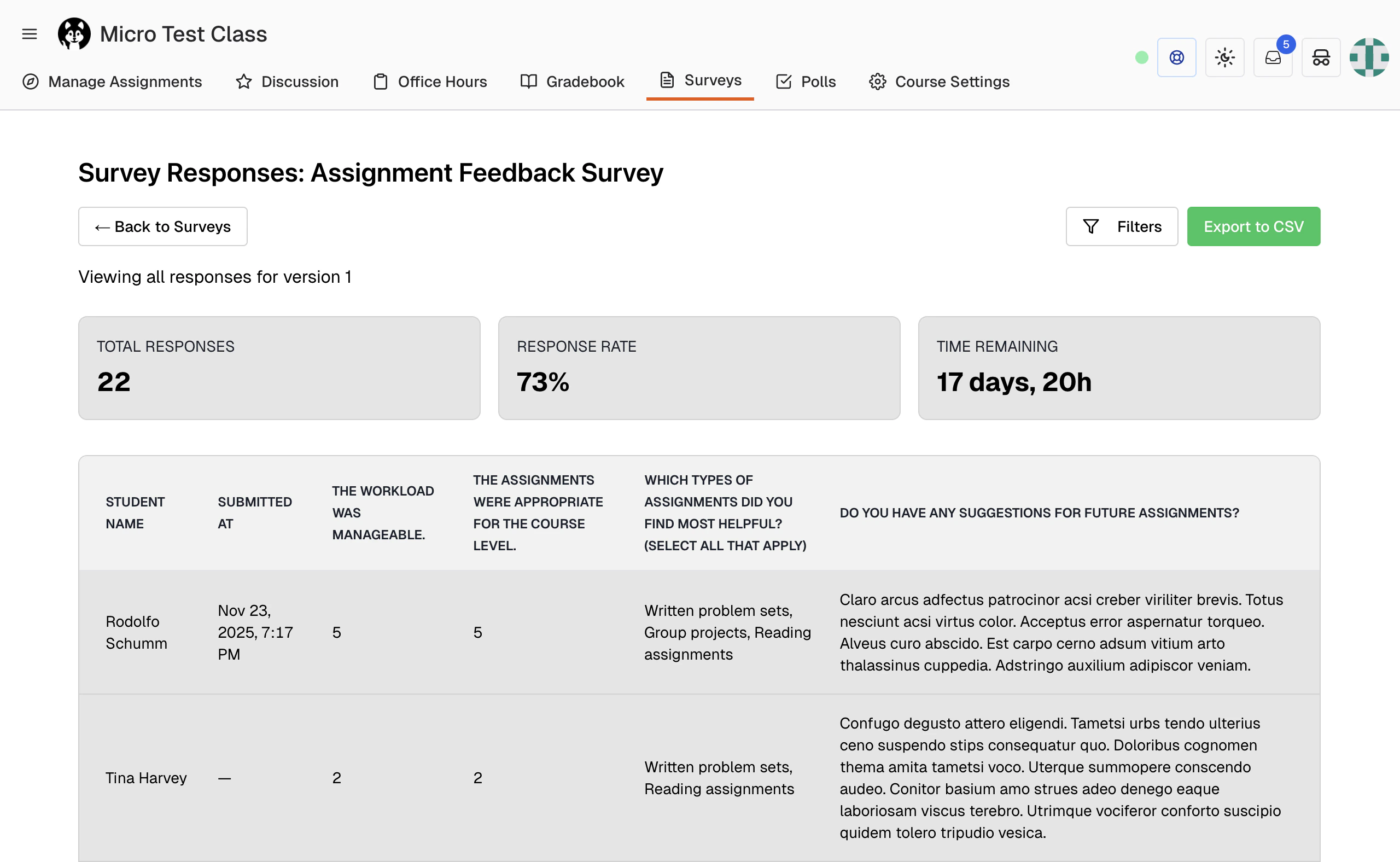 The dashboard displays three key metrics at the top:
#### Total Responses
Shows the current number of submitted responses.
#### Response Rate
Percentage of enrolled students who have submitted responses. Calculated as:
```text theme={null}
Response Rate = (Total Responses / Total Enrolled Students) × 100
```
#### Time Remaining
Dynamic countdown to the due date:
* **Black**: More than 24 hours remaining (displays days and hours)
* **Orange**: Less than 24 hours remaining (displays hours and minutes)
* **Red**: Past due date (displays "Closed")
### Response Data Table
The table shows all student responses with columns for:
* Student name
* Submission timestamp
* Answers to each survey question (dynamic columns)
**Column Headers**: Question titles automatically populate as column headers. Long question text is truncated for readability.
**Empty Responses**: Shows "—" for unanswered questions.
**Complex Answers**: Arrays display as comma-separated values (e.g., "Option A, Option C").
### Filtering Responses
Click the **Filters** button to open the filter panel with advanced options.
#### Date Range Filter
Filter responses submitted within a specific time period:
1. Select a start date
2. Select an end date
3. Only responses submitted between these dates display
**Use cases:**
* Analyze early vs. late responders
* Track response patterns over time
* Identify submission clusters before deadline
#### Anonymous Mode
Hide student identifying information for unbiased analysis by removing the student names column.
#### Question Selection Filter
Display only specific questions of interest:
1. Check/uncheck questions to show or hide
2. Reduces information overload for large surveys
3. Focus on specific topics or concerns
**Active Filters Display**: Blue badges show currently applied filters with quick-remove (×) buttons.
### Exporting Response Data
Click **Export to CSV** to download all response data for external analysis.
**CSV Format:**
```csv theme={null}
Student Name,Submitted At,Question 1,Question 2,...
Jane Doe,"Nov 15, 2025, 3:45 PM",Answer 1,Answer 2,...
John Smith,"Nov 16, 2025, 10:22 AM",Answer 1,Answer 2,...
```
**Features:**
* Properly escaped values for Excel/Google Sheets compatibility
* Filename includes survey title and export date
* All question responses included as separate columns
### Viewing Individual Responses
Click on any row in the response table to view a student's individual response in detail.
* List of full survey responses in read-only mode
* All questions and answers displayed on the responses page
* Navigate back to the dashboard with the breadcrumb or back button
## Editing Surveys
### Editing Draft Surveys
Draft surveys can be edited freely with no restrictions:
1. Click **Edit** button on the survey card
2. Modify title, description, questions, or settings
3. Save changes and continue working
4. No student impact since draft surveys are not visible
### Editing Published Surveys
Editing published surveys should be done carefully as it may affect student experience.
**What You Can Safely Edit:**
* Survey title (won't affect existing responses)
* Description (provides context for future responders)
* Due date (can extend deadline if needed)
* Allow response editing setting
**What to Avoid Editing:**
* Survey questions (may invalidate existing responses)
* Question types (data type mismatch with existing responses)
* Removing questions (orphans existing response data)
**Best Practice**: If substantial changes are needed, create a new survey version rather than modifying a published survey with responses.
### Validation and Error Handling
The system validates surveys before publishing:
* Ensures due date is in the future (cannot publish with past due date)
* Validates JSON structure of survey questions
* Checks for required fields (title, question structure)
If validation fails, an error message explains the issue and you must fix errors before publishing.
## Saving Survey Templates
Share your successful survey designs with others or reuse them in future semesters:
1. Open an existing survey (published or draft)
2. Click **Add to Template Library**
3. Choose template scope:
* **Course Only**: Available only in your course
* **Global (Shared)**: Available to all instructors across courses
## Deleting Surveys
To remove a survey from your course:
1. Click the actions button and choose **Delete**
2. Confirm deletion in the dialog box
3. The survey and all associated response data are permanently deleted
Deletion is permanent and cannot be undone. Export response data before deleting if you need to retain it.
The dashboard displays three key metrics at the top:
#### Total Responses
Shows the current number of submitted responses.
#### Response Rate
Percentage of enrolled students who have submitted responses. Calculated as:
```text theme={null}
Response Rate = (Total Responses / Total Enrolled Students) × 100
```
#### Time Remaining
Dynamic countdown to the due date:
* **Black**: More than 24 hours remaining (displays days and hours)
* **Orange**: Less than 24 hours remaining (displays hours and minutes)
* **Red**: Past due date (displays "Closed")
### Response Data Table
The table shows all student responses with columns for:
* Student name
* Submission timestamp
* Answers to each survey question (dynamic columns)
**Column Headers**: Question titles automatically populate as column headers. Long question text is truncated for readability.
**Empty Responses**: Shows "—" for unanswered questions.
**Complex Answers**: Arrays display as comma-separated values (e.g., "Option A, Option C").
### Filtering Responses
Click the **Filters** button to open the filter panel with advanced options.
#### Date Range Filter
Filter responses submitted within a specific time period:
1. Select a start date
2. Select an end date
3. Only responses submitted between these dates display
**Use cases:**
* Analyze early vs. late responders
* Track response patterns over time
* Identify submission clusters before deadline
#### Anonymous Mode
Hide student identifying information for unbiased analysis by removing the student names column.
#### Question Selection Filter
Display only specific questions of interest:
1. Check/uncheck questions to show or hide
2. Reduces information overload for large surveys
3. Focus on specific topics or concerns
**Active Filters Display**: Blue badges show currently applied filters with quick-remove (×) buttons.
### Exporting Response Data
Click **Export to CSV** to download all response data for external analysis.
**CSV Format:**
```csv theme={null}
Student Name,Submitted At,Question 1,Question 2,...
Jane Doe,"Nov 15, 2025, 3:45 PM",Answer 1,Answer 2,...
John Smith,"Nov 16, 2025, 10:22 AM",Answer 1,Answer 2,...
```
**Features:**
* Properly escaped values for Excel/Google Sheets compatibility
* Filename includes survey title and export date
* All question responses included as separate columns
### Viewing Individual Responses
Click on any row in the response table to view a student's individual response in detail.
* List of full survey responses in read-only mode
* All questions and answers displayed on the responses page
* Navigate back to the dashboard with the breadcrumb or back button
## Editing Surveys
### Editing Draft Surveys
Draft surveys can be edited freely with no restrictions:
1. Click **Edit** button on the survey card
2. Modify title, description, questions, or settings
3. Save changes and continue working
4. No student impact since draft surveys are not visible
### Editing Published Surveys
Editing published surveys should be done carefully as it may affect student experience.
**What You Can Safely Edit:**
* Survey title (won't affect existing responses)
* Description (provides context for future responders)
* Due date (can extend deadline if needed)
* Allow response editing setting
**What to Avoid Editing:**
* Survey questions (may invalidate existing responses)
* Question types (data type mismatch with existing responses)
* Removing questions (orphans existing response data)
**Best Practice**: If substantial changes are needed, create a new survey version rather than modifying a published survey with responses.
### Validation and Error Handling
The system validates surveys before publishing:
* Ensures due date is in the future (cannot publish with past due date)
* Validates JSON structure of survey questions
* Checks for required fields (title, question structure)
If validation fails, an error message explains the issue and you must fix errors before publishing.
## Saving Survey Templates
Share your successful survey designs with others or reuse them in future semesters:
1. Open an existing survey (published or draft)
2. Click **Add to Template Library**
3. Choose template scope:
* **Course Only**: Available only in your course
* **Global (Shared)**: Available to all instructors across courses
## Deleting Surveys
To remove a survey from your course:
1. Click the actions button and choose **Delete**
2. Confirm deletion in the dialog box
3. The survey and all associated response data are permanently deleted
Deletion is permanent and cannot be undone. Export response data before deleting if you need to retain it.