> ## Documentation Index
> Fetch the complete documentation index at: https://docs.pawtograder.com/llms.txt
> Use this file to discover all available pages before exploring further.
# Workflow Runs
> Read the GitHub Actions history for student repositories, tell a failed run from a failed submission, and act on a grading error
# Workflow Runs
**Course Settings → Workflow Runs** is where you look when autograding stops
behaving. It reports the GitHub Actions runs that Pawtograder has seen on the
course's student repositories, how long they queued and ran, and the grading
errors those runs produced.
The entry is instructor-only, and its route is `manage/workflow-runs`. Unlike
almost every other Course Settings entry, it does not sit under `manage/course/`.
## Three tabs
A sidebar on the left of the **Workflow Management** wrapper switches between:
| Tab | Route | What it holds |
| ------------------ | ----------------------------- | --------------------------------------- |
| **Overview** | `manage/workflow-runs` | Run counts and timings for five periods |
| **Workflow Runs** | `manage/workflow-runs/runs` | One row per recorded run |
| **Grading Errors** | `manage/workflow-runs/errors` | One row per recorded grading error |
On a narrow screen the sidebar collapses into a **Select workflow page** dropdown.
## A run is not a submission, and not a grader result
These three are separate records, and confusing them is the main way this page
gets misread.
A **workflow run** is one execution of one GitHub Actions workflow on one
repository. Pawtograder records it from GitHub's webhook and keys it by run ID,
attempt number and course. Any workflow in a student repository is recorded, not
only the autograder, so a repository with its own CI will show runs here that have
nothing to do with grading. Runs on repositories Pawtograder does not track, such
as handout and solution repositories, are never attributed to a course and never
appear.
A **submission** is the graded artifact inside Pawtograder. A **grader result** is
the score attached to a submission. A workflow run can finish without producing
either, and that gap is exactly what the Grading Errors tab exists to surface.
The `Student` and `Assignment` values on a run come from the repository the run
belongs to, not from the run itself. A group repository identifies a group rather
than a single profile, so its runs show a dash in `Student`.
## Overview
Five cards cover **Last hour**, **Today**, **This week**, **This month** and **All
time**. Each shows `Total Runs`, `Errors`, `Avg Queue Time` and `Avg Run Time`,
plus an `Error Rate` once there is at least one run. The two timing figures change
color as they grow: queue time turns orange above one minute and red above five,
and run time turns orange above two minutes and red above ten.
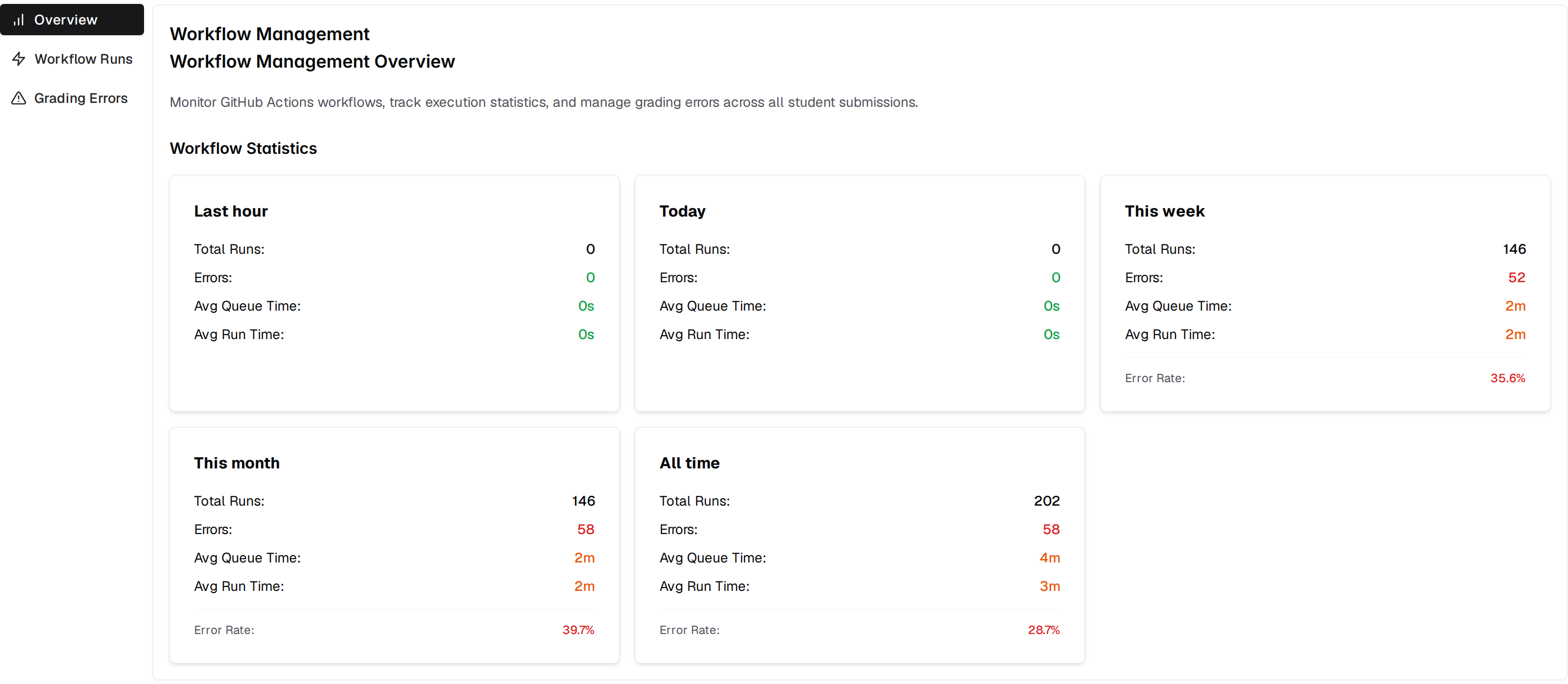 `Errors` is not the number of runs that failed. It counts the grading-error
records described under [The Grading Errors tab](#the-grading-errors-tab) that
were created during the period, independently of whether any individual run
succeeded or failed. `Error Rate` divides that error count by the number of runs
in the same window, so it is a ratio between two separately counted things rather
than the share of runs that failed.
The statistics window is clamped to six months, so **All time** means the last six
months.
## The Workflow Runs tab
This tab lists the 1000 most recently requested runs for the course, newest first.
It updates in real time, and the refresh button in the top-right corner reloads it
on demand. The count under the table reads `N Workflow Runs Total`.
`Errors` is not the number of runs that failed. It counts the grading-error
records described under [The Grading Errors tab](#the-grading-errors-tab) that
were created during the period, independently of whether any individual run
succeeded or failed. `Error Rate` divides that error count by the number of runs
in the same window, so it is a ratio between two separately counted things rather
than the share of runs that failed.
The statistics window is clamped to six months, so **All time** means the last six
months.
## The Workflow Runs tab
This tab lists the 1000 most recently requested runs for the course, newest first.
It updates in real time, and the refresh button in the top-right corner reloads it
on demand. The count under the table reads `N Workflow Runs Total`.
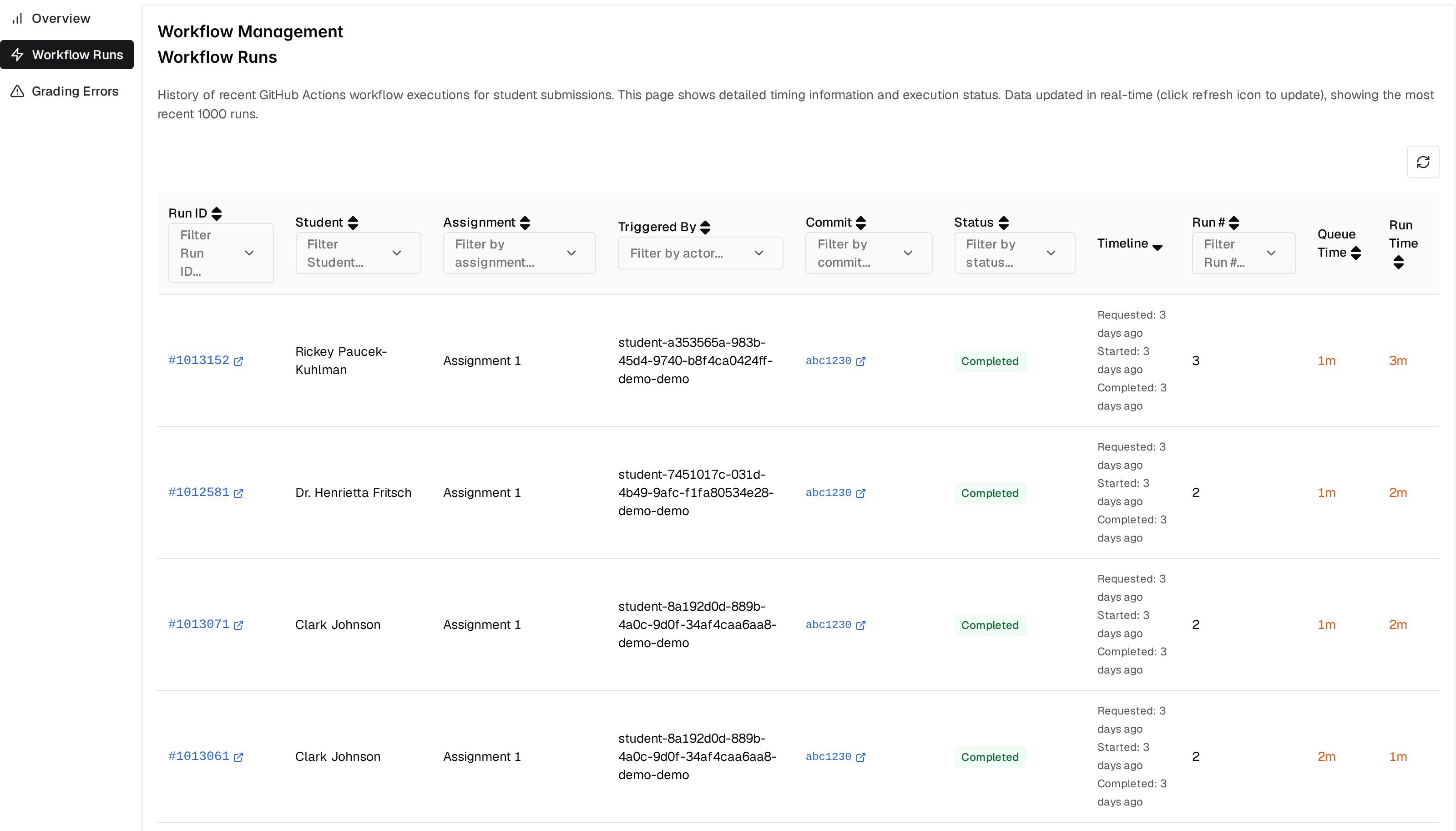 | Column | What it shows |
| -------------- | --------------------------------------------------- |
| `Run ID` | GitHub's run ID, linked to the run on GitHub |
| `Student` | The student the repository belongs to |
| `Assignment` | The assignment the repository belongs to |
| `Triggered By` | The GitHub login that started the run |
| `Commit` | Short head SHA, linked to the commit on GitHub |
| `Status` | Requested, In Progress, Completed, or Unknown |
| `Timeline` | Relative times for requested, started and completed |
| `Run #` | GitHub's run number |
| `Queue Time` | Time between requested and started |
| `Run Time` | Time between started and completed |
Every column except `Timeline`, `Queue Time` and `Run Time` has a multi-select
filter in its header, so you can narrow to one student, one assignment, one commit
or one status.
`Status` is derived from timestamps alone: Completed when a completion time has
arrived, In Progress when a start time has, Requested when only the request has,
and Unknown when none has. It does not read the run's conclusion, so a run that
failed on GitHub still reads **Completed** here. To find failures, use the Grading
Errors tab or open the run on GitHub.
Because rows are built from webhook deliveries, a run that GitHub never reported
as completed sits at In Progress indefinitely rather than moving to a failure
state.
## The Grading Errors tab
This tab is the failure view. Each row is one recorded grading error, newest
first, and when there are none the tab says so.
| Column | What it shows |
| --------------- | ------------------------------------------------- |
| `When` | How long ago the error was recorded |
| `Error` | The error message itself |
| `Student/Group` | The student, or a group name marked with a folder |
| `Repository` | Repository name, linked to the commit on GitHub |
| `Commit` | Short SHA of the submission's commit |
| `Submission` | Link to the submission inside Pawtograder |
| `Actions` | A `CI` link to that run attempt on GitHub |
| `Type` | The error's recorded type |
| `Visibility` | `Private` or `Public` |
`Type` comes from the error record, and the filter offers User Visible Error,
Security Error, Config Error and Unknown. `Visibility` says whether the student
can read the error: a public error is visible to the student on their own
submission, while a private one is staff-only. Errors raised by a security check
or by an unexpected internal failure are recorded as private. Instructors and
graders see every error either way.
**Clear All Filters** resets the header filters, and the text beside it reads
`Showing X of Y errors`, where `X` is the number of error rows on the page you are
looking at and `Y` is the size of the whole filtered result set.
## What a failed run means, and what you can do
The case you will meet most often is a run that finished without producing a
grader result. When that happens Pawtograder records an error reading "The grading
container failed to terminate cleanly. This may indicate that the grading script
ran out of memory or encountered an unexpected error. Please contact your
instructor for assistance.", and writes a grader result with a score of zero so
the submission is not left blank. The student sees that message, because it is a
public error on their own submission.
From a row on the Grading Errors tab you can:
* Open the run on GitHub through the `CI` link and read the Actions log, which is where the real cause lives.
* Open the affected submission through the `Submission` link.
* Open the repository or the exact commit through the `Repository` link.
To make a corrected grader apply to work already submitted, use the assignment's
**Rerun Autograder** page. Reruns create a new autograder result on the existing
submission rather than a new submission, and once GitHub accepts them the queued
runs appear on the Workflow Runs tab. See
[Rerunning the Autograder](/staff/assignments/autograding#rerunning-the-autograder)
for the grader-version choices a rerun offers, and
[Test Insights](/staff/assignments/test-insights) for launching a regrade from a
failing test.
## Where the runs come from
The autograder is a workflow file, `.github/workflows/grade.yml`, that lives in
each student repository. Pushes to that repository trigger it according to its own
`on:` block, and the run it starts is what shows up on this page. See
[Autograding](/staff/assignments/autograding#the-gradeyml-workflow) for how the
workflow is triggered and what it does.
Because each student repository holds its own copy, a repository whose copy is
missing or out of date behaves differently from the rest of the class. The CLI's
[`repos sync-grade-workflow`](/developers/cli#repos-sync-grade-workflow) pushes the
handout's copy to student repositories in bulk.
## Who can see it
The Course Settings entry is instructor-only, so graders do not see **Workflow
Runs** in their menu. Access behind that menu is not uniform, though: the list of
individual runs is visible to instructors only, while grading errors and the
statistics behind the Overview are visible to graders as well. A grader who opens
the URL directly gets an Overview and a Grading Errors tab that work, and a
Workflow Runs tab with nothing in it. See
[Course Settings](/staff/course-settings#what-graders-see) for the rest of the
menu's visibility rules.
## The dashboard summary
The instructor dashboard carries a **Workflow Runs Summary** block that is a
condensed version of the Overview. Two cards, **Last Hour** and **Last 24 Hours**,
each show `Total Runs`, `Avg Queue Time`, `Avg Run Time` and `Error Rate`, with a
badge giving the period's error count, and both card titles link here.
Underneath, when either window has errors, a **Recent Errors** card lists the five
newest errors in the course with the error name, when it happened, and the student
or group and assignment it belongs to. Its **View All** badge opens the Grading
Errors tab. When both windows are clean, that card is replaced by a single line
confirming no errors in the last 24 hours. See
[Instructor Dashboard](/staff/instructor-dashboard#workflow-run-status) for the
rest of the dashboard.
| Column | What it shows |
| -------------- | --------------------------------------------------- |
| `Run ID` | GitHub's run ID, linked to the run on GitHub |
| `Student` | The student the repository belongs to |
| `Assignment` | The assignment the repository belongs to |
| `Triggered By` | The GitHub login that started the run |
| `Commit` | Short head SHA, linked to the commit on GitHub |
| `Status` | Requested, In Progress, Completed, or Unknown |
| `Timeline` | Relative times for requested, started and completed |
| `Run #` | GitHub's run number |
| `Queue Time` | Time between requested and started |
| `Run Time` | Time between started and completed |
Every column except `Timeline`, `Queue Time` and `Run Time` has a multi-select
filter in its header, so you can narrow to one student, one assignment, one commit
or one status.
`Status` is derived from timestamps alone: Completed when a completion time has
arrived, In Progress when a start time has, Requested when only the request has,
and Unknown when none has. It does not read the run's conclusion, so a run that
failed on GitHub still reads **Completed** here. To find failures, use the Grading
Errors tab or open the run on GitHub.
Because rows are built from webhook deliveries, a run that GitHub never reported
as completed sits at In Progress indefinitely rather than moving to a failure
state.
## The Grading Errors tab
This tab is the failure view. Each row is one recorded grading error, newest
first, and when there are none the tab says so.
| Column | What it shows |
| --------------- | ------------------------------------------------- |
| `When` | How long ago the error was recorded |
| `Error` | The error message itself |
| `Student/Group` | The student, or a group name marked with a folder |
| `Repository` | Repository name, linked to the commit on GitHub |
| `Commit` | Short SHA of the submission's commit |
| `Submission` | Link to the submission inside Pawtograder |
| `Actions` | A `CI` link to that run attempt on GitHub |
| `Type` | The error's recorded type |
| `Visibility` | `Private` or `Public` |
`Type` comes from the error record, and the filter offers User Visible Error,
Security Error, Config Error and Unknown. `Visibility` says whether the student
can read the error: a public error is visible to the student on their own
submission, while a private one is staff-only. Errors raised by a security check
or by an unexpected internal failure are recorded as private. Instructors and
graders see every error either way.
**Clear All Filters** resets the header filters, and the text beside it reads
`Showing X of Y errors`, where `X` is the number of error rows on the page you are
looking at and `Y` is the size of the whole filtered result set.
## What a failed run means, and what you can do
The case you will meet most often is a run that finished without producing a
grader result. When that happens Pawtograder records an error reading "The grading
container failed to terminate cleanly. This may indicate that the grading script
ran out of memory or encountered an unexpected error. Please contact your
instructor for assistance.", and writes a grader result with a score of zero so
the submission is not left blank. The student sees that message, because it is a
public error on their own submission.
From a row on the Grading Errors tab you can:
* Open the run on GitHub through the `CI` link and read the Actions log, which is where the real cause lives.
* Open the affected submission through the `Submission` link.
* Open the repository or the exact commit through the `Repository` link.
To make a corrected grader apply to work already submitted, use the assignment's
**Rerun Autograder** page. Reruns create a new autograder result on the existing
submission rather than a new submission, and once GitHub accepts them the queued
runs appear on the Workflow Runs tab. See
[Rerunning the Autograder](/staff/assignments/autograding#rerunning-the-autograder)
for the grader-version choices a rerun offers, and
[Test Insights](/staff/assignments/test-insights) for launching a regrade from a
failing test.
## Where the runs come from
The autograder is a workflow file, `.github/workflows/grade.yml`, that lives in
each student repository. Pushes to that repository trigger it according to its own
`on:` block, and the run it starts is what shows up on this page. See
[Autograding](/staff/assignments/autograding#the-gradeyml-workflow) for how the
workflow is triggered and what it does.
Because each student repository holds its own copy, a repository whose copy is
missing or out of date behaves differently from the rest of the class. The CLI's
[`repos sync-grade-workflow`](/developers/cli#repos-sync-grade-workflow) pushes the
handout's copy to student repositories in bulk.
## Who can see it
The Course Settings entry is instructor-only, so graders do not see **Workflow
Runs** in their menu. Access behind that menu is not uniform, though: the list of
individual runs is visible to instructors only, while grading errors and the
statistics behind the Overview are visible to graders as well. A grader who opens
the URL directly gets an Overview and a Grading Errors tab that work, and a
Workflow Runs tab with nothing in it. See
[Course Settings](/staff/course-settings#what-graders-see) for the rest of the
menu's visibility rules.
## The dashboard summary
The instructor dashboard carries a **Workflow Runs Summary** block that is a
condensed version of the Overview. Two cards, **Last Hour** and **Last 24 Hours**,
each show `Total Runs`, `Avg Queue Time`, `Avg Run Time` and `Error Rate`, with a
badge giving the period's error count, and both card titles link here.
Underneath, when either window has errors, a **Recent Errors** card lists the five
newest errors in the course with the error name, when it happened, and the student
or group and assignment it belongs to. Its **View All** badge opens the Grading
Errors tab. When both windows are clean, that card is replaced by a single line
confirming no errors in the last 24 hours. See
[Instructor Dashboard](/staff/instructor-dashboard#workflow-run-status) for the
rest of the dashboard.