> ## Documentation Index
> Fetch the complete documentation index at: https://docs.pawtograder.com/llms.txt
> Use this file to discover all available pages before exploring further.
# Welcome to Pawtograder
> Log in to Pawtograder, connect your GitHub account, and join your course
# Welcome to Pawtograder - Student Guide
This page covers the one-time setup you do when you first join a Pawtograder course: logging in, connecting GitHub, and joining the course organization.
Need help? See [Getting Help](/students/office-hours).
## Accessing your course
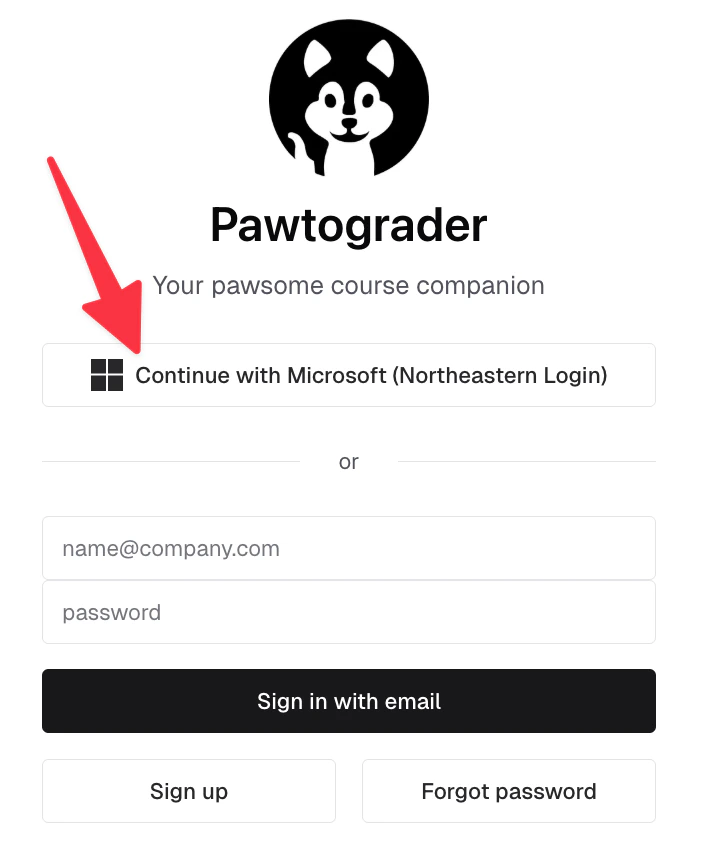
Student enrollments are automatically managed by course registration systems. If you are enrolled in a course, you will be able to access it by logging in with your university credentials. Click the "Continue with Microsoft (Northeastern Login)" button to continue.
 If your course does not show up after logging in, you may need to contact your instructor to ensure that you are enrolled in the course. Enrollments are automatically synchronized with the course registration system every hour.
## Connecting to GitHub
The very first step is to connect your GitHub account to Pawtograder. Pawtograder will automatically create repositories for your assignments, using the pawtograder-playground github.com organization.
You can connect any GitHub.com account to Pawtograder, and we do not suggest that you make a new one just for this purpose.
If your course does not show up after logging in, you may need to contact your instructor to ensure that you are enrolled in the course. Enrollments are automatically synchronized with the course registration system every hour.
## Connecting to GitHub
The very first step is to connect your GitHub account to Pawtograder. Pawtograder will automatically create repositories for your assignments, using the pawtograder-playground github.com organization.
You can connect any GitHub.com account to Pawtograder, and we do not suggest that you make a new one just for this purpose.
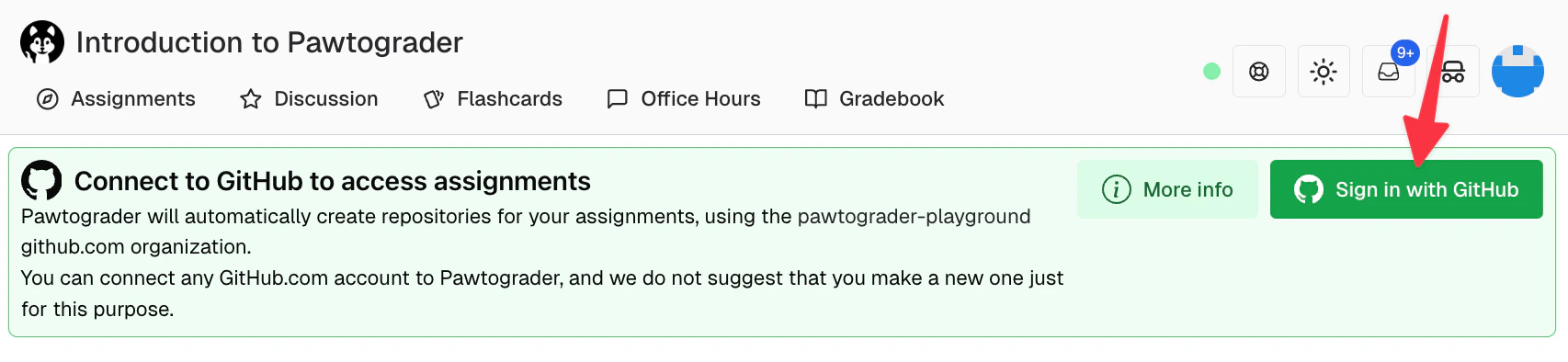 When you first login to Pawtograder, you will be prompted to connect your GitHub account. Click "Sign in with GitHub" to continue.
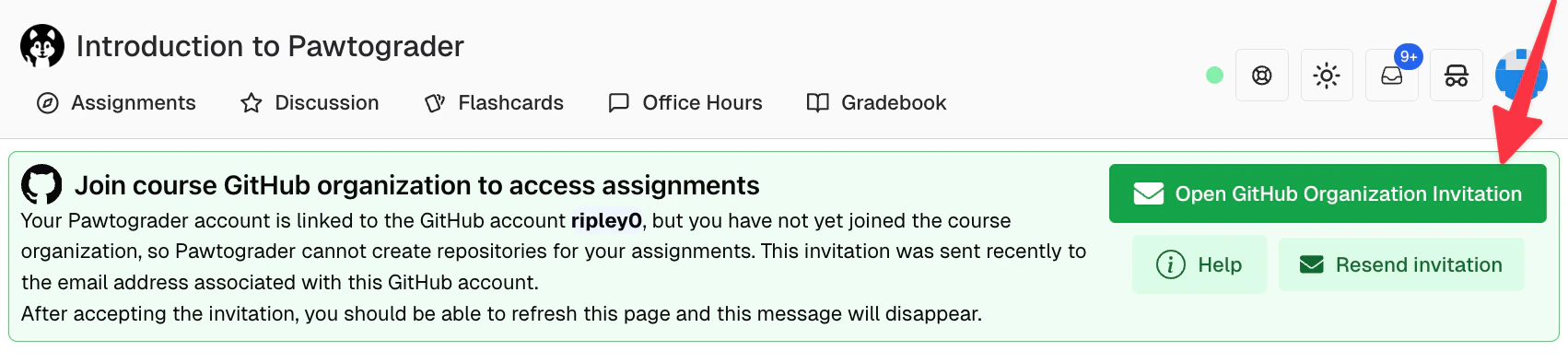 After you connect your GitHub account, you will be redirected to the Pawtograder dashboard, where you will have one last step: to agree to join the course organization on GitHub.com. Click on "Open GitHub Organization Invitation" and accept the invitation using your GitHub account. After accepting the invitation, you can refresh Pawtograder and should no longer see the message - you are ready to work on an assignment!
### What if I don't have a GitHub account?
If you don't have a GitHub account, you can create one for free at [github.com](https://github.com). Pawtograder does not care what email address you use to create your GitHub account, and you can use the same account for other purposes.
### What if I already have a GitHub account?
If you already have a GitHub.com account we suggest that you use that, so that: 1) you do not need to remember a new username and password and manage multiple accounts, and 2) if your class permits making your project repository "public" at the end of the semester, you can do so and have it show up on your existing profile.
### Can I change which GitHub.com account I use with Pawtograder?
This is not currently supported.
## Next steps
Once you're logged in and connected to GitHub:
* **[Dashboard](/students/dashboard)**: See your assignments, deadlines, and activity at a glance
* **[Assignments](/students/assignments/create-submission)**: Submit programming assignments and view autograder results
* **[Discussion Board](/students/discussion-board)**: Ask questions and engage with classmates
* **[Office Hours](/students/office-hours)**: Request live help from course staff
* **[Notifications](/students/notifications)**: Control how Pawtograder alerts you about activity
After you connect your GitHub account, you will be redirected to the Pawtograder dashboard, where you will have one last step: to agree to join the course organization on GitHub.com. Click on "Open GitHub Organization Invitation" and accept the invitation using your GitHub account. After accepting the invitation, you can refresh Pawtograder and should no longer see the message - you are ready to work on an assignment!
### What if I don't have a GitHub account?
If you don't have a GitHub account, you can create one for free at [github.com](https://github.com). Pawtograder does not care what email address you use to create your GitHub account, and you can use the same account for other purposes.
### What if I already have a GitHub account?
If you already have a GitHub.com account we suggest that you use that, so that: 1) you do not need to remember a new username and password and manage multiple accounts, and 2) if your class permits making your project repository "public" at the end of the semester, you can do so and have it show up on your existing profile.
### Can I change which GitHub.com account I use with Pawtograder?
This is not currently supported.
## Next steps
Once you're logged in and connected to GitHub:
* **[Dashboard](/students/dashboard)**: See your assignments, deadlines, and activity at a glance
* **[Assignments](/students/assignments/create-submission)**: Submit programming assignments and view autograder results
* **[Discussion Board](/students/discussion-board)**: Ask questions and engage with classmates
* **[Office Hours](/students/office-hours)**: Request live help from course staff
* **[Notifications](/students/notifications)**: Control how Pawtograder alerts you about activity