> ## Documentation Index
> Fetch the complete documentation index at: https://docs.pawtograder.com/llms.txt
> Use this file to discover all available pages before exploring further.
# Submitting a Request
> Open the new-request form, fill in each field, and understand the limits on how many requests you can hold
# Submitting a Request
Press **New Request** in the office hours header. The button is disabled when no queue has staff on duty. With exactly one staffed queue it opens that queue's form directly, and with more than one it opens a menu so you pick the queue first.
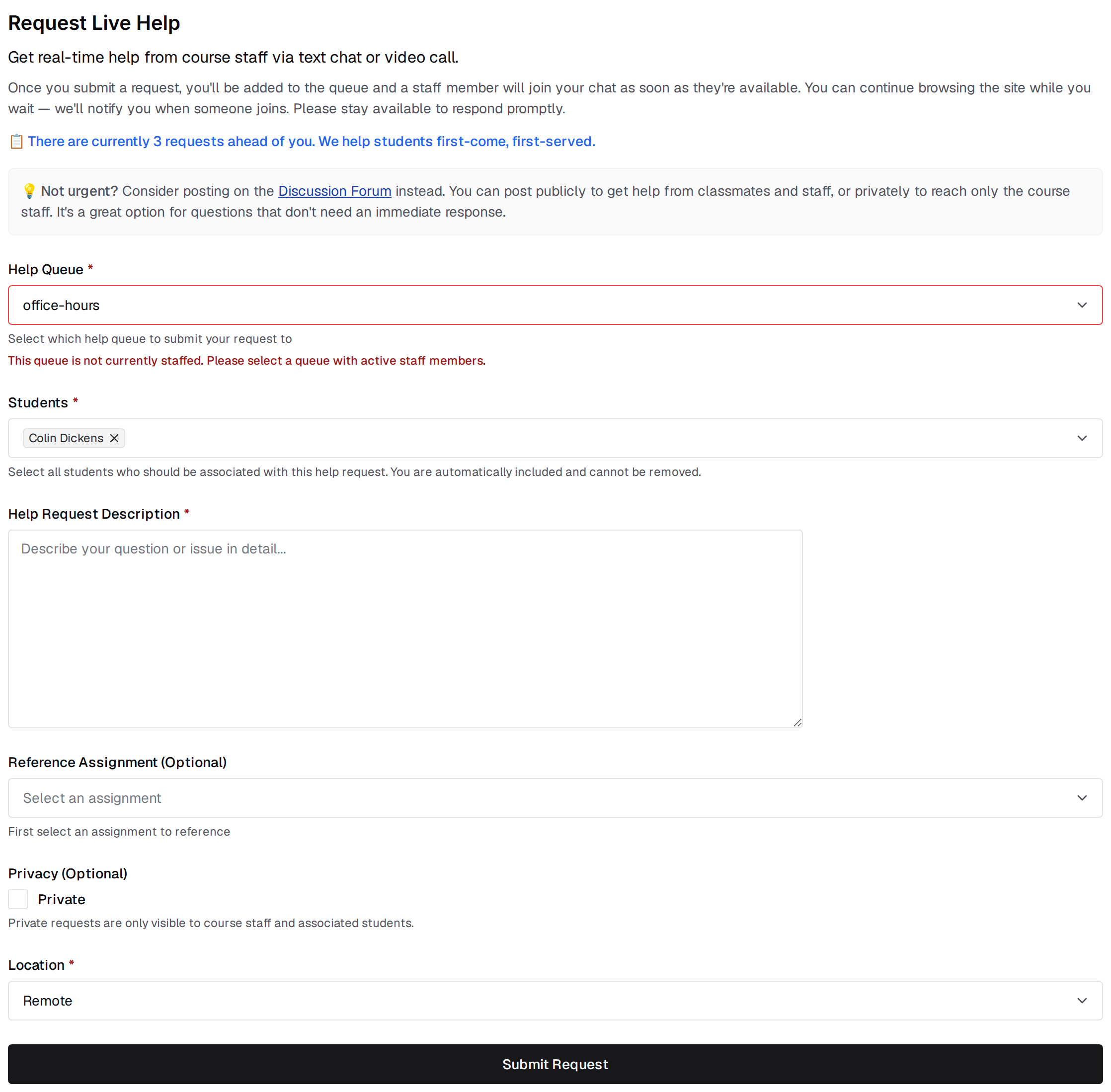
The first field, **Help Queue**, is pre-filled from the queue you arrived from, but you can change it — "Select which help queue to submit your request to". If the queue you pick has nobody on duty, the field shows "This queue is not currently staffed. Please select a queue with active staff members." The form also tells you how many requests are already open ahead of you.
The form below comes from a course with no request templates and no discussion topics surfaced in office hours, so it renders without the **Template** field and without the related-posts panel — both of which the sections below describe.
 ## Before You Request Help
When your instructors have marked discussion topics to show in office hours, a **Before you request help...** panel appears above the form listing threads from those topics, pinned ones first. **Show All Related Posts** expands the rest, and **Browse All Discussion Posts** opens the discussion board. The panel is absent when those topics have no posts to show.
## Request Form Fields
You are included automatically and cannot be removed. Add classmates here when you're working together and want a single shared request.
Choosing a template is required whenever your course has any active ones. A template pre-fills the description with prompts such as what you're working on and what you've already tried, which lets staff start helping sooner. When the course has exactly one template, it is applied for you.
Required. Answer the template's prompts, and be specific about the task, what you have already tried, and any error messages.
Optional. Pick an assignment, then one of your submissions to it, then specific files from that submission. Each file reference takes an optional line number, so staff can open your code at the right place.
Requests are public unless you check **Private**, which limits the request to course staff and the students on it. Referencing a submission forces the request private and locks the checkbox.
Required, and set to **Remote** by default. Choose **In person** or **Hybrid** when you want to be helped in the room.
You can hold at most two solo requests in the same queue at once: one private and one public. Group requests are not limited.
When you are already at the limit, the form loads with that spelled out above the fields.
## Before You Request Help
When your instructors have marked discussion topics to show in office hours, a **Before you request help...** panel appears above the form listing threads from those topics, pinned ones first. **Show All Related Posts** expands the rest, and **Browse All Discussion Posts** opens the discussion board. The panel is absent when those topics have no posts to show.
## Request Form Fields
You are included automatically and cannot be removed. Add classmates here when you're working together and want a single shared request.
Choosing a template is required whenever your course has any active ones. A template pre-fills the description with prompts such as what you're working on and what you've already tried, which lets staff start helping sooner. When the course has exactly one template, it is applied for you.
Required. Answer the template's prompts, and be specific about the task, what you have already tried, and any error messages.
Optional. Pick an assignment, then one of your submissions to it, then specific files from that submission. Each file reference takes an optional line number, so staff can open your code at the right place.
Requests are public unless you check **Private**, which limits the request to course staff and the students on it. Referencing a submission forces the request private and locks the checkbox.
Required, and set to **Remote** by default. Choose **In person** or **Hybrid** when you want to be helped in the room.
You can hold at most two solo requests in the same queue at once: one private and one public. Group requests are not limited.
When you are already at the limit, the form loads with that spelled out above the fields.
 An unstaffed queue does not block you. The form still renders in full and **Submit Request** stays clickable; you only get the "not currently staffed" message on the **Help Queue** field, suggesting you pick a different queue. The form is replaced by a **Queue Closed for New Requests** notice only when your instructor stops the queue from accepting requests, which is a different condition.
## See also
* [During Your Request](/students/office-hours/during-a-request) for what happens once you submit.
* [Office Hours](/students/office-hours) for the queues themselves and for searching existing requests.
An unstaffed queue does not block you. The form still renders in full and **Submit Request** stays clickable; you only get the "not currently staffed" message on the **Help Queue** field, suggesting you pick a different queue. The form is replaced by a **Queue Closed for New Requests** notice only when your instructor stops the queue from accepting requests, which is a different condition.
## See also
* [During Your Request](/students/office-hours/during-a-request) for what happens once you submit.
* [Office Hours](/students/office-hours) for the queues themselves and for searching existing requests.