> ## Documentation Index
> Fetch the complete documentation index at: https://docs.pawtograder.com/llms.txt
> Use this file to discover all available pages before exploring further.
# Polls
> Answer in-class polls to participate in discussions and check your understanding during lectures
# Polls
Polls are a quick and easy way to answer questions during class. Your instructor may use polls to check understanding, gather feedback, or spark discussion.
## Answering Polls
There are two ways to respond to a poll:
### Via QR Code or Link
Your instructor may display a QR code or share a link during class:
1. **Scan the QR code** with your phone camera, or **click the link** provided by your instructor
2. The poll question and answer options will appear
3. Select your answer(s) from the options displayed
4. Click **Submit** to send your response
If the poll does not require login, you can respond immediately without signing in.
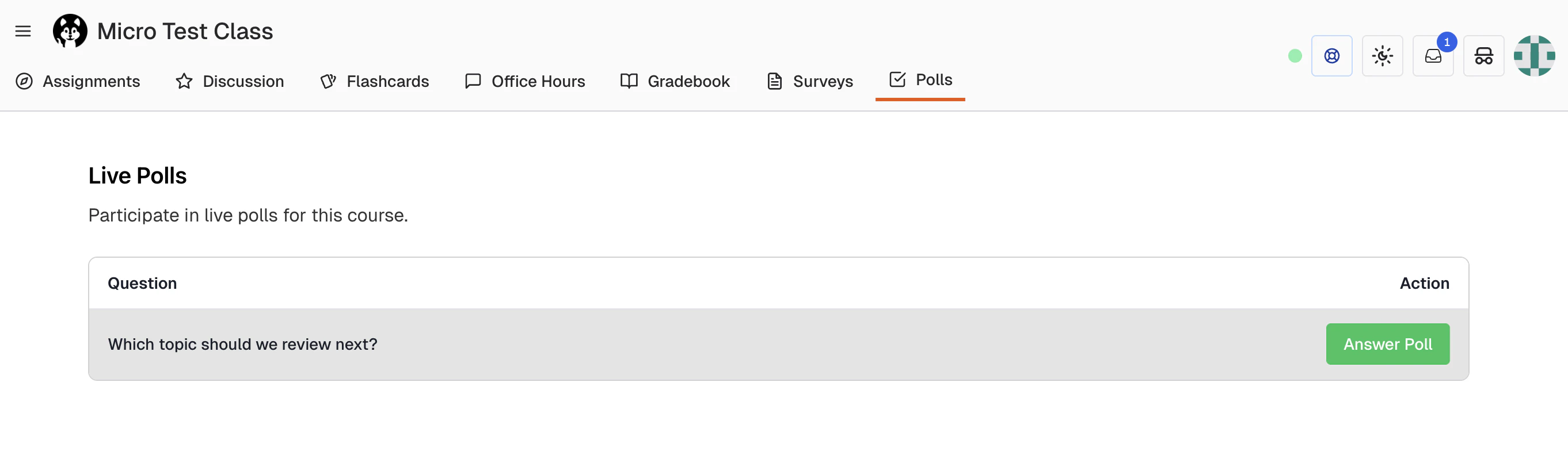
### Via the Polls Page
You can also access polls directly from Pawtograder:
1. Navigate to your course in Pawtograder
2. Go to the **Polls** section in the navigation
3. Live polls from your class will be displayed
4. Click **Answer Poll** to open the poll
5. Select your answer(s) and submit
 ## Login Requirements
Polls can be configured by your instructor to require login or allow anonymous responses:
| Mode | How It Works |
| ---------------------- | -------------------------------------------------------------------------------------------------------- |
| **Login not required** | Scan the QR code or use the link to answer immediately without signing in. Your response is anonymous. |
| **Login required** | You must sign in to Pawtograder before answering. Your response is associated with your student account. |
If a poll requires login and you're not signed in, you'll be prompted to log in before you can submit your response.
## Poll Types
You may encounter two types of polls:
### Single Choice
* Select **exactly one answer** from the options
* Uses radio button selection
* Clicking a new option automatically deselects your previous choice
### Multiple Choice
* Select **one or more answers** from the options
* Uses checkbox selection
* Choose all options that apply to the question
## Submitting Your Response
1. Review your selected answer(s)
2. Click the **Complete** or **Submit** button
3. You'll see a confirmation that your response was recorded
Once submitted, your response cannot be changed. Make sure you've selected the answer you want before submitting.
## Poll Availability
* Polls are only available when your instructor has made them **live**
* Most polls automatically close after **one hour**
* Your instructor may also manually close a poll at any time
* If a poll is closed, you won't be able to submit a response
## Troubleshooting
### "No active polls" message
* Your instructor may not have any polls open right now
* Wait for your instructor to start a new poll
* The page will update automatically when a poll becomes available
### QR code not scanning
* Make sure your camera is focused on the QR code
* Try moving closer or adjusting the angle
* Use the direct URL instead (ask your instructor to display it)
### Login prompt appears
* The poll requires authentication
* Sign in with your Pawtograder credentials
* After signing in, you'll be redirected to the poll
### "Poll is closed" error
* The poll is no longer accepting responses
* This may be because the 1-hour window has passed
* Or your instructor manually closed the poll
## Tips for Students
* **Have your device ready**: When your instructor announces a poll, be ready to scan the QR code quickly
* **Read carefully**: Take a moment to read the question and all options before answering
* **Don't overthink**: Polls are usually meant for quick responses, not extended deliberation
* **Ask questions**: If you don't understand the poll question, ask your instructor for clarification
## Login Requirements
Polls can be configured by your instructor to require login or allow anonymous responses:
| Mode | How It Works |
| ---------------------- | -------------------------------------------------------------------------------------------------------- |
| **Login not required** | Scan the QR code or use the link to answer immediately without signing in. Your response is anonymous. |
| **Login required** | You must sign in to Pawtograder before answering. Your response is associated with your student account. |
If a poll requires login and you're not signed in, you'll be prompted to log in before you can submit your response.
## Poll Types
You may encounter two types of polls:
### Single Choice
* Select **exactly one answer** from the options
* Uses radio button selection
* Clicking a new option automatically deselects your previous choice
### Multiple Choice
* Select **one or more answers** from the options
* Uses checkbox selection
* Choose all options that apply to the question
## Submitting Your Response
1. Review your selected answer(s)
2. Click the **Complete** or **Submit** button
3. You'll see a confirmation that your response was recorded
Once submitted, your response cannot be changed. Make sure you've selected the answer you want before submitting.
## Poll Availability
* Polls are only available when your instructor has made them **live**
* Most polls automatically close after **one hour**
* Your instructor may also manually close a poll at any time
* If a poll is closed, you won't be able to submit a response
## Troubleshooting
### "No active polls" message
* Your instructor may not have any polls open right now
* Wait for your instructor to start a new poll
* The page will update automatically when a poll becomes available
### QR code not scanning
* Make sure your camera is focused on the QR code
* Try moving closer or adjusting the angle
* Use the direct URL instead (ask your instructor to display it)
### Login prompt appears
* The poll requires authentication
* Sign in with your Pawtograder credentials
* After signing in, you'll be redirected to the poll
### "Poll is closed" error
* The poll is no longer accepting responses
* This may be because the 1-hour window has passed
* Or your instructor manually closed the poll
## Tips for Students
* **Have your device ready**: When your instructor announces a poll, be ready to scan the QR code quickly
* **Read carefully**: Take a moment to read the question and all options before answering
* **Don't overthink**: Polls are usually meant for quick responses, not extended deliberation
* **Ask questions**: If you don't understand the poll question, ask your instructor for clarification