> ## Documentation Index
> Fetch the complete documentation index at: https://docs.pawtograder.com/llms.txt
> Use this file to discover all available pages before exploring further.
# Surveys
> Complete course surveys to provide feedback on assignments, instructors, and course content
# Surveys
Pawtograder's surveys feature allows you to provide feedback on courses, assignments, and instructors. Your responses help improve the learning experience for everyone.
## Accessing Surveys
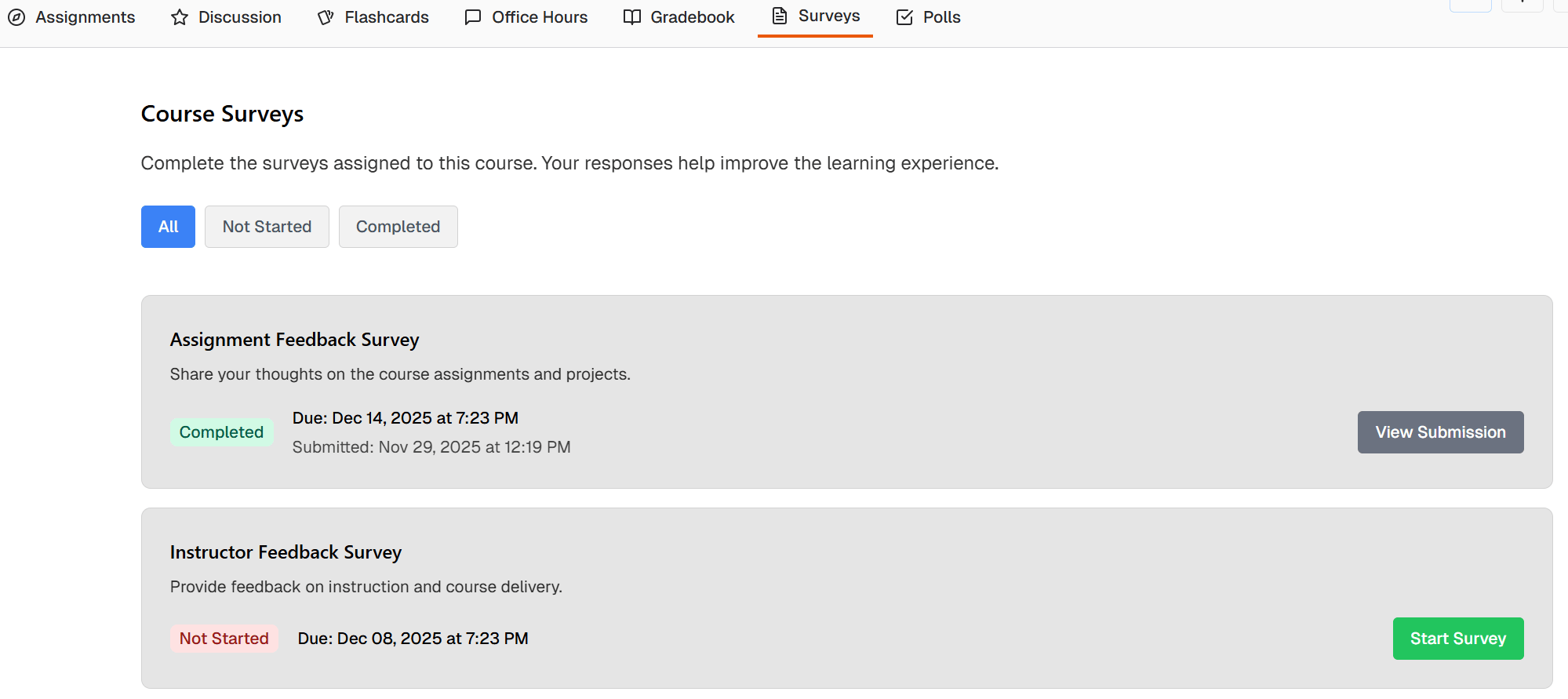
Navigate to the **Surveys** tab in the main navigation menu to see all surveys assigned to your course. You'll also see incomplete surveys highlighted on your dashboard.
 ### Dashboard Survey Notifications
Your student dashboard displays a "Surveys to complete" banner when you have pending or in-progress surveys. Each survey shows:
* **Status badge**: Completed (green), Overdue (red), or Pending (yellow)
* **Due date**: Time remaining or overdue notice
* **Quick action button**: "Take Survey" or "View Response" if you've already submitted
Overdue surveys are listed first to help you prioritize.
### Survey Cards
Each survey card displays:
* **Survey title and description**: What the survey is about
* **Due date and time**: When the survey must be completed (shown in your course timezone)
* **Current status**: Your progress on the survey (Not Started, In Progress, or Completed)
* **Submission timestamp**: When you submitted (if completed)
## Survey Status Filters
Use the filter buttons at the top of the surveys page to find specific surveys:
| Filter | Shows |
| ------------- | --------------------------------------------------- |
| **All** | All surveys regardless of completion status |
| **Available** | Surveys you haven't started or are still working on |
| **Completed** | Surveys you've already submitted |
## Understanding Survey Status
Your progress on each survey is shown with a colored badge:
* **Not Started** (red): You haven't opened this survey yet
* **In Progress** (red): You've started but not submitted the survey
* **Completed** (green): You've successfully submitted your responses
## Taking a Survey
### Starting a New Survey
1. Find a survey with "Not Started" status
2. Click the green **Start Survey** button
3. Read each question carefully
4. Complete all required questions (marked with a red asterisk \*)
5. Click **Complete** to submit your responses
### Continuing an In-Progress Survey
If you started a survey but didn't finish:
1. Find the survey with "In Progress" status
2. Click **Continue Survey**
3. Your previous answers will be saved
4. Complete any remaining questions and submit
If the survey allows editing, your responses are automatically saved as you answer questions. You can safely close the browser and return later without losing your work.
## Survey Due Dates
Each survey has a deadline set by your instructor:
* **Active surveys**: Show the due date and time
* **Overdue surveys**: Cannot be submitted after the deadline passes
Make sure to complete surveys before their due date to ensure your responses are recorded.
You cannot submit a survey after the due date has passed. Plan ahead and complete surveys before the deadline.
## Editing Your Responses
Some surveys allow you to edit your responses after submission. When editing is enabled, you'll see a green notification:
> "You can edit your response since editing is allowed for this survey."
**To edit a completed survey:**
1. Click **View Submission** on the survey card
2. Modify any of your responses
3. Click **Complete** to save your changes
**When editing is not allowed**, you'll see a yellow notification:
> "This survey has been submitted and cannot be edited."
Your original responses will be shown in read-only mode.
Not all surveys allow editing after submission. Check for the editing notification before assuming you can make changes later.
## Viewing Your Submissions
To review what you submitted:
1. Find the survey with "Completed" status
2. Click **View Submission**
3. Your submitted answers will be displayed
If editing is allowed, you can modify your responses from this same page.
## Question Types
Surveys may include different types of questions:
| Question Type | How to Answer |
| ----------------- | ------------------------------------------------ |
| **Short Text** | Type a brief response in the text field |
| **Long Text** | Type a detailed response in the larger text area |
| **Single Choice** | Select one option from the list |
| **Checkboxes** | Select one or more options that apply |
| **Yes / No** | Choose between two options |
## Tips for Completing Surveys
* **Read questions carefully**: Make sure you understand what's being asked
* **Answer honestly**: Your genuine feedback helps improve the course
* **Complete required questions**: Questions with a red asterisk (\*) must be answered
* **Don't wait until the last minute**: Submit before the deadline to avoid issues
* **Check your responses**: Review your answers before clicking Complete
### Dashboard Survey Notifications
Your student dashboard displays a "Surveys to complete" banner when you have pending or in-progress surveys. Each survey shows:
* **Status badge**: Completed (green), Overdue (red), or Pending (yellow)
* **Due date**: Time remaining or overdue notice
* **Quick action button**: "Take Survey" or "View Response" if you've already submitted
Overdue surveys are listed first to help you prioritize.
### Survey Cards
Each survey card displays:
* **Survey title and description**: What the survey is about
* **Due date and time**: When the survey must be completed (shown in your course timezone)
* **Current status**: Your progress on the survey (Not Started, In Progress, or Completed)
* **Submission timestamp**: When you submitted (if completed)
## Survey Status Filters
Use the filter buttons at the top of the surveys page to find specific surveys:
| Filter | Shows |
| ------------- | --------------------------------------------------- |
| **All** | All surveys regardless of completion status |
| **Available** | Surveys you haven't started or are still working on |
| **Completed** | Surveys you've already submitted |
## Understanding Survey Status
Your progress on each survey is shown with a colored badge:
* **Not Started** (red): You haven't opened this survey yet
* **In Progress** (red): You've started but not submitted the survey
* **Completed** (green): You've successfully submitted your responses
## Taking a Survey
### Starting a New Survey
1. Find a survey with "Not Started" status
2. Click the green **Start Survey** button
3. Read each question carefully
4. Complete all required questions (marked with a red asterisk \*)
5. Click **Complete** to submit your responses
### Continuing an In-Progress Survey
If you started a survey but didn't finish:
1. Find the survey with "In Progress" status
2. Click **Continue Survey**
3. Your previous answers will be saved
4. Complete any remaining questions and submit
If the survey allows editing, your responses are automatically saved as you answer questions. You can safely close the browser and return later without losing your work.
## Survey Due Dates
Each survey has a deadline set by your instructor:
* **Active surveys**: Show the due date and time
* **Overdue surveys**: Cannot be submitted after the deadline passes
Make sure to complete surveys before their due date to ensure your responses are recorded.
You cannot submit a survey after the due date has passed. Plan ahead and complete surveys before the deadline.
## Editing Your Responses
Some surveys allow you to edit your responses after submission. When editing is enabled, you'll see a green notification:
> "You can edit your response since editing is allowed for this survey."
**To edit a completed survey:**
1. Click **View Submission** on the survey card
2. Modify any of your responses
3. Click **Complete** to save your changes
**When editing is not allowed**, you'll see a yellow notification:
> "This survey has been submitted and cannot be edited."
Your original responses will be shown in read-only mode.
Not all surveys allow editing after submission. Check for the editing notification before assuming you can make changes later.
## Viewing Your Submissions
To review what you submitted:
1. Find the survey with "Completed" status
2. Click **View Submission**
3. Your submitted answers will be displayed
If editing is allowed, you can modify your responses from this same page.
## Question Types
Surveys may include different types of questions:
| Question Type | How to Answer |
| ----------------- | ------------------------------------------------ |
| **Short Text** | Type a brief response in the text field |
| **Long Text** | Type a detailed response in the larger text area |
| **Single Choice** | Select one option from the list |
| **Checkboxes** | Select one or more options that apply |
| **Yes / No** | Choose between two options |
## Tips for Completing Surveys
* **Read questions carefully**: Make sure you understand what's being asked
* **Answer honestly**: Your genuine feedback helps improve the course
* **Complete required questions**: Questions with a red asterisk (\*) must be answered
* **Don't wait until the last minute**: Submit before the deadline to avoid issues
* **Check your responses**: Review your answers before clicking Complete