

Creating Polls
A poll is a single question with a fixed list of choices, stored as a JSON payload. You can write that payload in a visual builder or type it by hand, then publish it live or save it as a draft.Creating a New Poll
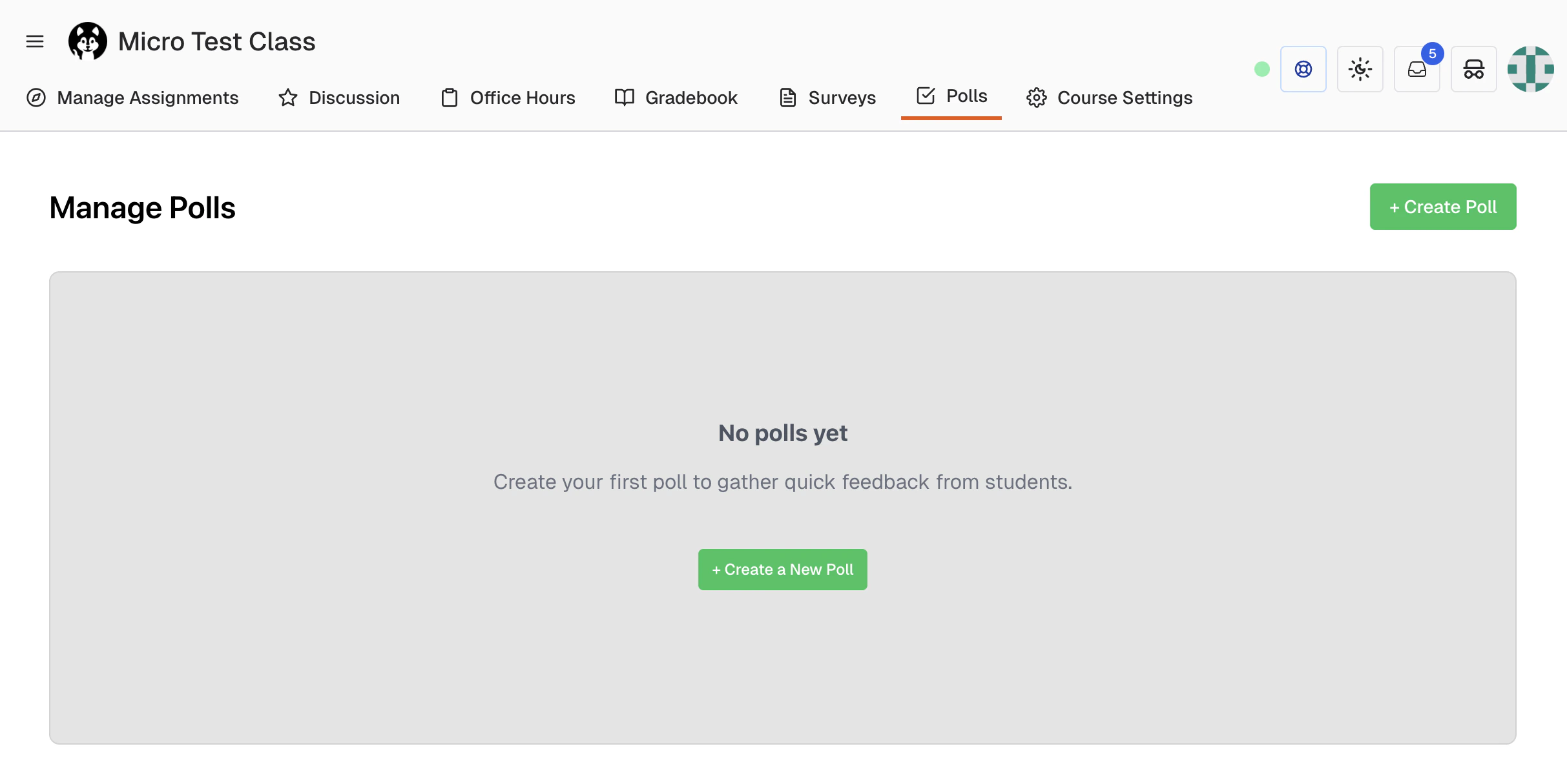
- Choose Polls in your course navigation to open Manage Polls
- Click + Create Poll
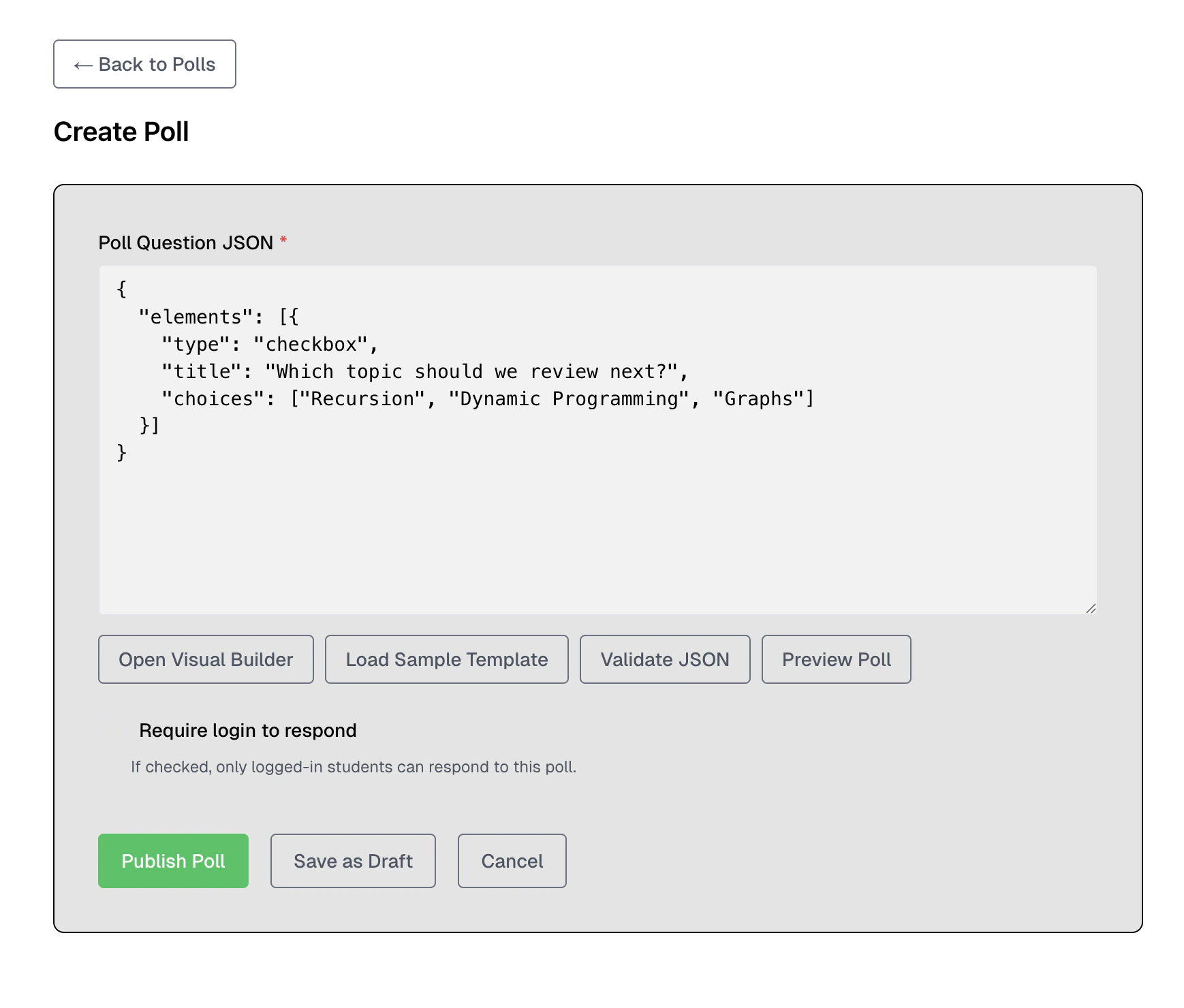
- Click Open Visual Builder to compose the question instead of editing JSON
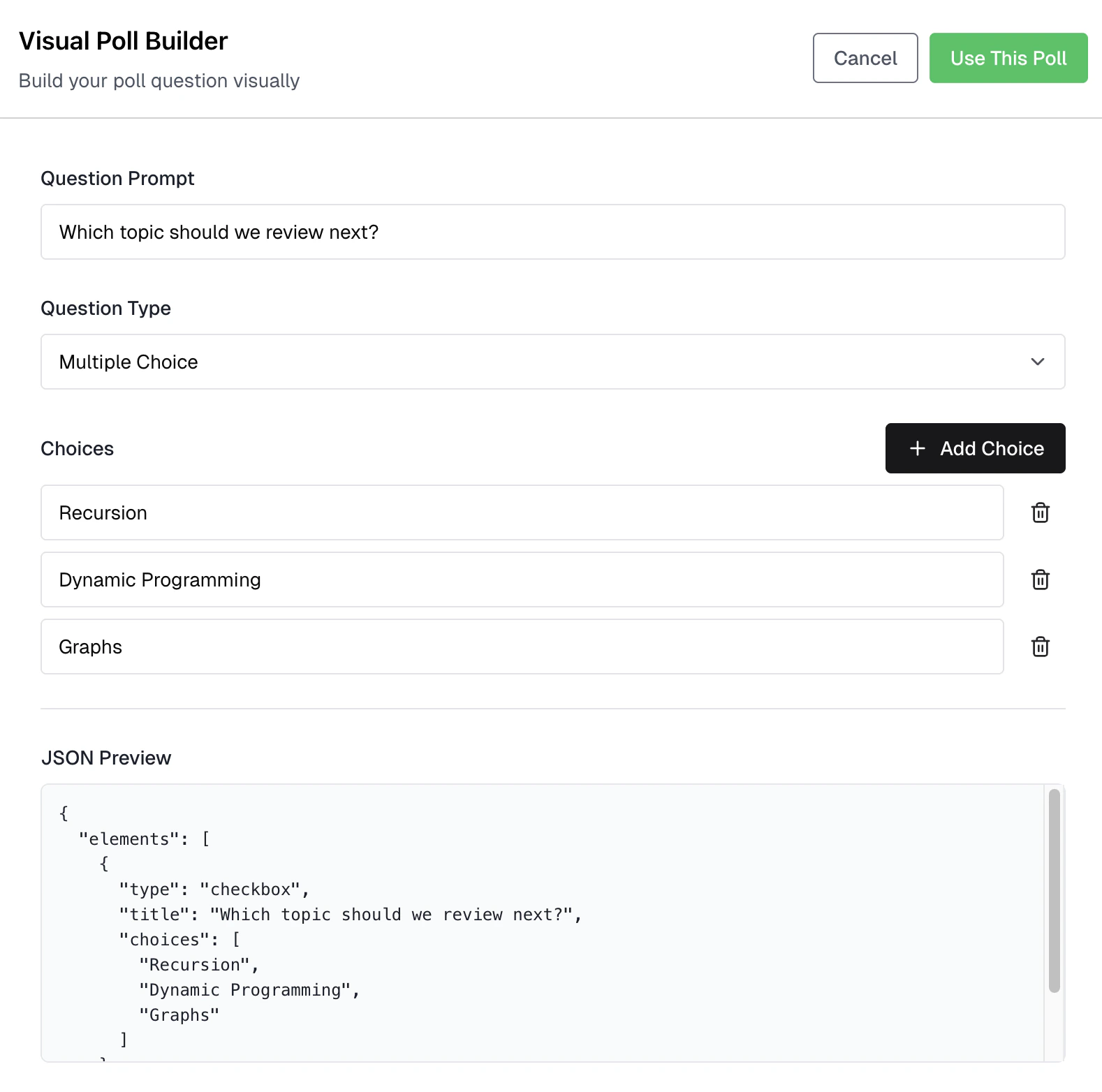
- Enter your Question Prompt
- Pick a Question Type, either Multiple Choice or Single Choice (see Poll Types)
- Fill in the Choices, clicking Add Choice for each additional option
- Click Use This Poll to write the builder’s JSON into the Poll Question JSON field
- Optionally click Preview Poll to see the question as students will see it
- Decide whether to check Require login to respond
- Click Publish Poll to open the poll immediately, or Save as Draft to store it closed
The Poll Question JSON field
Poll Question JSON is the only place a poll question is stored. Everything else on the page is a helper that writes into it.checkbox is Multiple Choice. Use radiogroup for Single Choice.
Validate JSON checks the payload without saving. It reports one of:
The same checks run when you publish or save a draft, so an invalid payload blocks both. Preview Poll validates first and refuses to open if validation fails.
The preview renders your payload with the real SurveyJS runtime, so it will display question types the results page cannot chart. See Poll Types for which types are chartable.
Using the Visual Builder
Open Visual Builder opens the Visual Poll Builder dialog. A live JSON Preview at the bottom shows exactly what it will emit. A few builder behaviors are worth knowing:- The builder starts with one empty choice row, and it will not let you delete the last row. Two or more choices is sensible, but nothing enforces a minimum.
- Blank choice labels are dropped. If you leave every label blank, the emitted question gets a single choice literally named
Choice 1. - The Remove choice button appears on a row only when more than one choice exists.
Poll Settings
That is the complete set. There is no title, description, tag, scheduled open time, or response limit.
Require login to respond
Publishing versus saving a draft
Publish Poll opens the poll immediately and returns you to Manage Polls. Save as Draft stores the poll closed and leaves you on the form with your entries still filled in.A draft is indistinguishable from a finished poll in the list: it carries the red Closed badge and appears under the Closed filter. To open a draft later, use Open Poll in its row actions menu.
Closing a Poll
A poll stays open until you close it. Close it from the row actions menu on Manage Polls with Close Poll, or from the poll’s results page with Stop Poll. The two controls do the same thing.Managing Polls
Viewing all polls
Manage Polls lists every poll in the course with Question, Status, Created, and Actions columns. Three filter buttons narrow the list: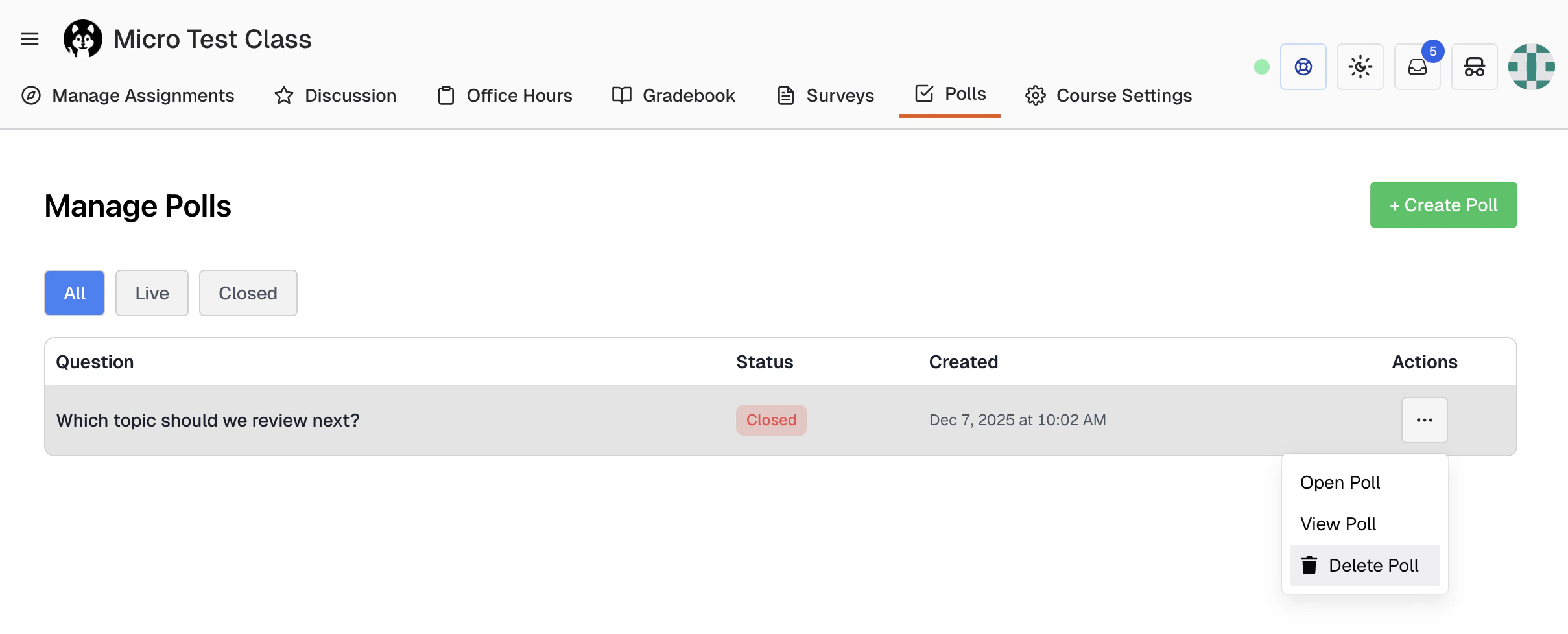
- All: every poll
- Live: open polls only
- Closed: closed polls and drafts
Row actions
The Poll actions button (⋯) in the Actions column opens a menu with three items:- Open Poll on a closed poll, or Close Poll on a live one
- View Poll, which opens the results page
- Delete Poll
Viewing results
Click a poll’s question, or choose View Poll, to open its results page. See Poll Visualizations for what that page shows.Deleting a Poll
- Click the Poll actions button (⋯) on the poll’s row
- Choose Delete Poll
- Accept the browser confirmation: “Are you sure you want to delete this poll? This action cannot be undone.”
Best Practices
Before class
- Write the questions ahead of time: Save them as drafts and open each one when you reach it
- Preview once: Use Preview Poll to confirm the question reads the way you expect
- Keep one poll open at a time: The course poll link always serves the newest live poll, so an older open poll becomes unreachable
Question design
- Keep the prompt short: Students should read and answer in under 30 seconds
- Use three to five choices: Long choice lists wrap onto several lines in the bar chart’s axis gutter
- Avoid ambiguous wording: You cannot edit a published poll, so a confusing prompt means starting over
During class
- Project the QR code: Click it on the results page to enlarge it, or use Present for fullscreen
- Give students 30 to 60 seconds: Watch the bars grow to judge when the room has answered
- Discuss the split: The chart is most useful as a discussion prompt, not as a score
After class
- Close the poll: Nothing closes it for you
- Screenshot anything you want to keep: There is no poll export, and deleting the poll deletes its responses