

Poll Visualizations
A poll’s results page shows one thing: a horizontal bar chart of how many responses each choice received, updating as students answer. This page covers how to read it, how to share the link, and how to project it. Open it by clicking a poll’s question on Manage Polls, or by choosing View Poll from the row actions menu.The results page
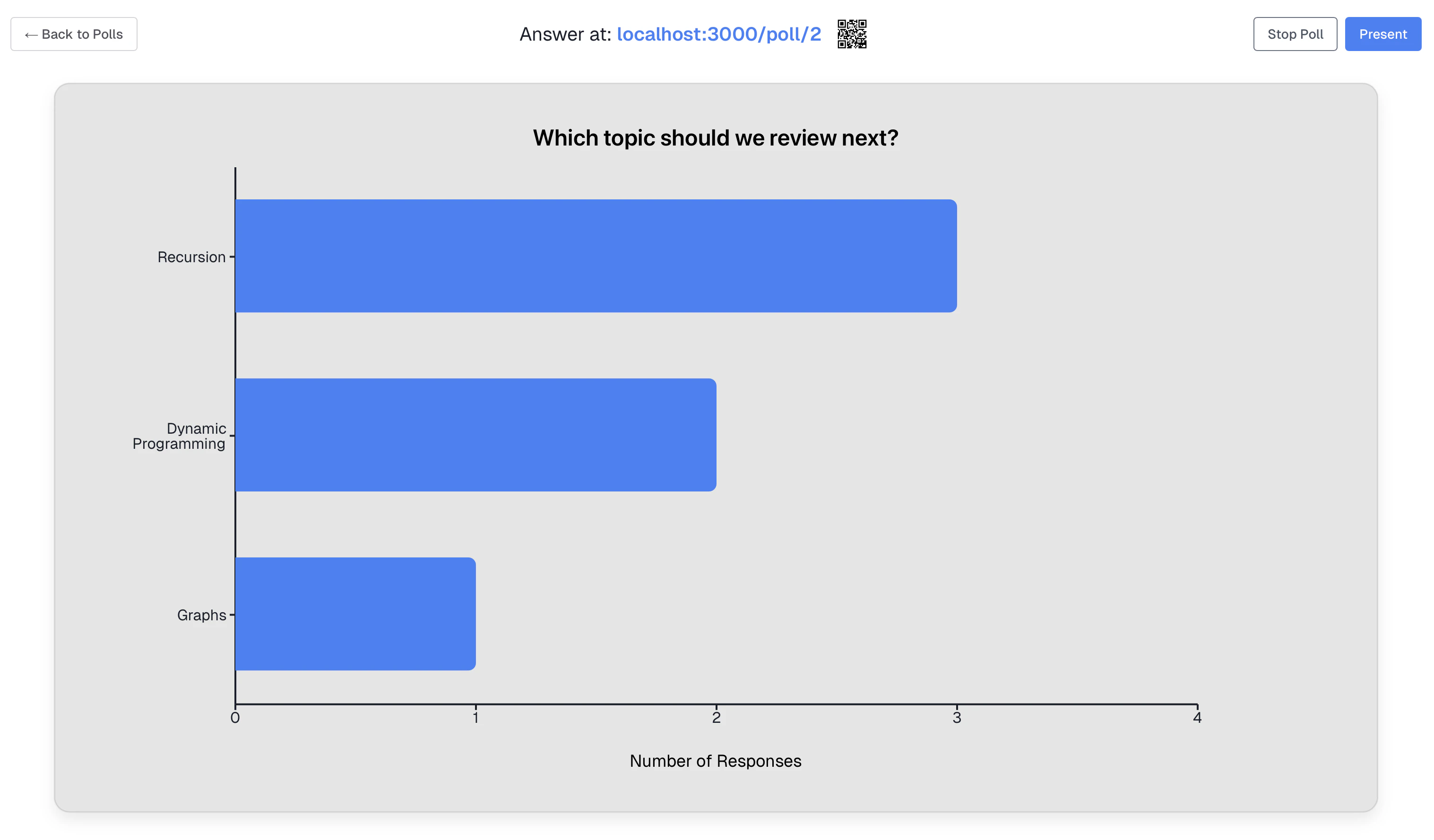
Below the header, a panel shows the question prompt as a heading and the bar chart under it, captioned Number of Responses.
The chart is the only view of the data. There is no response table, no respondent names, no total-responses figure, no percentages, and no CSV export.
Reading the bar chart
- One bar per choice, labeled with the choice text down the left edge
- Bar length is the number of responses for that choice
- All bars share one color. Bar color carries no meaning
- Counts are read off the horizontal axis, which uses whole numbers only. Hovering a bar shows its exact count as Responses
Unsupported poll question type: followed by the type.
Live updates
New responses appear without a page refresh, and the affected bar grows immediately. Every staff member with the page open sees the same updates.Live updates cover new responses only. A deleted or edited response does not decrement a chart that is already open, so reload the page if the underlying data changed some other way.
The poll link and QR code
The link ishttps://<your-pawtograder-host>/poll/<course_id>, and it is per course rather than per poll.
The QR code encodes that same URL:
- Click the thumbnail to open the code large enough to project
- The code is drawn in the browser and follows your light or dark theme, rendering light-on-dark in dark mode. There is no download button, so project it or screenshot it
- If the poll has Require login to respond checked, students who scan it are sent through sign-in first
Presentation mode
Present puts the chart panel into browser fullscreen. The header stays behind, so Start Poll, Stop Poll, and ← Back to Polls are unavailable while presenting. While presenting:- The chart and question fill the screen
- Answer at: and a larger QR code sit in the bottom-right corner
- Responses keep updating live
- The background follows your current theme, so switch to dark mode before projecting in a dark room
Starting and stopping from this page
The single toggle button reflects the poll’s state:- Start Poll opens a closed poll so students can answer
- Stop Poll closes it, keeping the existing responses and the chart viewable
Tips for projecting
- Test the QR code from the back of the room before class
- Have the URL as a backup, since it is plain text you can read aloud
- Keep choice labels short, because long labels wrap onto several lines in the narrow axis gutter
- Screenshot the chart if you want a record. Nothing here exports, and deleting the poll deletes its responses
Accessibility
- Every choice is labeled as text beside its bar, not by color
- Counts are available from the numeric axis and from the per-bar tooltip
- The Answer at: URL is a text alternative to the QR code for students whose camera scanning fails