

Polls
Polls are a quick and easy way to answer questions during class. Your instructor may use polls to check understanding, gather feedback, or spark discussion.The poll link and QR code belong to the course as a whole rather than to a single poll, so they always open whichever poll your instructor opened most recently. If more than one poll is open at the same time, the link may not open the one you expect — ask your instructor which poll they want you to answer. This is a known issue with an open report against Pawtograder, and a fix is on the way.
Answering Polls
There are two ways to reach the current poll. Both land on the same page.Via QR Code or Link
Your instructor’s poll screen shows Answer at: followed by a URL, along with a QR code for that same URL:- Scan the QR code with your phone camera, or open the URL your instructor displays
- The poll question and answer options appear
- Select your answer(s) from the options displayed
- Click Complete to send your response
Via the Polls Page
You can also access polls from inside Pawtograder:- Open your course and choose Polls from the course menu — it appears only if your instructor has enabled polls for the course
- The Live Polls page lists every poll that is currently open, one row per poll
- Click Answer Poll. The poll opens in a new browser tab
- Select your answer(s) and submit
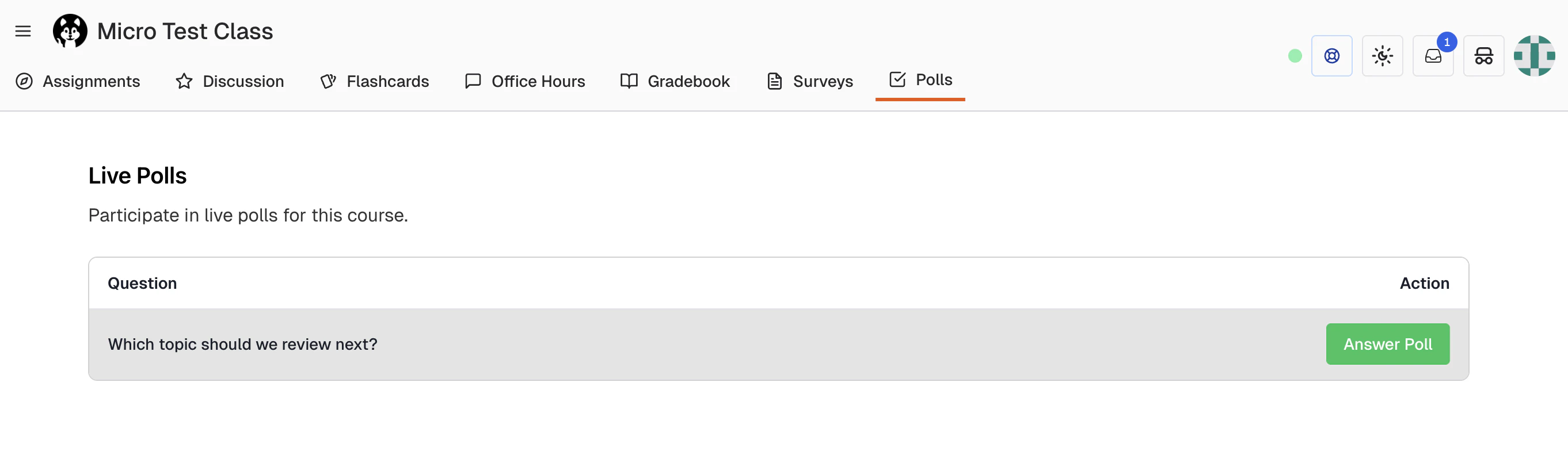
Every Answer Poll button opens the same page, and that page shows the newest open poll. If more than one poll is listed, check with your instructor about which one to answer.
Login Requirements
Polls can be configured by your instructor to require login or allow anonymous responses:If a poll requires login and you’re not signed in, you’ll see a Login Required screen with a Sign In button that returns you to the poll after you authenticate.
Poll Types
Your instructor builds the question, so what you see depends on what they authored. The poll builder offers two types:Single Choice
- Select exactly one answer from the options
- Uses radio button selection
- Clicking a new option automatically deselects your previous choice
Multiple Choice
- Select one or more answers from the options
- Uses checkbox selection
- Choose all options that apply to the question
Answering is required by default. If you leave a question blank, the poll will not submit until you pick something.
Submitting Your Response
- Review your selected answer(s)
- Click Complete
- A Thank You! screen confirms that your response was submitted
- Login required: your first response is final. A second attempt shows “You have already submitted a response. Polls with login require you to submit only once.”
- Login not required: the confirmation screen invites you to refresh the page to answer again
Poll Availability
- Polls are only available while your instructor has them open — they use Start Poll and Stop Poll on their poll screen
- Once your instructor closes a poll, it disappears: it drops off the Live Polls list, and the poll page reports that no poll is available
Troubleshooting
”No Live Polls Available”
- Your instructor doesn’t have any polls open right now
- Wait for your instructor to start a new poll
- The Live Polls page updates on its own when a poll opens, so you don’t need to reload it
”No Live Poll Available”
- The poll tab does not refresh itself. Reload it to pick up the poll your instructor just opened
- If reloading doesn’t help, your instructor hasn’t started a poll yet
QR code not scanning
- Make sure your camera is focused on the QR code
- Try moving closer or adjusting the angle
- Use the URL shown next to Answer at: on your instructor’s screen instead
Login prompt appears
- The poll requires authentication
- Sign in with your Pawtograder credentials
- After signing in, you’ll be redirected back to the poll
Tips for Students
- Have your device ready: When your instructor announces a poll, be ready to scan the QR code quickly
- Read carefully: Take a moment to read the question and all options before answering
- Don’t overthink: Polls are usually meant for quick responses, not extended deliberation
- Ask questions: If you don’t understand the poll question, ask your instructor for clarification