

Office Hours
Pawtograder’s office hours, if enabled by your instructor, let you ask course staff for live help. Your request joins a help queue that any instructor or grader in your course can see and pick up, whether or not they are the person scheduled on that queue. The queue’s open requests are listed oldest first, and nothing you or anyone else does moves a request up that list: filing a second request, editing the one you have, or asking again in chat will not get you seen sooner. The position in the queue shown on your request counts the requests in that queue filed before yours that are still open or still being worked on, so it falls as those are finished. It is not a promise about the order staff will work in — a staff member may take a question they can answer quickly, or one in an area they know well, ahead of an older one. File your request once and leave it open — watch its chat for a reply, and add anything else you have learned there rather than filing again. Requests are public by default. Public requests stay visible to your classmates, so someone with the same question can read the answer instead of asking again. You can mark a request private instead, which limits it to course staff and the students named on it.Submitting a Request
The new-request form, field by field.
During Your Request
Queue position, chat, video calls, and the floating widget.
Resolving and Feedback
Close your own request and rate the help you got.
Get Help Button
A Get Help button sits in the bottom-right corner of course pages. Only students see it, and it is absent in two situations: on the office hours pages themselves, and while you have an open request, when a widget for that request takes its place. The button carries a short status line. You’ll see “Staff ready now!” when the default queue is staffed and nothing is waiting, or “Queue is short” when fewer than five requests are open.Help Drawer
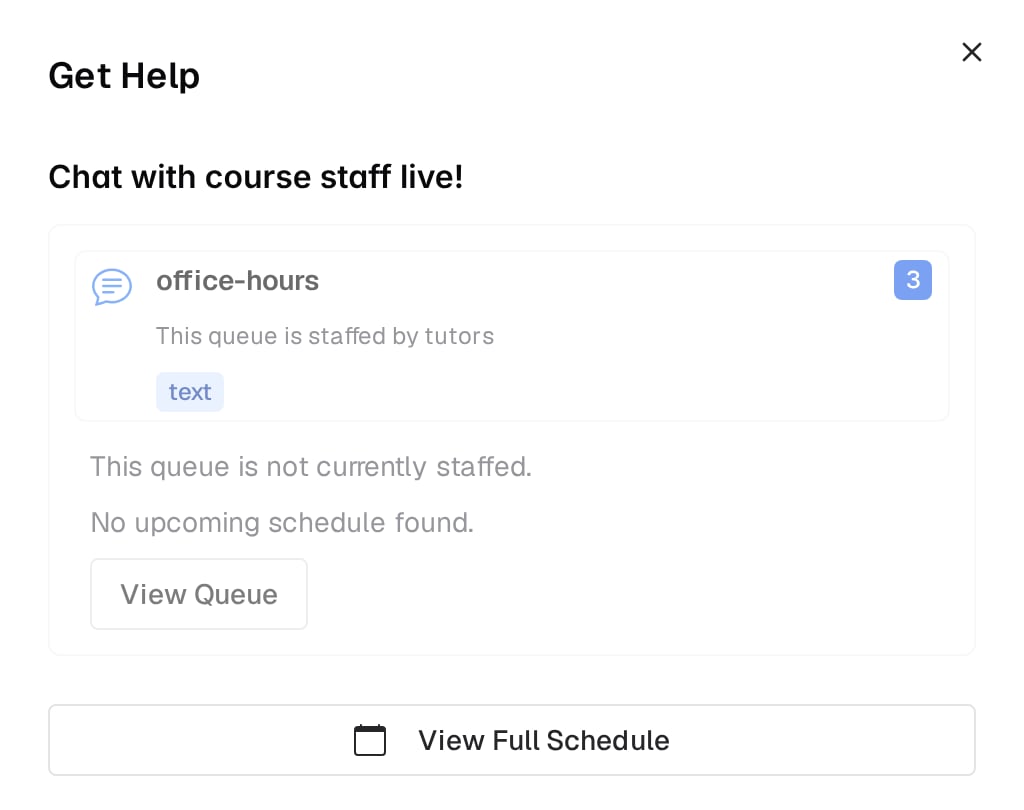
Clicking Get Help opens a right-side drawer, also titled Get Help:- About Office Hours in your course: your instructor’s office hours description, when they have written one
- Pinned Discussion Posts: an expandable list of pinned threads, with a Browse All Discussion Posts button
- Your Active Request: the status and queue position of your open request, with a View Request button
- Chat with course staff live!: one card per queue that is accepting requests
Browsing Queues and Your Requests
The office hours page has two views, switched by the links at its top left:- Browse Queues, the default view, lists the queues on the left. Pick one to see its description, its Upcoming Schedule (the next five sessions, with a session in progress marked 🟢 Now), and its open requests. View Full Schedule opens that queue’s weekly schedule.
- My Requests lists your open requests and then your resolved ones, including group requests you were added to.
Finding Requests Like Yours
Someone may have asked your question already. The search box in the office hours header matches request text, student names, queue names, and request IDs. It shows up to six matches as you type, and pressing Enter opens the full Search Help Requests page, where you can also filter by status and by queue. You can open a classmate’s public request and reply in its chat. You cannot add yourself to it as a participant, and you won’t get its notifications unless you press Watch on it. The chat becomes read-only once a request is resolved or closed.If You Are Banned from Office Hours
Course staff can ban a student from office hours. While a ban is active, every office hours page is replaced by a notice giving the reason, whether the ban is permanent, and the time remaining when it isn’t. You cannot submit requests, use office hours chat, or join video calls until it lifts. A warning issued without a ban appears above the page instead, and you keep full access.See also
- Submitting a Request for the form and its rules.
- Discussion Board for asking asynchronously when nobody is on duty.