

Grading Status
Grading progress for an assignment is reported on two surfaces. The assignment’s Dashboard tab carries an assignment-level grading panel, and the Grading Progress Dashboard tab on the Grading Assignments page breaks the same work down per TA. Both are available to instructors and graders. There is no course-wide grading status view.Assignment-level grading panel
On the assignment’s Dashboard tab, the grading panel reports:- Graded and Released, each as a count out of the total number of submissions.
- Not submitted, shown when at least one enrolled student has no active submission.
Per-TA Grading Progress Dashboard
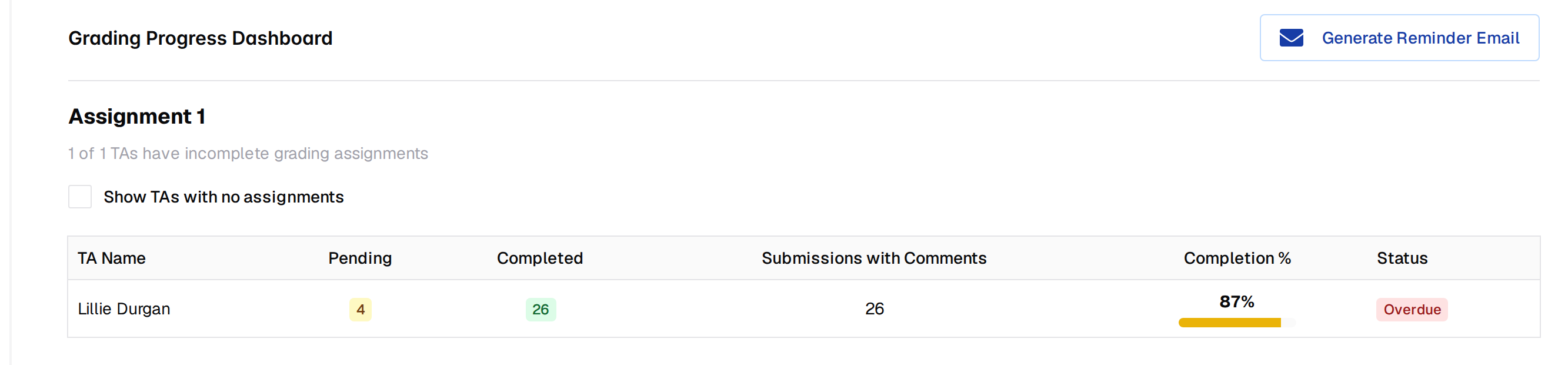
- TA Name
- Pending and Completed review-assignment counts
- Submissions with Comments
- Completion %, with a progress bar
- Status: Complete, Overdue, In Progress, or No Assignments
/grading-progress route, which is not linked from
the assignment navigation.
Review states
A submission review is in one of four states:- Not started — no rubric items have been graded.
- In progress — some required checks applied; review not complete.
- Completed — all required checks applied. Not yet visible to the student.
- Released — the instructor has released the review to the student.
Completing a review does not release it. Releasing is a separate step
performed by an instructor; see Handgrading.
Actions
The Grading Progress Dashboard has exactly one action: Generate Reminder Email. Pick a deadline, which defaults to the assignment due date plus seven days, and Pawtograder builds a reminder listing each TA’s outstanding work and copies it to your clipboard. It does not send anything, so paste it into your own mail client. Reassigning work and editing review due dates happen on the parent Manage Review Assignments page, not here. See Assigning Grading Tasks. For release and unrelease across selected submissions, see Bulk Actions.Best practices
- Distribute submissions evenly using bulk assignment. The dashboard surfaces overloaded graders.
- Check the dashboard a few times during each grading window so bottlenecks don’t slip past the release deadline.
- Spot-check a sample of each grader’s work. The Submissions with Comments column shows how often a grader left feedback, which makes light-touch grading easy to spot.