

Bulk Actions
Pawtograder exposes several bulk operations across an assignment’s submissions so instructors don’t have to click through one submission at a time. All of them live on either the Submissions table on the assignment’s Dashboard tab or the Grading Assignments page.Selecting rows
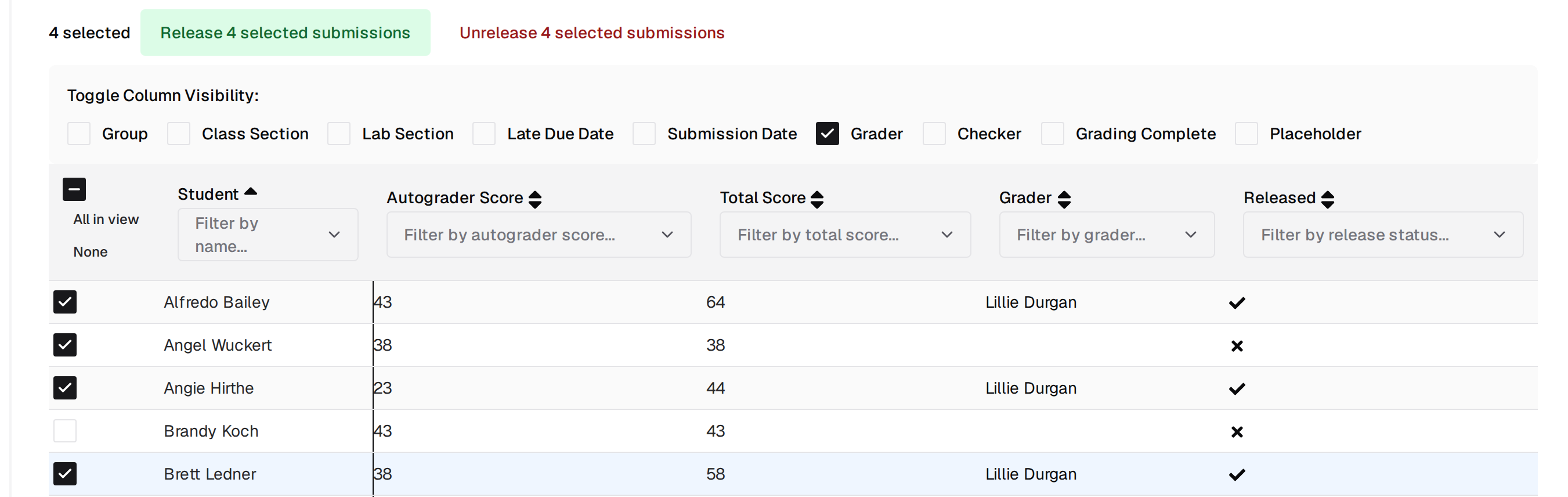
The submissions table supports row selection via the leftmost checkbox column:- Click an individual checkbox to toggle a row.
- Click All in view in the column header to select every row that matches the current filters.
- Click None to clear the selection.
Finalize grading
The Finalize grading button on the assignment’s Dashboard tab marks every eligible incomplete review complete in one step. It is intentionally not scoped to your row selection: it always acts on every eligible review in the assignment. A review is eligible when:- All required rubric checks have been applied.
- Every criterion’s minimum and maximum check counts are satisfied.
- The submission is a student’s active submission and that student has not dropped the course.
- The review is not already complete.
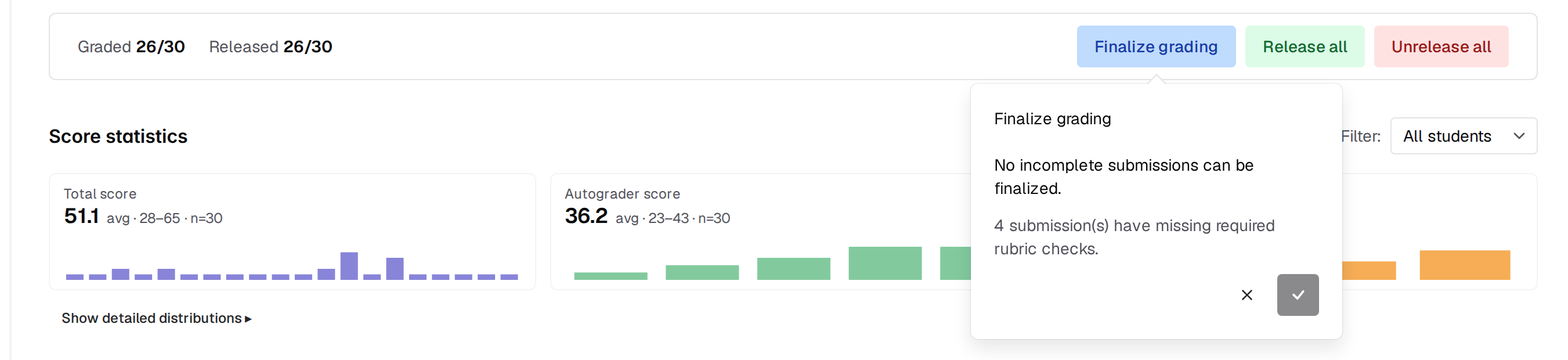
Completing a review does not release it to the student. Use Release
(below) separately when you’re ready to make grades visible.
Grading Progress dashboard
There is no second, finer-grained bulk-completion flow. The Grading Progress Dashboard tab on the Grading Assignments page has no bulk actions and no row selection. It reports each TA’s pending and completed counts, and its one action, Generate Reminder Email, copies a reminder message to your clipboard for you to send yourself. See Grading Status.Bulk Release and Unrelease
Once rows are selected on the submissions table, the Release and Unrelease buttons publish or retract the selected reviews. Released reviews become visible to students; unreleased reviews are hidden again and grading comments unlock for graders to edit.Reassign Grading by Grader
Reassignment is grader-centric rather than submission-centric: you pick the grader whose remaining work needs redistributing, not a set of submissions. From the Grading Assignments page, follow the Reassign Grading by Grader link, then:- Select the grader whose remaining work you want to reassign.
- Choose the rubric.
- Set how many of that grader’s incomplete submissions to reassign.
- Choose the target role (Instructors, Graders, or Instructors and graders), optionally filter those staff by tag, and optionally name specific assignees.
- Choose a load-balancing strategy: Balance based on new assignments or Balance based on all assignments.
- Set the review due date.
- Click Prepare Reassignments, adjust the draft in the drag-and-drop preview, then click Reassign.
Bulk Review Due Date Updates
The Bulk edit grading due dates and Bulk edit self-review due dates buttons on the Grading Assignments page update many review deadlines at once:- Choose a rubric (required).
- Set the new due date and time.
- Optionally check Only rows not yet completed to skip finished reviews.
- Click Apply to matching rows.