

Course Settings
Course Settings is a menu, not a page. Its trigger is a button with no link: clicking it opens the menu and the address in your browser does not change. Every course-wide setting lives on one of the menu’s 14 entries, so this page is an index — find the entry you want below, then follow the link for the details.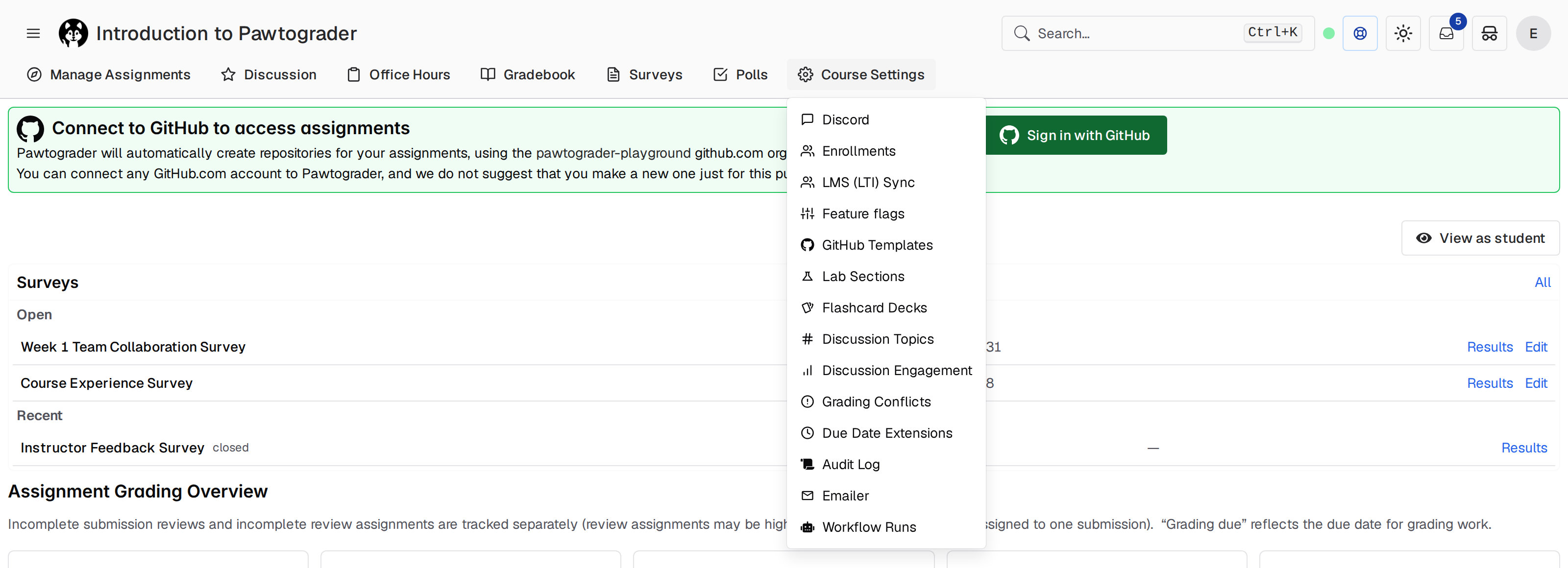
The 14 entries
Routes are relative to/course/<course_id>/.
Two entries do not match the route they open, which matters if you are reading
URLs or bookmarking pages. Lab Sections opens
manage/course/lab-roster, and
Emailer opens manage/course/emails.discussion feature flag is on for your course. Turn it on under
Course Settings → Feature flags.
What graders see
A grader’s menu is a subset of an instructor’s. Graders see five entries: Discord, Lab Sections, Flashcard Decks, Discussion Engagement, and Grading Conflicts. The other nine — Enrollments, LMS (LTI) Sync, Feature flags, GitHub Templates, Discussion Topics, Due Date Extensions, Audit Log, Emailer, and Workflow Runs — are instructor-only. On Grading Conflicts, a grader sees only their own conflicts and is told to contact an instructor about anyone else’s. Instructors see the whole class.Course time zone
Each course has its own time zone, and every date and time rendered inside the course uses it: due dates, deadlines, countdowns, date pickers, and timestamps. The course time zone is not editable from the course interface. There is no time zone field on any Course Settings entry. If your course needs a different time zone, ask a Pawtograder administrator to change it. When a course has no time zone configured, Pawtograder falls back toAmerica/New_York.
Each viewer can switch their own display to their browser’s local time zone
through Time Zone Settings in the user menu, and Pawtograder offers the
choice automatically on your first visit if the two time zones differ. The
preference is stored per browser in localStorage.
Switching your display to your browser’s local time zone affects only your own
browser. It does not change the course’s configured time zone or what anyone else
sees.