

GitHub Help
Pawtograder creates a GitHub repository for each of your assignments inside your course’s GitHub organization. When that goes wrong, almost every symptom traces back to one of four causes: you have not joined the course organization yet, you are signed in to GitHub as a different account than the one Pawtograder has on file, your GitHub username changed, or the assignment has not been released yet. This page walks through each one. A fifth symptom looks the same but is not an access problem at all: a rejectedgit push --force. Most assignments block force-pushes to your default branch, so a force-push after a rebase or an amended commit fails even when your access is perfectly fine. See If You Pushed and Nothing Happened.
Your starting point is the GitHub Access Troubleshooting page, which shows you exactly which GitHub account Pawtograder thinks you are and which repositories that account should be able to open.
Opening the GitHub Access Troubleshooting page
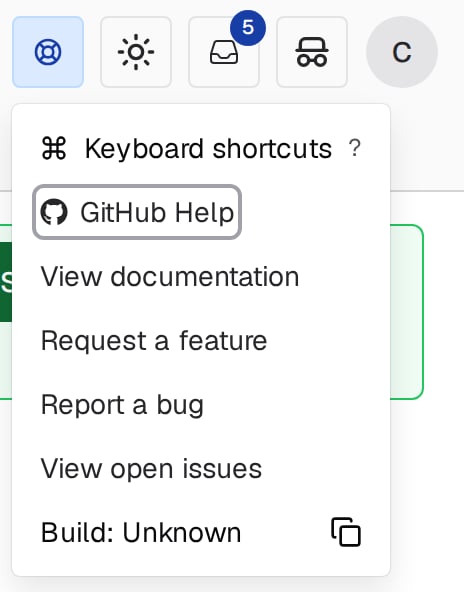
Open the Support & Documentation menu in the top-right corner of any course page and choose GitHub Help. You can also pressg then h, or search for “GitHub help” in the global search palette.
- The GitHub username and numeric GitHub user ID your Pawtograder account is linked to
- Every repository that account should be able to open on GitHub.com, each one a direct link. The list covers your individual repositories and the repositories of any assignment groups you belong to.
- A Sync GitHub Account button, described below
If your repositories are missing
Work through these in order, because each step rules out a different cause.1
Check that you have joined the course organization
If the Join course GitHub organization to access assignments banner is showing on your dashboard, that is the problem: until you accept the invitation, Pawtograder cannot create repositories for you at all. See If the organization invitation never arrived.
2
Check that the assignment is released
Pawtograder only creates repositories for assignments that have been released. An assignment your instructor has set up but not yet released has no repository yet, and nothing you do on this page will produce one.
3
Compare the username on the page to the account you are signed in to
Open GitHub.com in the same browser and check which account you are signed in as. If it is not the username shown on the GitHub Access Troubleshooting page, sign out of the other account and sign in as the linked one.
4
Try the repository links in your browser
Click one of the repository links on the page.If the repository opens in your browser but you cannot clone, fetch, or push it from your computer, the problem is between your computer and GitHub, not between Pawtograder and GitHub. Bring that result to your course staff: it saves them from re-checking the Pawtograder side.If you can clone and fetch and only your push is rejected, your access is fine and this is not the page you need. See If You Pushed and Nothing Happened.
5
Re-sync your GitHub account
If you are certain you are signed in as the linked account and the repositories still are not there, click Sync GitHub Account.
Sync GitHub Account
Sync GitHub Account re-reads your account from GitHub and repairs what it finds:- It updates your stored GitHub username from GitHub itself, so a username change is picked up
- It re-invites you to your course organization’s student team, and marks your organization membership confirmed if you are already in it
- It creates any missing repositories for released assignments and re-applies the correct permissions to your existing ones
Pawtograder also runs this sync for you automatically when you log in, as long as you still have a course where your organization membership is unconfirmed. So if you accepted an invitation and the banner is still showing, logging out and back in is worth trying before you spend your manual sync.
If the organization invitation never arrived
Until you join your course’s GitHub organization, Pawtograder cannot create repositories for your assignments, and it shows a Join course GitHub organization to access assignments banner. The banner appears on your course dashboard, on your assignments list, and on each assignment page, so you can act on it wherever you notice it. It disappears once your membership is confirmed. The banner offers:- Open GitHub Organization Invitation: opens your course organization’s invitation page on GitHub.com, where you accept it. GitHub sends the invitation to the email address on the GitHub account you linked, which is not necessarily your university address.
- Help: a popover repeating which GitHub account you linked and the date and time the invitation was sent
- Resend invitation: sends a fresh invitation, subject to the limit below
If your GitHub username changed
Renaming your account on GitHub does not break the link to Pawtograder, but Pawtograder keeps showing the old username until it re-reads your account. Open the GitHub Access Troubleshooting page and click Sync GitHub Account. The sync looks you up by your numeric GitHub user ID, which a rename does not change, and updates the stored username. Refresh the page afterwards.If the wrong GitHub account is linked
Switching Pawtograder to a different GitHub account is not currently supported, and there is no self-service way to unlink the one you connected. Contact your instructor.Related pages
- Welcome to Pawtograder: the one-time setup for logging in, connecting GitHub, and joining the course organization
- Getting Help: reach your course staff when the steps above do not resolve it