

Running Office Hours
Staff put themselves on duty one queue at a time. Nobody schedules you here: you start working a queue when your shift begins, and stop when it ends.Going on duty
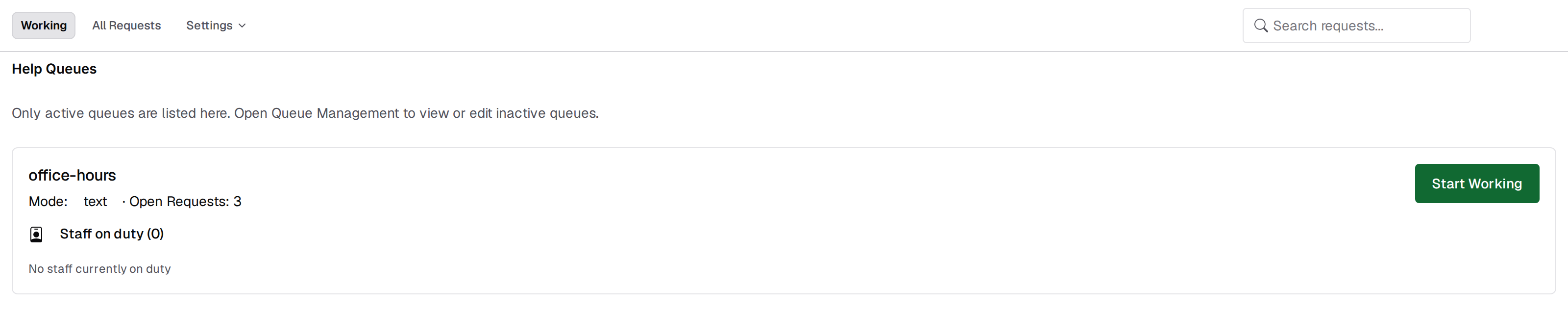
Starting work always records a concurrent-student limit of
1. There is no control for changing it, and it does not limit how many requests can be routed to you at once. Assignment Management displays the value. This is a known issue with an open report against Pawtograder, and a fix is on the way.Staffing times and the schedule
Each queue card lists the staff currently on duty, the end time of the shift in progress with the time remaining, and the start of the next scheduled shift. Those times come from the course’s office hours calendar, not from the assignment rows: an event counts toward a queue when it is explicitly linked to the queue, or when the event’s queue name matches the queue’s name, ignoring case. With nobody on duty the card reads “No staff currently on duty”. When the course has an office hours or events calendar configured, a Today’s Schedule strip appears above the queue list with buttons for the previous day, today, and the next day. Set the calendar under Course Settings → Discord, in the Calendar Integration section. See Course Settings.Two banners you may see
A Real-time updates disconnected warning means queue status and new requests may be stale until the connection recovers. A Notifications are blocked warning means the browser has denied notification permission, so you will not be alerted to new student messages; the banner tells you to allow notifications from the lock icon in the address bar.See also
- Staffing and Time Tracking for the record of shifts you have worked and the per-TA time dashboard.
- Office Hours Overview for the header, the Settings menu, and finding any request.