

Audit Log
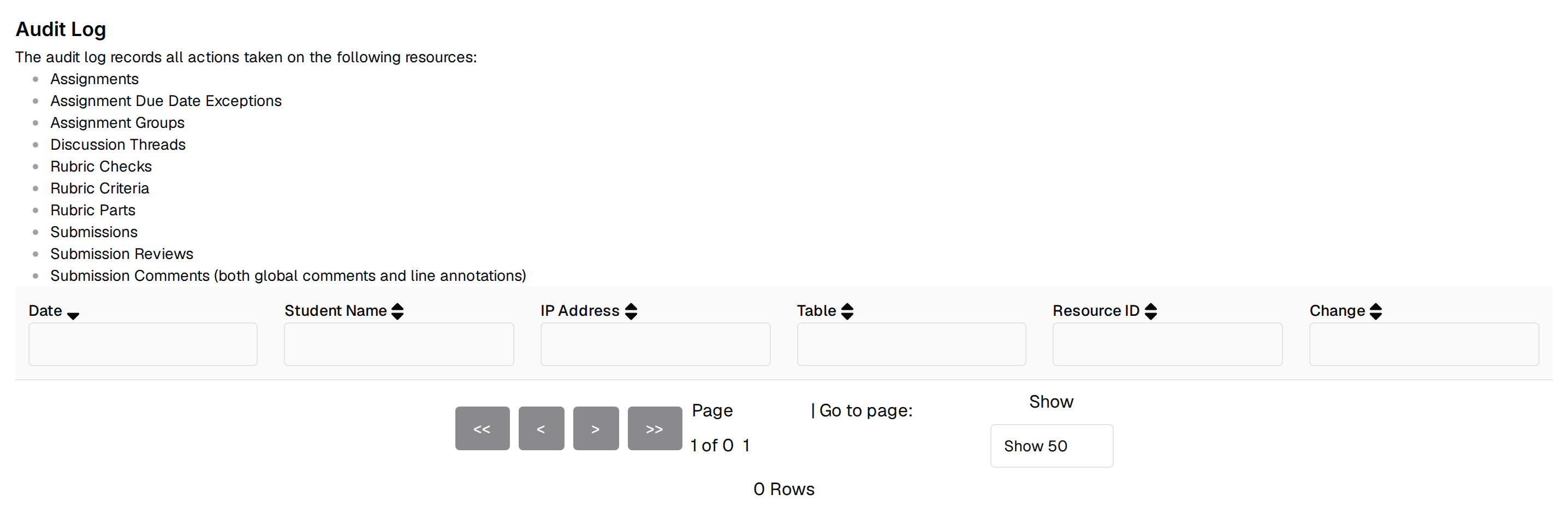
Course Settings → Audit Log is a read-only table of record-by-record changes to your course’s data: who changed what, when, and from which IP address. The menu entry is instructor-only, and the page lives at/course/<course_id>/manage/course/audit.
There is nothing to configure. Recording is always on: you cannot choose what
the log covers, turn it off for your course, or edit or delete an entry once it
exists.
What gets recorded
Every recorded change produces one row, carrying:- When the change happened.
- Who made it — the account, resolved against your roster for display.
- What kind of course record changed — an assignment, a rubric check, a gradebook column — shown in the Table column.
- The change itself — the full record before and after, as JSON.
- The IP address the change came from.
- Assignments, assignment due date exceptions, assignment groups, and assignment group membership
- Rubric parts, rubric criteria, and rubric checks
- Submissions, submission reviews, and submission comments (both global comments and line annotations)
- Gradebook columns and gradebook cell values
- Discussion threads
- Profiles and student tags
- Lab sections and lab section meetings
What does not get recorded
- Most deletions. Insert and update are recorded everywhere, but delete is recorded only for rubric parts, criteria and checks, due date exceptions, assignment group membership, lab section meetings, tags, gradebook columns, and gradebook cell values. Deleting an assignment, a submission, a submission comment, a discussion thread, an assignment group, a profile, or a lab section leaves no audit row.
- Reads. The log records writes. Nobody’s viewing of a submission, a grade, or a student’s profile is recorded.
- Anything outside those record types. Office hours activity, help requests, polls, surveys, flashcards, enrollment changes, feature flag changes, emails sent from the Emailer, and workflow runs are not in the audit log.
Can you see who changed a grade?
For grades, yes — with a caveat about which column tells you who.- Gradebook cell edits and overrides are recorded, as inserts, updates, and deletes on the gradebook’s per-student values.
- Gradebook column changes — adding a column, editing its expression or maximum, releasing it — are recorded.
- Rubric-based grading is recorded through submission reviews and through submission comments and line annotations, which is where applied rubric checks live.
Reading the table
The table has six columns: Date, Student Name, IP Address, Table, Resource ID, and Change. Rows are sorted newest-first by default; click any header to sort by it. Change shows only the top-level fields whose values differ, asWas: and
Now: pairs. A field that gained a value shows just the new value; a field that
lost one shows Removed. Hover a field name for the raw JSON of both sides.
Fields whose values are themselves objects or arrays are left out of the diff,
and if neither side of the change is an object the cell reads Change not
displayable as object diff.
Resource ID identifies the record after the change, so it is empty for
recorded deletions — a Resource ID filter will never match one.
Filtering
Every column header has a text box under it. Typing in it filters the rows already loaded, in your browser, on a case-insensitive substring match; it never goes back for rows it does not already have. The Date box matches the date as it is rendered, so you are searching the displayed text rather than a date range; there is no from/to date picker.The page loads every audit row for your course before filtering or paginating
any of them. On a busy course this makes the first load slow. Paging controls at
the bottom let you show 25, 50 (the default), 100, 200, or 500 rows at a time,
and the row count under them reflects your active filters.
There is no export
The audit log has no download or Export to CSV control, unlike most other staff tables. See Exporting Course Data for what can be exported. If you need audit rows in a file, ask a Pawtograder administrator.How far back the log goes
90 days. Entries are discarded a whole day at a time once they pass 90 days old, by a job that runs nightly. Dropped days are gone permanently — there is no archive or cold copy inside the product. The 90-day window is fixed platform-wide. It is not configurable per course or per deployment.Who can read it
The Audit Log menu entry appears for instructors only; graders do not see it. Staff pages admit both instructors and graders, so a grader who types the URL reaches the page.Related
- Course Settings — the rest of the Course Settings menu
- Gradebook — where the recorded grade changes are made
- Rubrics and Grading Assignments — the recorded grading actions
- Extensions — due date exceptions, which are recorded including deletions