

Help Requests
A help request is one student question, or one group’s question, from the moment it is filed until it is resolved. Open a request from the Working view, from All Requests, from search, or from the sidebar on any request page.Claiming and releasing
Start Helping assigns the request to you and moves it to in progress. Your name and a Helping badge appear for the student, along with a timer. That timer counts from the request’s last update rather than from the moment you claimed it, so treat it as a rough figure and use Time Tracking for real durations. Stop clears the assignee and returns the request to the queue as open. Assignment is not exclusive. Any instructor or grader in the course can claim, resolve, or reassign any request, whether or not they are working that queue.The request view
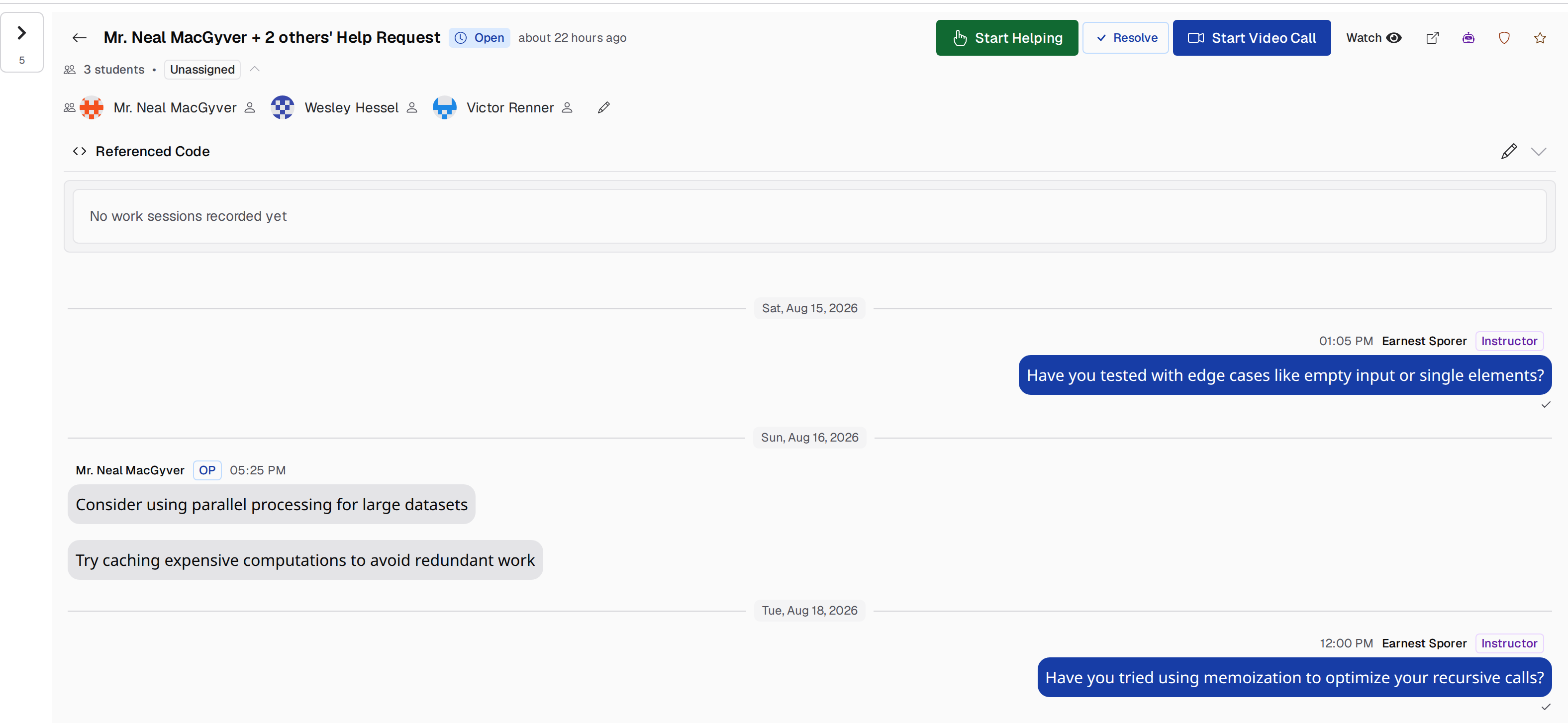
- Watch and Unwatch, which control whether you receive notifications for this request.
- Pop out chat, which opens the conversation in its own window so you can keep the queue in view.
- Get AI help, which copies a prompt about this request to your clipboard.
- A Discord link, Moderation, and Karma, all staff-only. See Moderation and Karma.
- Start Video Call when no call is running.
Students and referenced code
Edit student list adds or removes students on a request, subject to at least one student remaining. Use it to merge two students who came to office hours with the same question into one conversation. Students can attach a submission, specific files from it, and line numbers, and staff see those references inline. Edit code references lets you change them.Video calls
Only instructors and graders see Start Video Call, and it works on any queue whatever the queue’s type. Once a call is live, everyone who can see the request gets Join Video Call and staff also get End Call.Work session history
Pawtograder records a work session automatically whenever a request is assigned, and closes it when the request is unassigned, handed to someone else, or resolved. Each session stores the queue depth and the longest wait in the queue at the moment it opened, which is the context you want when reading a long session later. The panel lists sessions newest first with the TA, duration, queue depth, and start and end times, and totals them when there is more than one. Instructors can delete a session. The edit button reports that editing is coming soon. The same sessions drive the course-wide dashboard described in Staffing and Time Tracking.Resolving
Any instructor or grader, and any student named on the request, can resolve it. Students pick a reason when they do (see Resolving and Feedback); staff do not get that dialog.
When staff resolve a request, no resolution status or note is recorded, only who resolved it and when. If you want data on how requests actually ended, ask students to resolve their own.
closed. The only route to it is pawtograder help-requests close, which is instructor-only and defaults to that status. See Command Line Interface.
Once a request is resolved or closed, its chat becomes read-only for everyone and reads “This is a historical chat view. New messages cannot be sent.”
Student feedback
Instructors get Help Request Feedback under Settings → Feedback, which collects the thumbs-up and thumbs-down ratings students leave when they resolve a request, along with any comment. Counters at the top give total, positive, negative, and how many carry a comment. You can search by comment or student name, filter to positive or negative, and open the request each rating came from. Feedback is not anonymous: each card names the student. Graders cannot see this page or its data.Notifications
Two separate mechanisms tell staff about queue activity. In-app notifications reach every instructor and grader in the course when a request is created, regardless of who is watching it or which queues they work. Demo queues send nothing. Notifications about later events, new messages and status or assignment changes, go only to users watching that request, and picking up a request does not start you watching it. Browser notifications, the sound alert, the flashing tab title, and the favicon badge fire only while the tab is in the background, and only for other people’s messages. Configure them from Notification Settings in your user menu.AI help
On a request, the Get AI help button copies a prompt to your clipboard that names the request, the class, and any referenced submission, and tells an assistant which Pawtograder MCP tools to call for the details. Paste it into an MCP-connected assistant. No model is called from Pawtograder itself, and if you have no API token yet the button opens setup instructions instead. Only instructors and graders see it. See AI Assistance for the server, the tokens, and the available tools.See also
- Office Hours Overview for All Requests and the search page.
- Office Hours for Students for what the student sees on the other side of the same request.