

Feature flags
Nine switches decide which Pawtograder modules your course uses. Six of them remove entries from the course navigation bar when you turn them off, so a procedure elsewhere in this guide that starts “open Surveys in the course menu” quietly stops applying. If a menu entry named in a procedure is missing from your course, check this page first.Opening the page
Open Course Settings → Feature flags in the course navigation bar. The entry is instructor-only. Graders never see it in the menu, and a grader who reaches the URL gets “Access denied. This page is only available to instructors.” Each flag is one card with a title, a description, and a single switch. There is no Save button and no confirmation step. Flipping a switch writes the change immediately and raises a Saved toast. If the write fails, the switch snaps back to its previous position and an error toast reports why.The global search palette lists Feature flags for all course staff, so a grader can reach the URL from search and land on the access-denied message. Only instructors can read or change the switches.
The nine flags
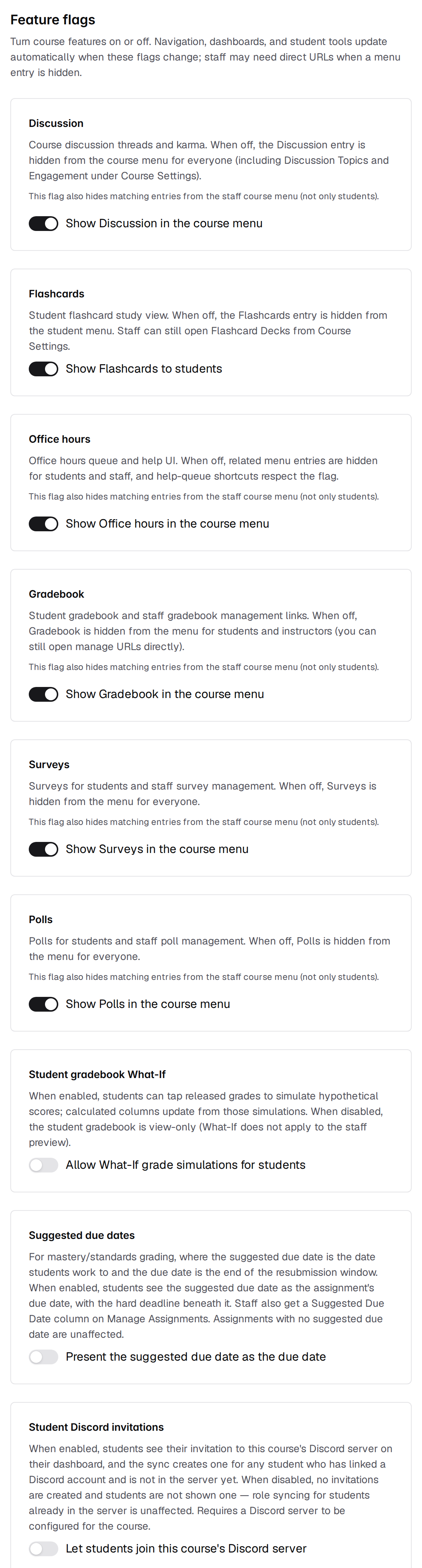
A course records only the flags an instructor has touched. Every flag you have never flipped uses the default in the table above, so a brand-new course arrives with the six module flags on and the three opt-in flags off. Turning a flag on and then off again leaves an explicit off setting rather than returning it to “unset”, but the two behave identically.
What each flag hides
The Default column above tells you the starting state. This table tells you what is absent whenever a flag is off, split by who loses it. Five of the nine flags —discussion, office-hours, gradebook, surveys, and polls — take menu entries away from staff as well as students, and the page marks those five cards with the line “This flag also hides matching entries from the staff course menu (not only students).” A sixth, suggested-due-date, changes what staff see without touching the menu, so its card carries no such line.
Flag state also reaches two places that are easy to forget. The global search palette drops the entries for a disabled module, and the
g chord shortcuts (press g, then a letter) for Office Hours, Gradebook, Discussion, Flashcards, Polls, and Surveys stop working while the matching flag is off.
The three behavior flags
Six flags only govern what appears in menus. These three change how a feature behaves.Student gradebook What-If
While the flag is on, students can click any grade card that is not itself calculated from other gradebook columns and type a hypothetical score, and the calculated columns recompute from the simulation. While it is off, the student gradebook is view-only and carries the line “Grade simulations (What If) are not enabled for this course. You can still view released grades below.” What-If has never applied to the staff view of a student’s grades, on or off. See Gradebook for how simulations interact with overrides and calculated columns.Suggested due dates
This flag is for mastery and standards grading, where the suggested due date is the date students work toward and the recorded due date is the end of the resubmission window. Turning it on presents an assignment’s suggested date to students as the due date, with the hard deadline shown beneath it, and renames the late-token control from Extend Due Date to Extend Resubmission Deadline. Assignments with no suggested due date set are unaffected either way. See Assignment Dashboard for where the suggested date appears once the flag is on.Student Discord invitations
This flag needs a Discord server configured for the course. With no server connected it has no effect in either position. While it is on, students see their invitation to the course’s Discord server on their dashboard, and the sync creates one for every student who has linked a Discord account and is not in the server yet. While it is off, no invitations are created and no student is shown one. Role syncing for students who are already in the server is unaffected.Feature flags control navigation, not access
Feature flags are a curation tool. They decide which modules your course puts in front of students and staff, and when — so you can hold Surveys or Flashcards back until the week they matter, retire Polls once you have stopped using them, and keep the course menu down to what the course is actually doing. Staff pages behave the same way, which is deliberate: a module you are not running should not clutter anyone’s menu. What a flag does not do is grant or withhold permission. Turning a module off is a statement about what the course shows, not a lock on the module’s content. Nothing is deleted or sealed away, which is what makes a flag safe to flip back and forth across a term, and it is also why a flag is the wrong tool when the requirement is that nobody may read something. The one flag that does more than curate navigation isdiscussion: with it explicitly off, Course Settings → Discussion Engagement sends you back to the course home page.
The staff search palette is gated alongside the menu, with one exception: its Manage office hours entry stays in the palette after you turn office-hours off, even though the nav entry is gone. This is a known issue with an open report against Pawtograder, and a fix is on the way.
What happens to data you turn off
Flipping a switch rewrites one entry in the course’s feature list and touches nothing else. Discussion threads and karma, flashcard decks, office hours queues and help requests, gradebook columns and scores, survey responses, and poll results all survive intact and reappear the moment you turn the flag back on. Two specifics worth knowing:- Gradebook. The
gradebookflag is read only by the navigation bar, the search palette, and the keyboard shortcuts. Turning it off hides the links; it does not stop grade calculation, imports, or releases. - What-If. Simulations are never saved. Turning
gradebook-what-ifoff costs students nothing they had saved, because there was nothing saved.
discord-student-join, described above: invitations not created while it was off are not created later on their own.
Related pages
Course Settings
The full Course Settings menu and what each of its entries does.
Finding your way around
The instructor and grader navigation sets, and which entries are flag-gated.