

Moderation and Karma
Three Settings pages deal with individual students rather than with queues: Moderation, Student Karma, and Student Activity. Every one of them is also reachable from the buttons in a request’s header, described in Help Requests.Moderation
Create Moderation Action takes a student, an action type of Warning, Temporary Ban, or Permanent Ban, a reason, and a specific help request the action relates to. A duration is required for a temporary ban, and the expiry is computed when you save. Actions are listed as cards with the type, a Permanent, Active, or Expired badge, the student, the moderator, the reason, the timestamps, and the request number, filtered by All, Active, or Expired. A warning shows the student a banner on office hours pages for seven days and takes nothing away. A ban replaces every student office hours page with a notice giving the reason and the time remaining, and blocks the chat composer. Instructors can delete a moderation record, and deleting is the only way to lift a ban early. Graders can create actions but not delete them.Student Karma
Student Karma Management holds one private note per entry: a student, a score the form limits to the range -20 to +20, and internal notes students never see. The list sorts by score, badges each entry from Excellent to Problematic, and totals the entries above and below zero. The modal offers guideline bands for the score.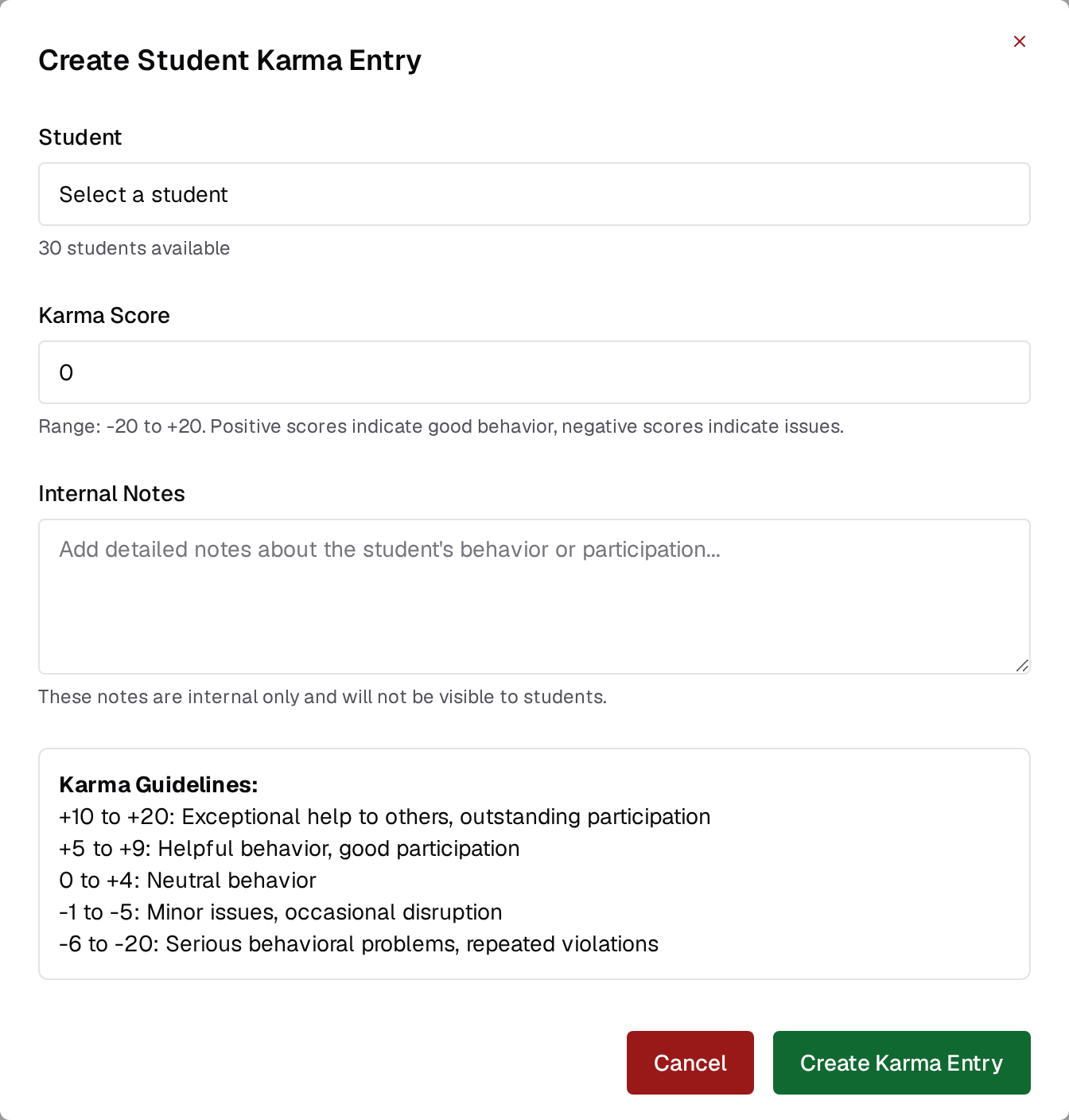
Student Activity
Pick a student and the page shows three stacked sections: their karma entry if one exists, their five most recent moderation actions, and their ten most recent office hours events, each labeled as a request created, updated, or resolved, a message sent, or a video joined or left. With no student selected it aggregates recent activity across the roster. The student picker is the only control. There is no date range and no export; for exportable numbers use Time Tracking.See also
- Office Hours for Students for what a warned or banned student sees.