

During Your Request
After Submitting a Request
Your request page shows your position in the queue and whether anyone has picked it up. Until someone does, the assignment status reads “Waiting for a TA/instructor to pick this up”. The chat sits below that, and a sidebar beside it lists the other requests in the same queue.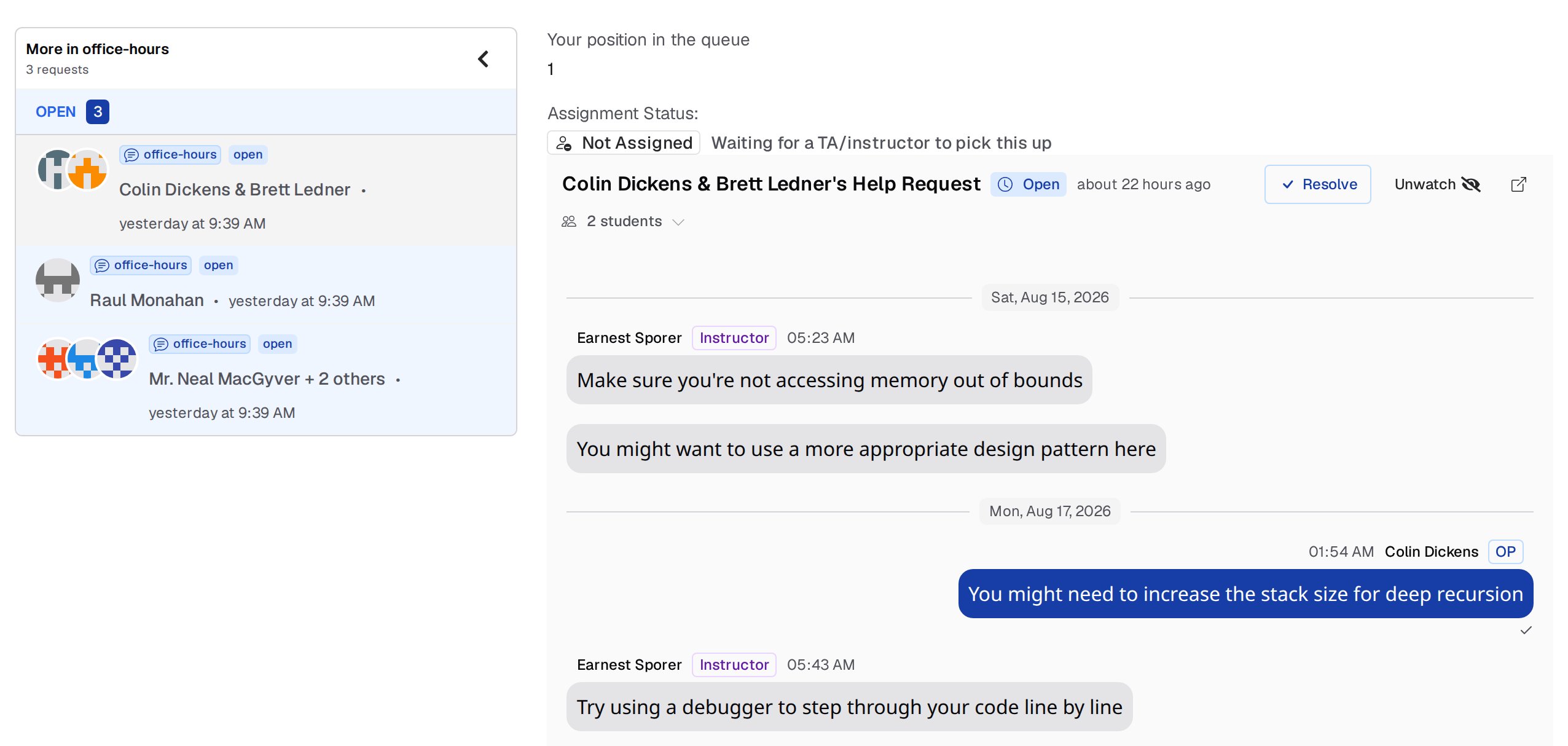
Active Help Request Widget
While you have an open request and you are elsewhere on the site, a widget in the bottom-right corner tracks it, showing the status, your queue position, and any unread messages. Expand the widget to chat without leaving the page, or use its buttons to open the full request or resolve it.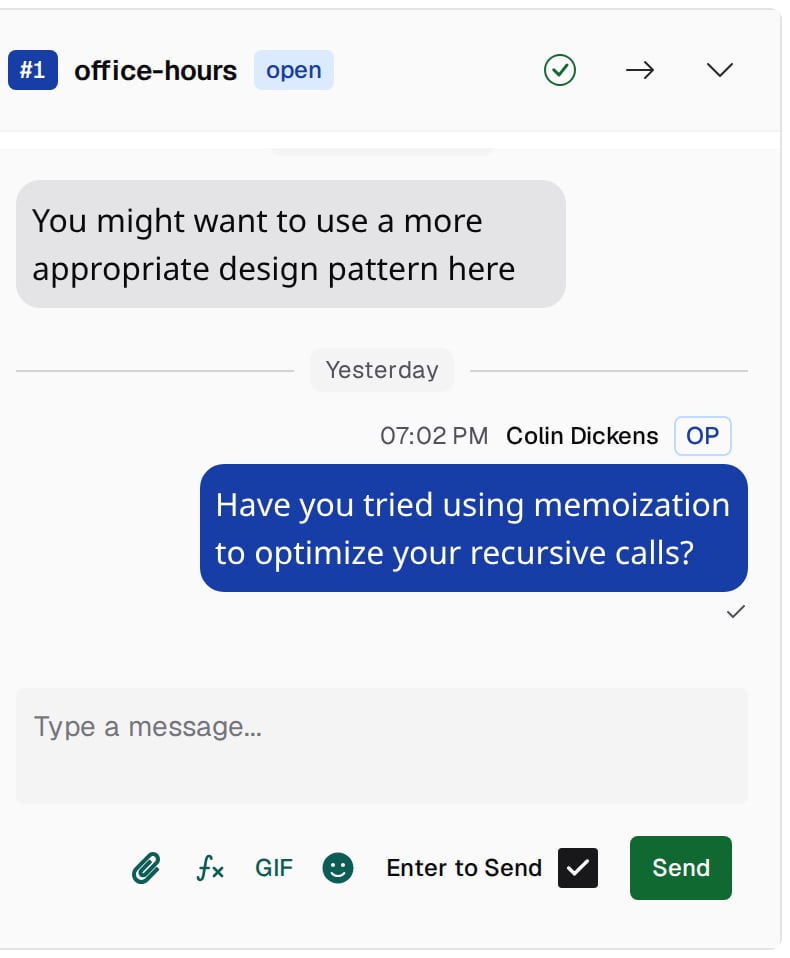
Help Request Status
Your request has one of four statuses:- Open: waiting for a staff member
- In Progress: a staff member is helping you
- Resolved: the request is finished
- Closed: the request was closed
open, in_progress, resolved, closed) rather than these display names.
Notifications
Two separate mechanisms tell you about a help request. In-app notifications arrive in your notification inbox when a staff member is assigned to a request or its status changes. You watch your own request automatically. Use Watch and Unwatch in the request header to stop following yours or to start following a classmate’s public request. Chat messages from other people trigger a desktop notification, a sound, a flashing tab title, and an unread count on the tab favicon. These fire only while you are not looking at the page, so nothing interrupts you when the tab is already in front of you. When you haven’t granted browser notification permission, your request page shows a prompt with an Enable button. Sound, tab-title flashing, and the favicon badge are on by default; you can turn each off, and send yourself a test notification, from Notification Settings in your user menu. See Notifications for the full set of channels.See also
- Resolving and Feedback for closing the request when you’re done.
- Office Hours for the queues and the Get Help drawer.